
How to Use GPT Image 2.5? Generate, Reference, and Revise AI Images
How to use GPT Image 2.5 on bikabika AI: sign in, pick the model, write a prompt, add references, revise one layer, and download the frame.
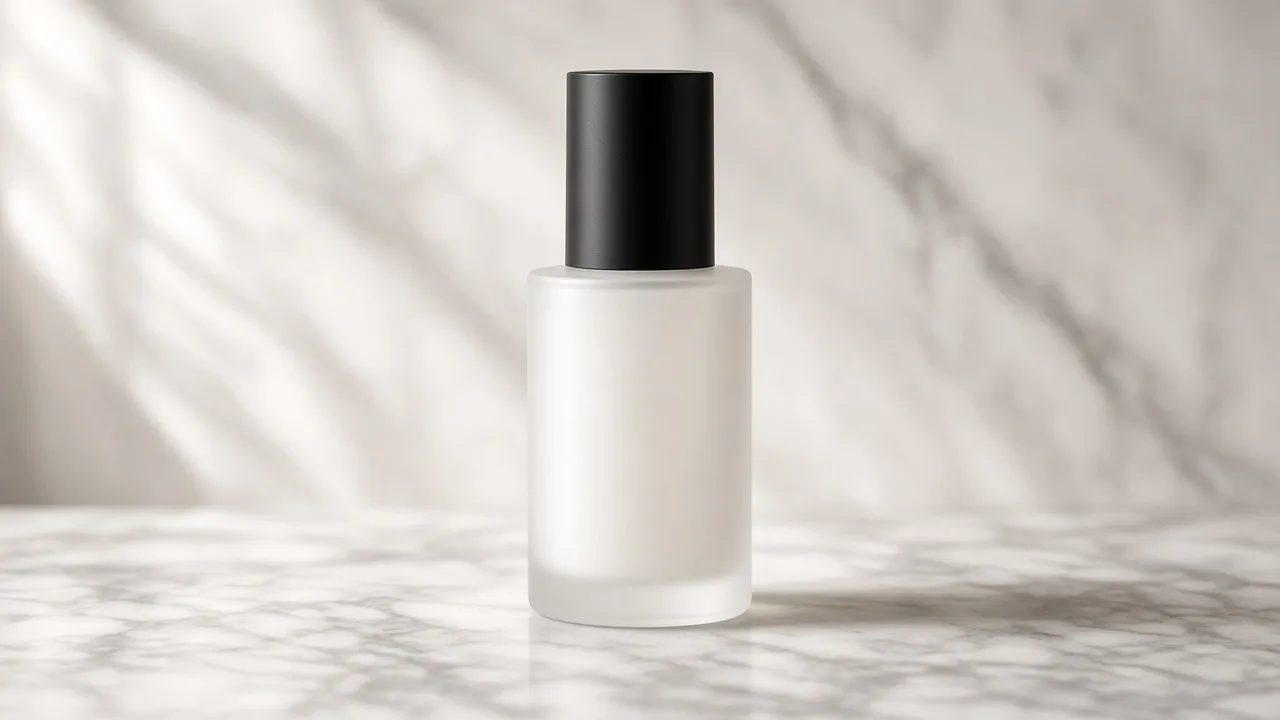
Knowing the model name is not the same as getting a frame out. On a first GPT Image 2.5 session, the usual stall is sequence: a long prompt written before sign-in, or a reference uploaded with no line about what must stay. The model is faster and holds subjects more steadily than the previous Image generation—those traits only show up if the workspace steps run in order.
This is the click path on bikabika AI, from open to download. For wording, use the GPT Image 2.5 prompt guide. For what changed in the model, see the release notes.
Open the right entry and check the model name
Either path works:
- Start from the GPT Image 2.5 model page. The generate link already sets
model=gpt-image-2.5. - Or open the AI Image Generator and choose GPT Image 2.5 in the model list.
Read the model label before you generate. GPT Image 2, Midjourney, and Nano Banana sit in the same picker. The wrong row sends your prompt and references down a different capability.
Direct workspace: image generation with GPT Image 2.5 selected.
Sign in before upload or generate
You can look around logged out. Generate and reference upload both require a session. Logged out, the button reads “Sign in to generate,” and the reference area asks you to sign in first.
Sign in, then write, upload, and generate. A login interrupt mid-draft is the most common way to lose a reference you just attached. After that, My creations keeps successful runs for preview and download.
Each run spends points. If the estimate is higher than your balance, check pricing for a plan or a points pack, then come back.
The order that avoids a wasted run
- Confirm the model is GPT Image 2.5.
- Write the prompt. Subject and identity marks first, then place, light, and the single change for this pass. Three to six hard constraints are enough.
- Open Parameters. Pick the aspect ratio that matches the crop you will actually publish. Resolution can stay off the maximum while you are still exploring.
- Add reference images only if you need them. A fresh text-to-image job can leave this empty.
- Check the estimated cost and click Generate. Stay on the page while it queues and runs; the result shows in the result area.
- If it misses, change one layer—light, background, or crop—and generate again.
- Download the keeper. Later, find it in creations by time and model.
When a reference image helps
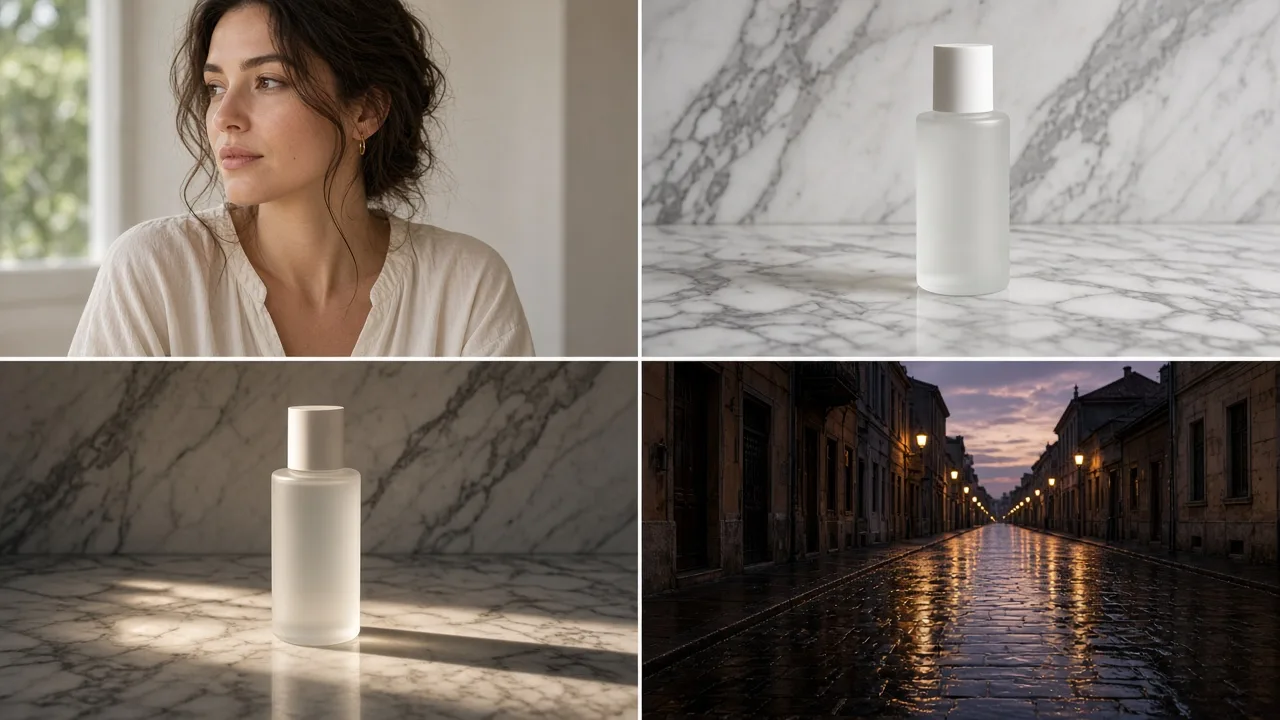
References are for image-to-image and guided edits. They are optional.
| Job | What to do |
|---|---|
| New image from a description | Prompt only, no upload |
| New background or light, same person or product | Upload the source and write what stays versus what changes |
| You already have a layout sketch | Upload the sketch; use text for style and light only |
Accepted files are JPEG, PNG, or WEBP, up to 24 MB each. You must be signed in before upload. The workspace shows the current cap; GPT Image can take multiple references, but stacking a new scene, a new outfit, and a new crop in one prompt still breaks the lock.
A usable reference line:
Keep the bottle shape and cap. Change only the background to pale marble with soft light from the left. No label text. Do not change the bottle proportions.
If the first frame misses
Do not scrap the whole prompt. 2.5’s revision behavior is built for one change per turn:
- Subject is right, light looks plastic → change light direction and shadow hardness only
- Light is right, the set is noisy → change the place, and say the subject stays
- Crop is wrong → change aspect ratio or the crop sentence only
Do not paste the previous prompt in full and bolt a new sentence on the end. The model cannot tell which line you retired. Paste-ready patterns are in the prompt guide. For how a first session feels, see GPT Image 2.5 first-use guide.
GPT Image 2 is still in the same picker
Both models are selectable. Keep GPT Image 2 when an existing prompt skeleton is already shipping and you do not need the faster revision loop. Start new work, reference swaps, and local fixes on GPT Image 2.5. A wider map is in top AI image generators to watch in 2026.
Ten minutes, one finished frame
- Open the GPT Image 2.5 workspace and sign in.
- Confirm the model name.
- Write a short prompt: subject, light, and what must not appear.
- Set the aspect ratio, skip references, and generate once.
- Revise one layer if needed. Upload a reference only when identity has to stay locked.
- Download, or reopen the frame later in creations.
Using GPT Image 2.5 is mostly sign-in, the correct model, and a prompt that separates keep from change—not turning every control to max. Start at GPT Image 2.5 on bikabika AI.