
GPT Image 2.5, from imagined scenes to detailed image edits
GPT Image 2.5 is OpenAI's image generation and editing model family. Describe an idea in words or continue from an existing image, bringing subjects, scenes, styles and details together in a visual work.
Choose a model, enter a prompt and adjust the settings to generate, preview and refine images on this page.
Open full workspaceEstimated cost—pts
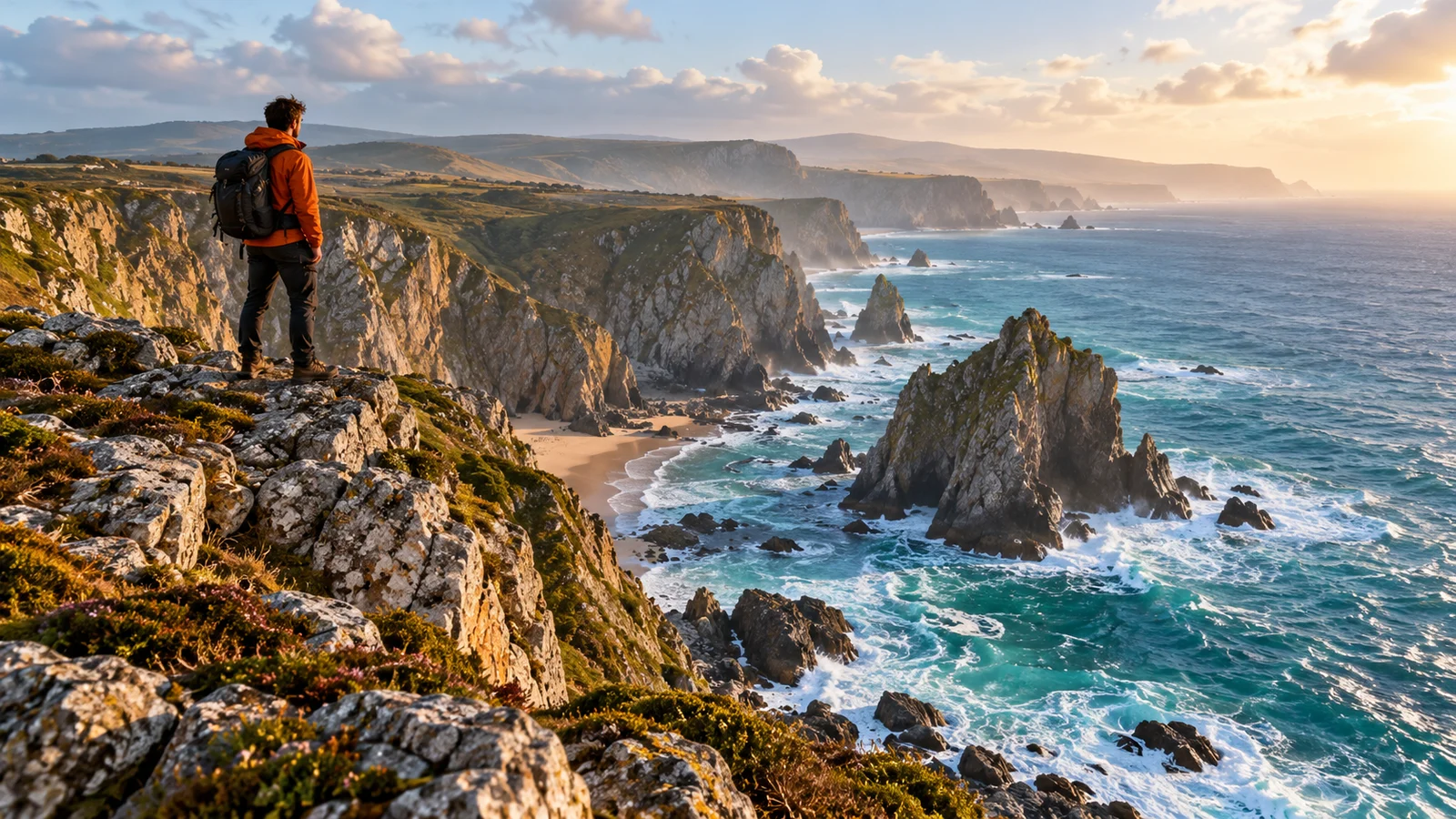
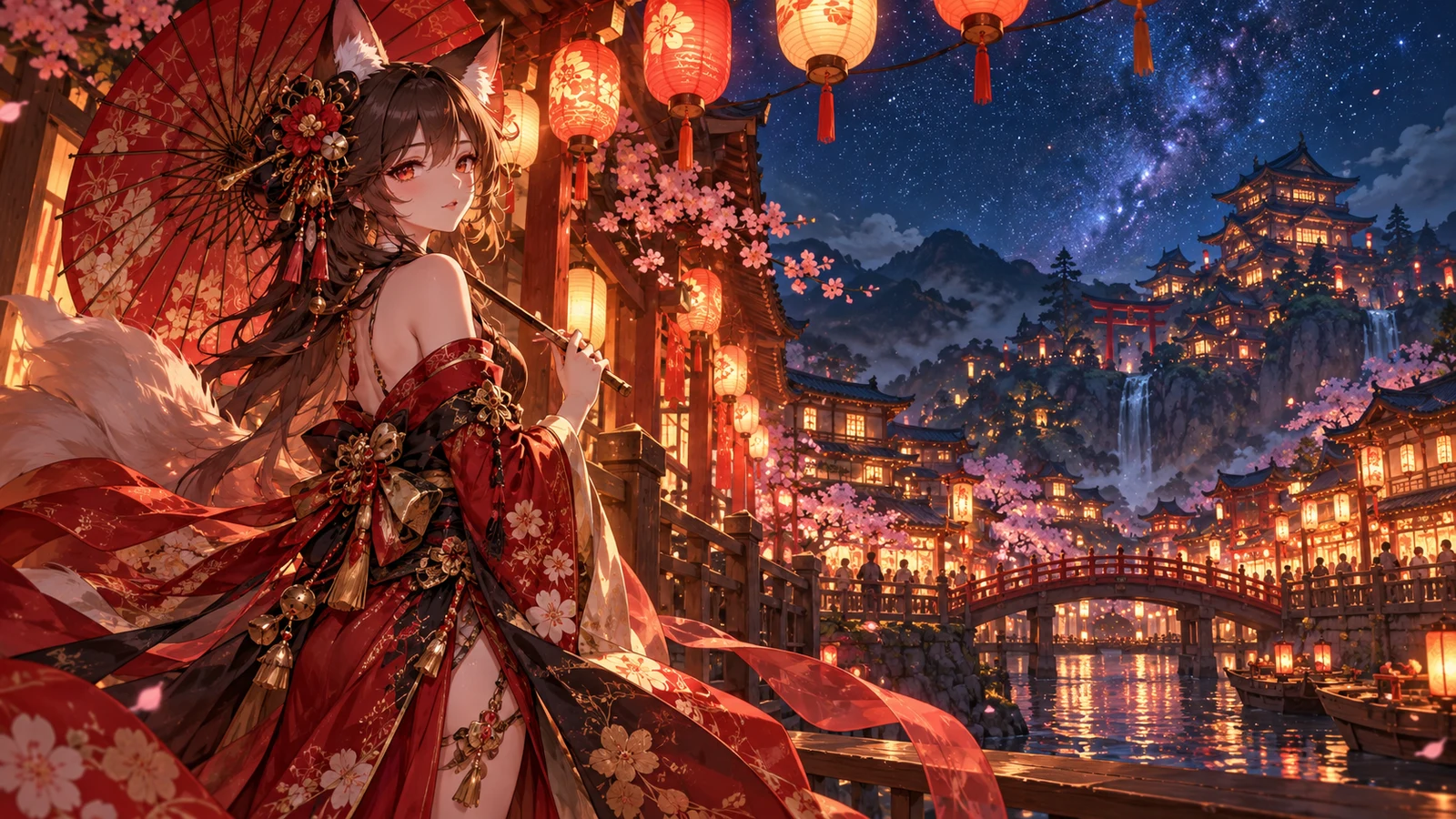
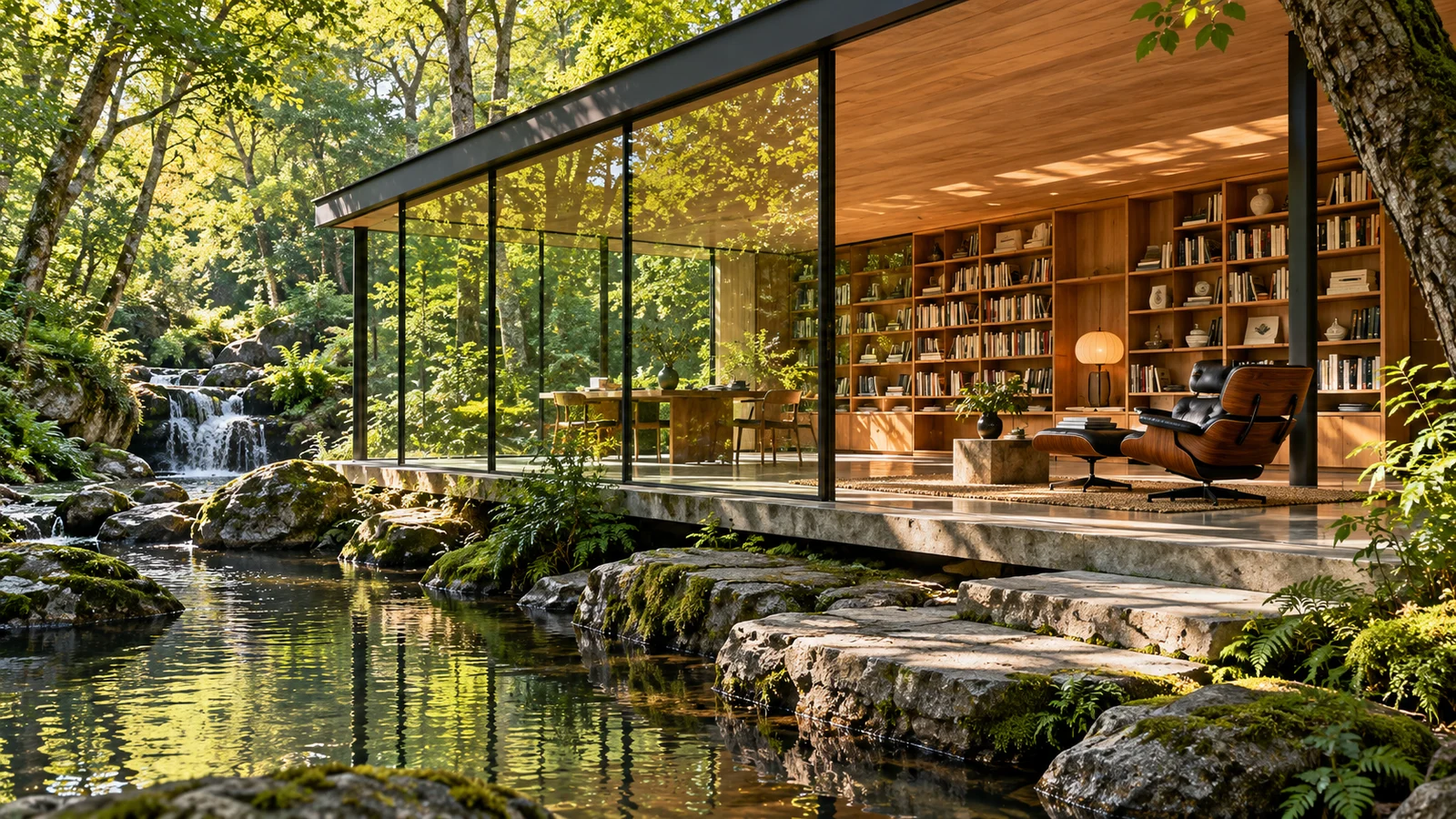
Core capabilities of GPT Image 2.5
Explore GPT Image 2.5 across image generation and reference-based editing, from visual concepts and lighting to typography and detail refinement.
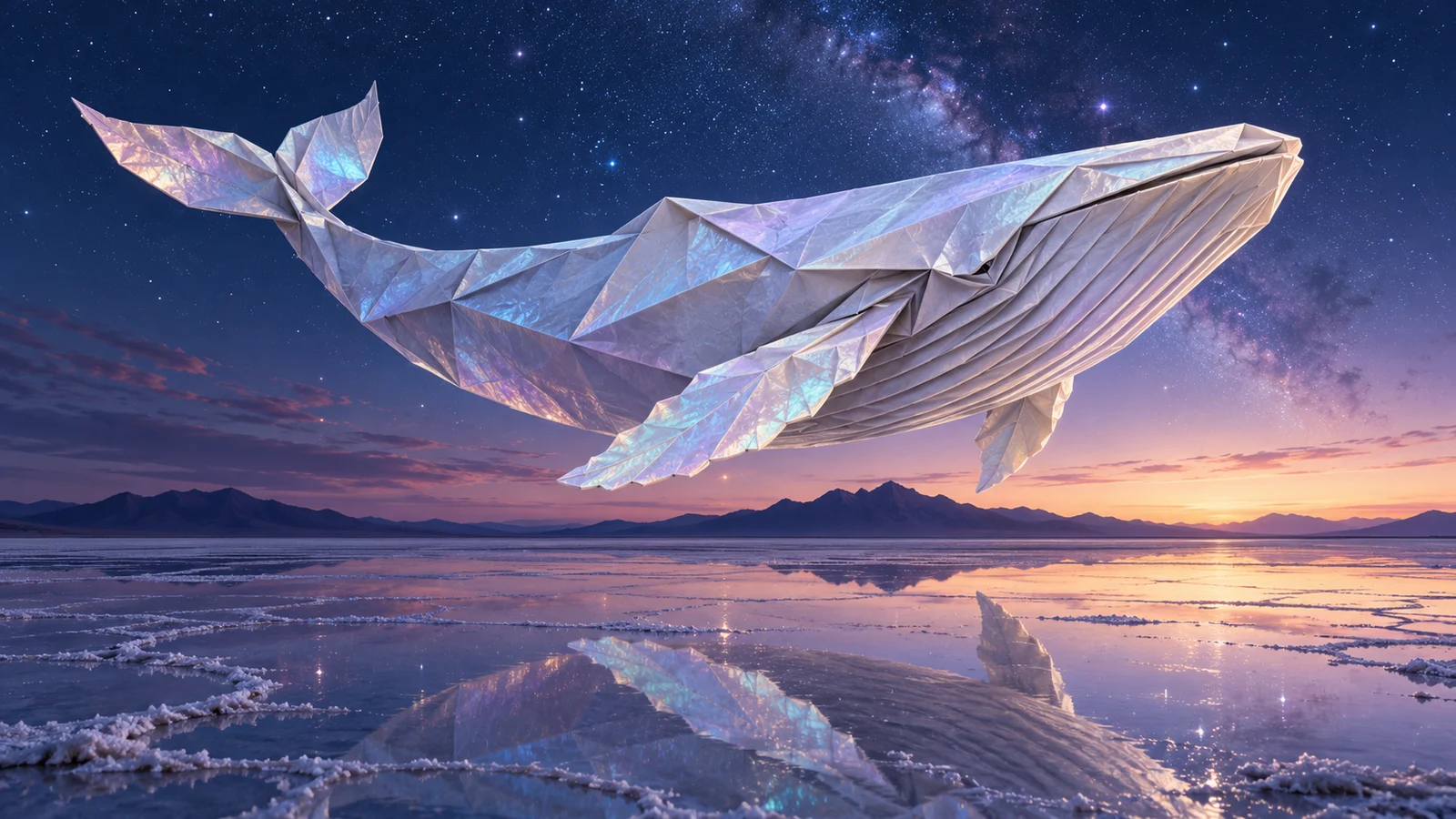
Turn a written idea into a complete visual
GPT Image 2.5 turns written descriptions into images, bringing subjects, settings, lighting and style into a single composition. A realistic product scene or an imagined world with an origami whale can begin with one clear idea.
Explore visual directions before they are fully formed. Develop a theme through photography, illustration or concept art, turning a written concept into something you can see and discuss.
Start creating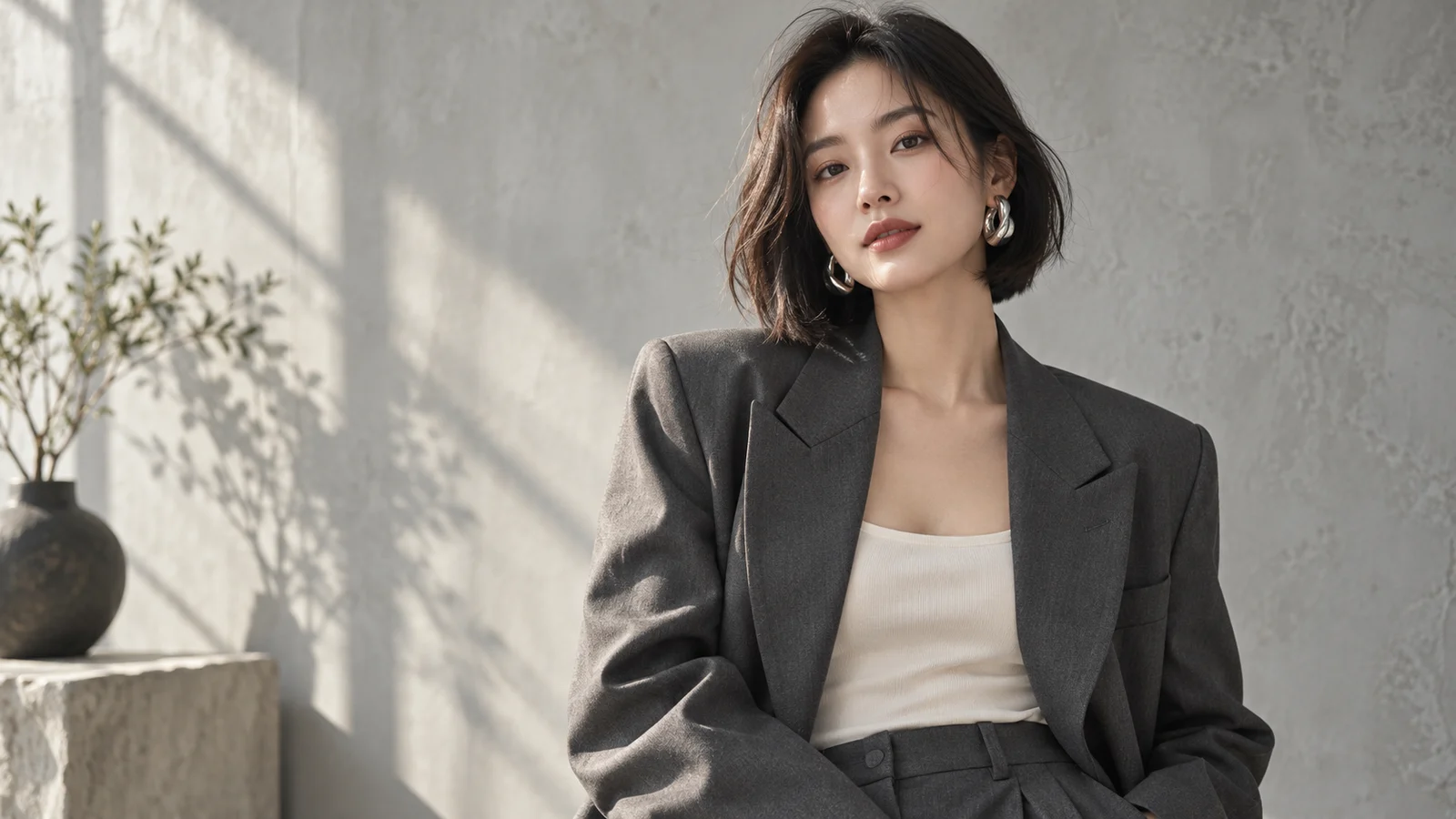
Shape visual depth with light and materials
Skin texture, woven fabric, translucent glass and metal reflections all contribute to how an image feels. GPT Image 2.5 can work with descriptions of lighting, color and materials to explore photographic and stylized treatments.
Fashion portraits, product campaigns and interior scenes each call for their own visual language. These details give a subject atmosphere, depth and a more deliberate mood.
Start creating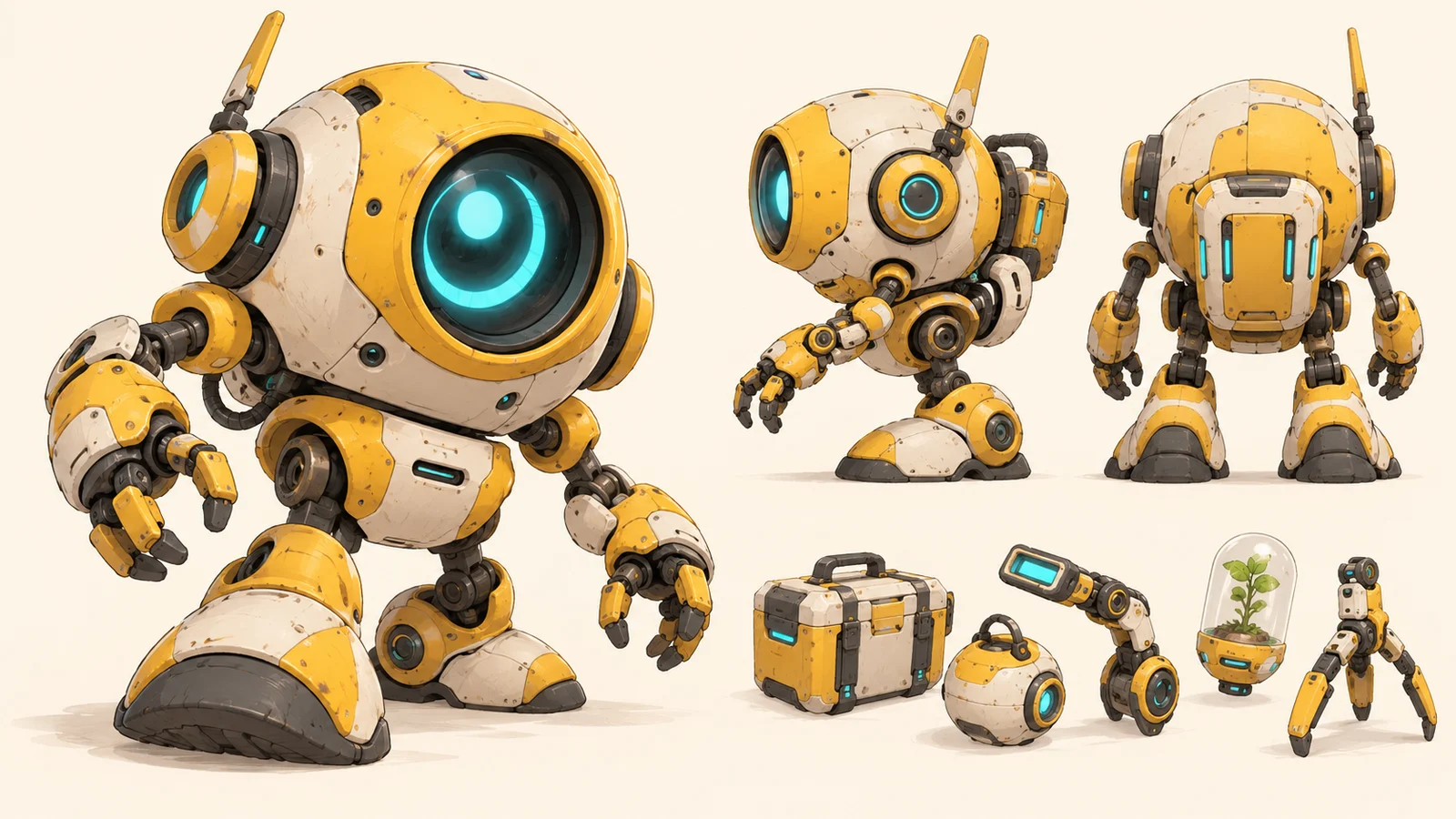
Use references as a starting point for characters and style
Bring existing material into the creative process to explore a character, product or visual treatment. Reference images provide a concrete starting point and make a creative discussion less dependent on words alone.
Develop character concepts, related visuals or early sketches into fuller compositions. Explore another setting for an idea, while judging the relationship between the reference and the result in the actual work.
Start creating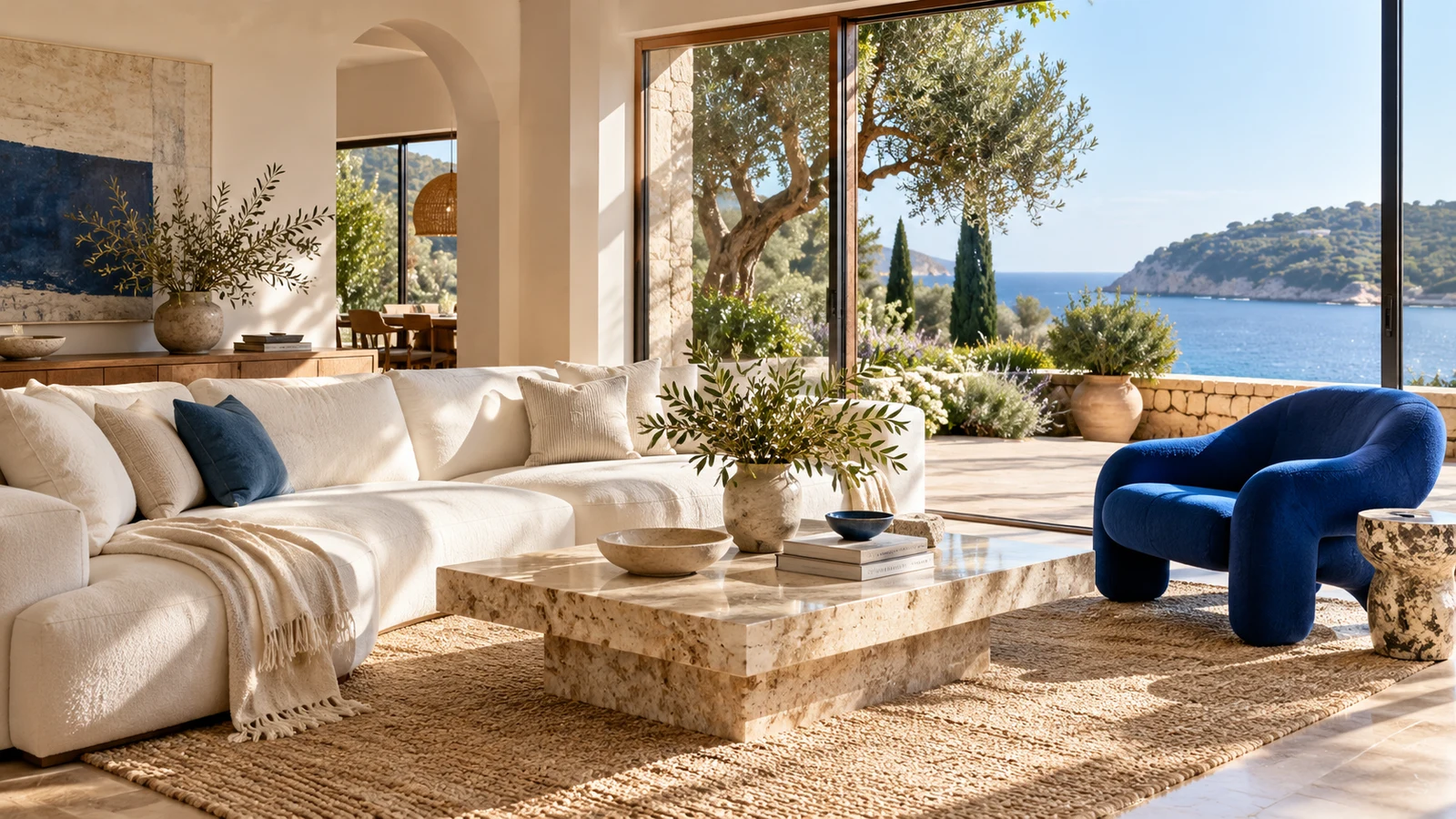
Refine an existing image with natural language
An existing image can become the starting point for another creative iteration. Describe changes to the background, colors, objects or local details so editing follows a specific goal.
From furniture colors in a room to the setting around a product, editing helps a visual direction evolve. Within GPT Image 2.5, Sunburst focuses on precise editing for work that develops an existing image.
Start creating AI Photo Editor ↗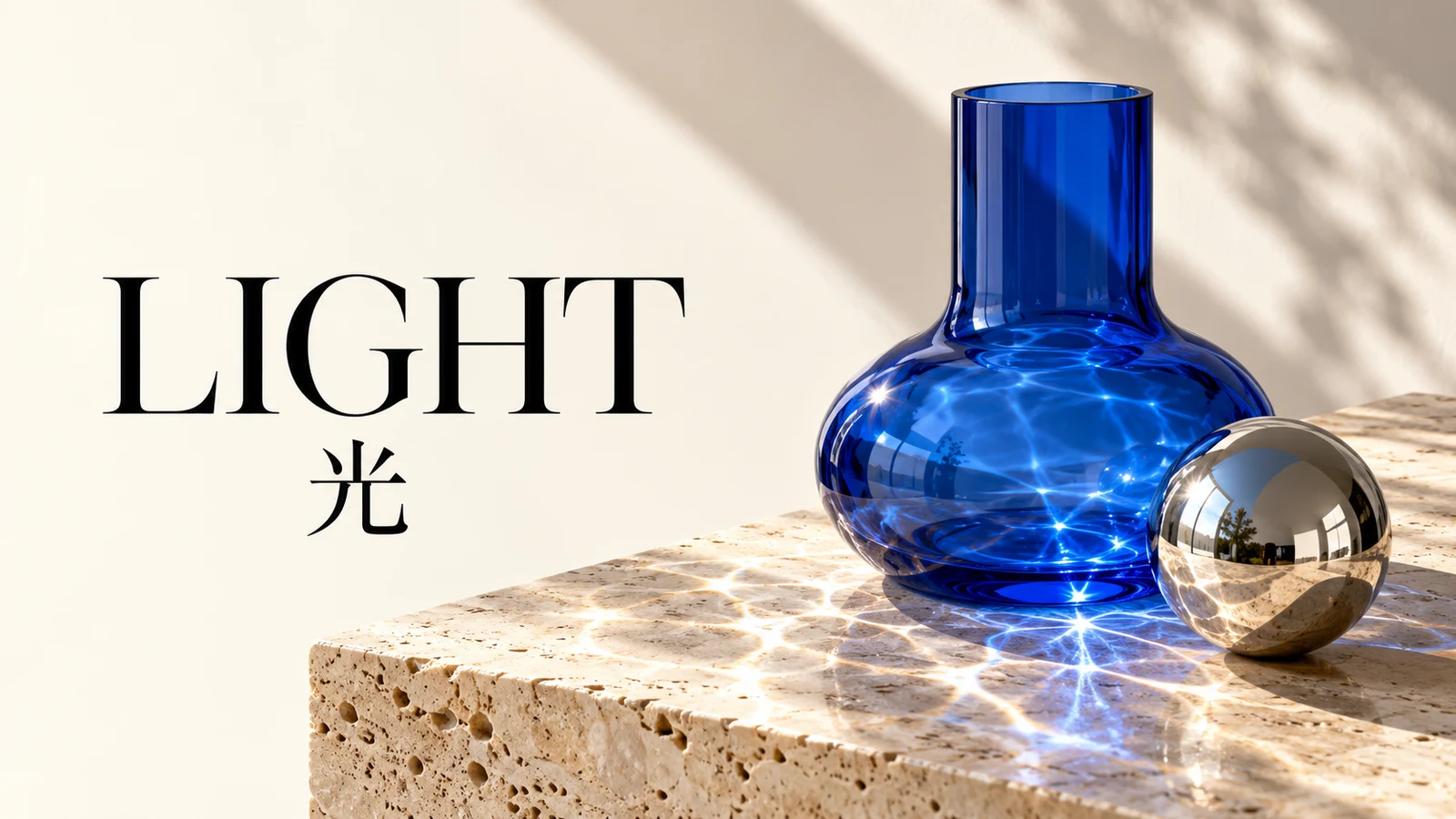
Combine imagery and typography for posters and campaigns
Images can communicate alongside headlines and information. GPT Image 2.5 can help explore designs that combine short text with a subject and background in one composition.
Event posters, content covers and brand campaigns offer different ways to use this approach. A clear theme and information hierarchy connect the visual idea to its intended message.
Start creating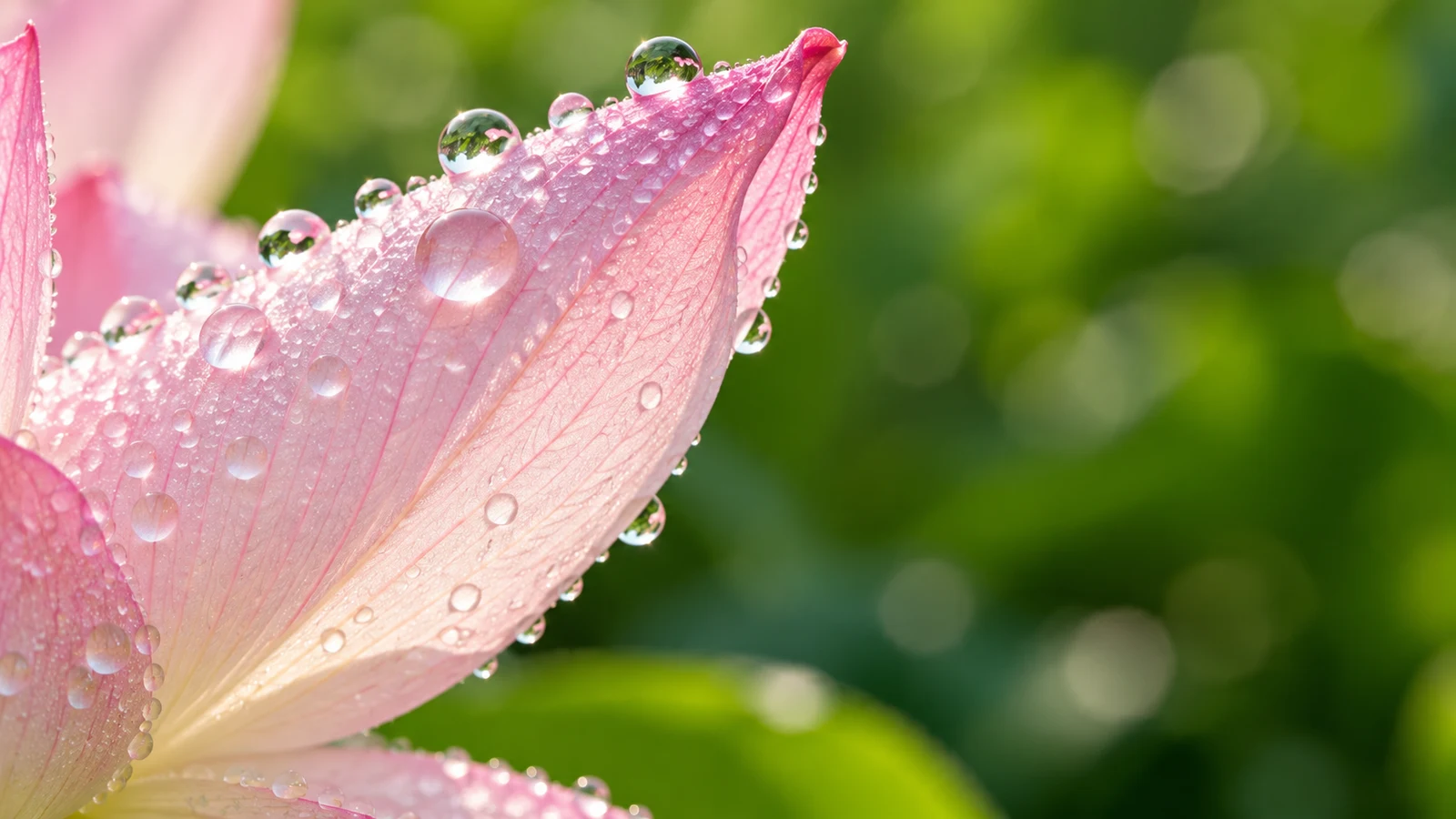
Plan output sizes and backgrounds around the design
Web banners, social content and standalone design assets need different formats and backgrounds. Official GPT Image 2.5 options include output size, quality and transparency to support further design work.
Plan the format around the placement, leaving room for the subject, headline and negative space. Background requirements can also guide how an image will fit into a broader design.
Start creatingChoose Flare or Sunburst around your creative priority
The official focus is fast, high-quality everyday generation, suitable for exploring images and creative directions.
The official focus is precise editing, suitable for developing an existing image.
Both belong to the GPT Image 2.5 family. Check the generator for available versions, settings and estimated credits.
Create visuals with a clear purpose
From product presentation and campaign content to characters and imagined worlds, give every image a creative role.
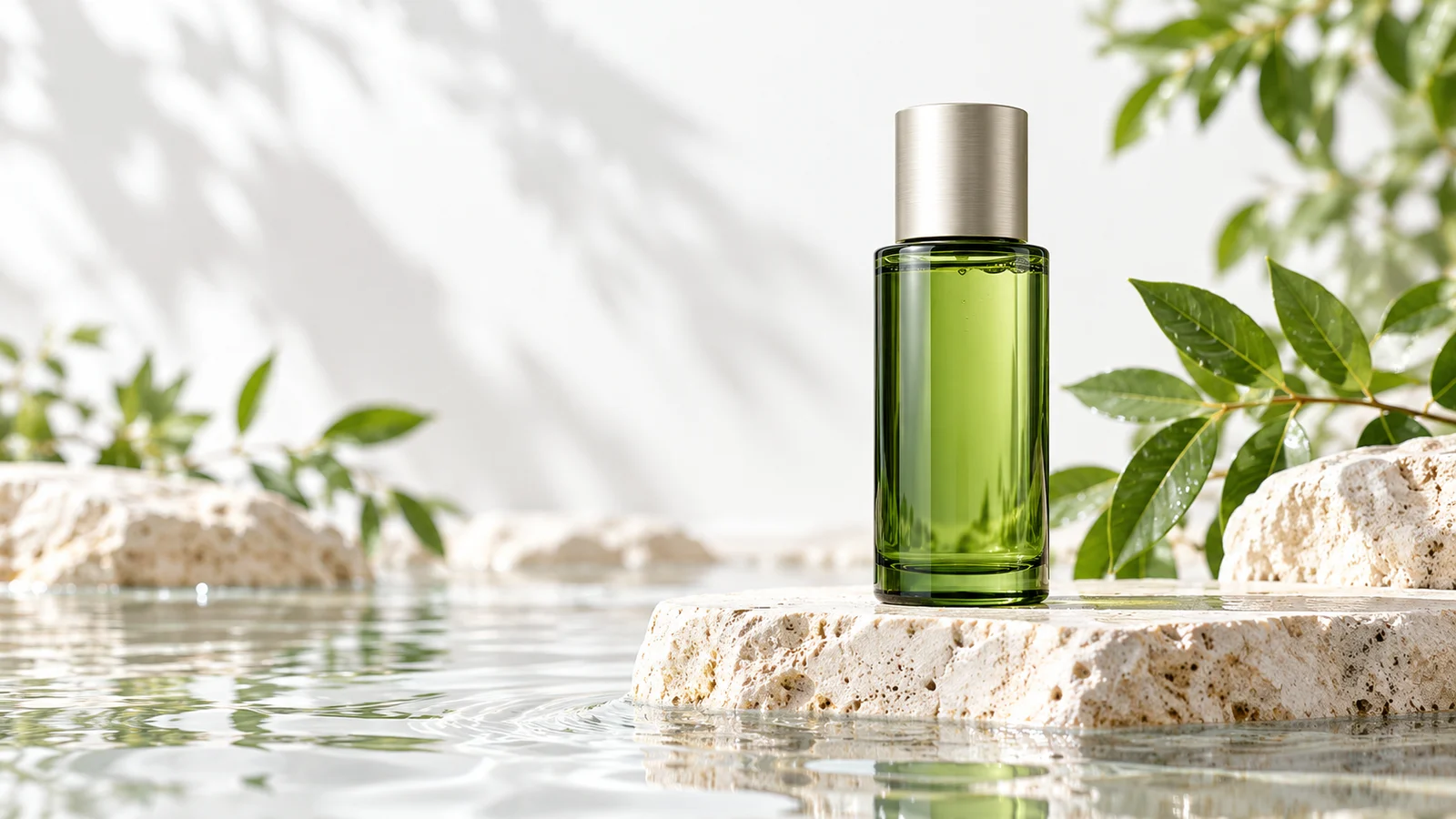
Products and ecommerce: explore another setting for a product
Explore studio, lifestyle and themed scenes around a product. Develop visual directions for launches, product-page banners and promotional assets, using materials, light and backgrounds to communicate the intended feeling.
Existing product images can provide a reference for another setting or composition. Review packaging, labels and important features before publication.
Start creating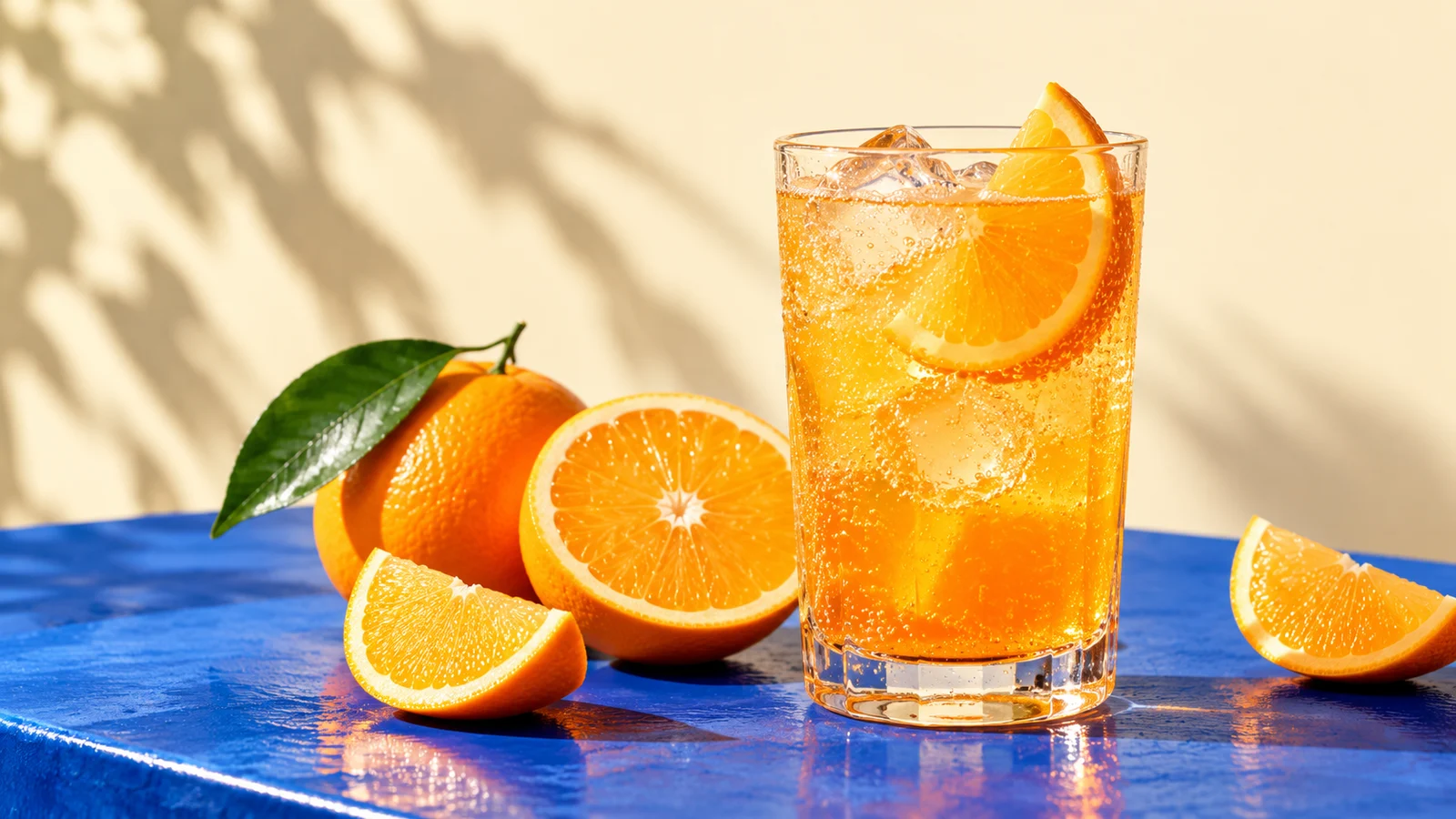
Brands and content: give campaigns and covers a visual identity
Develop a clear theme for a drink campaign, event announcement, article cover or social post. Connect the subject, color palette and negative space to the placement where the visual will appear.
Explore short headlines alongside the image, or prepare the artwork first and finish the copy and layout in a design tool.
Start creating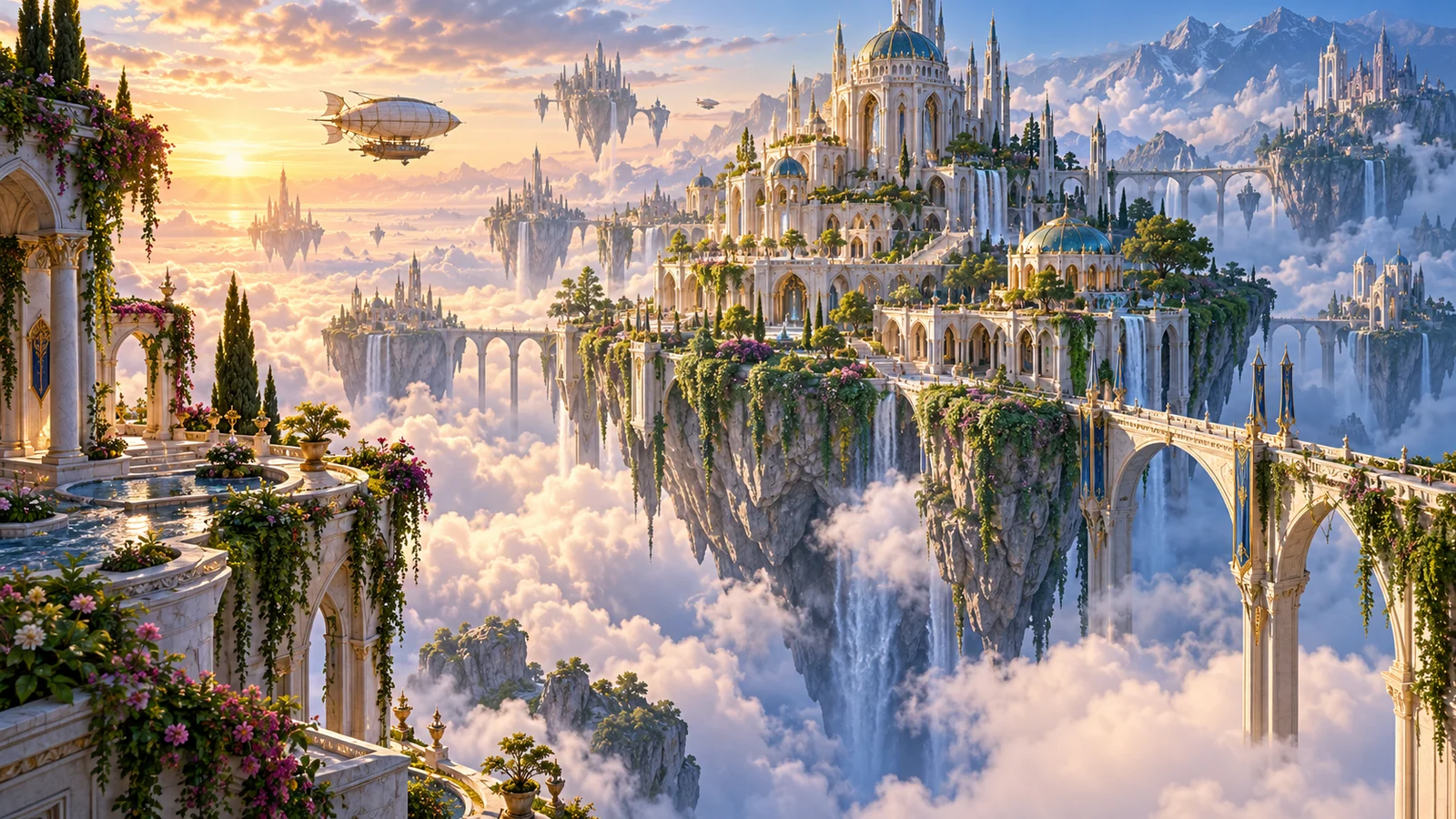
Characters and concepts: turn a setting into a visible world
Explore original characters and imagined spaces for stories, game concepts and illustration projects. Appearance, environment, color and mood can develop together into work that makes an idea easier to discuss.
Use references to explore a character direction, then compare styles and narrative atmosphere as the concept develops.
Start creatingStart with one image idea
Use the generator on this page or continue in the full workspace.
Describe the image and add a reference if needed
Write the subject, setting and intended style. Use the available reference input when you have existing material.
Choose settings and generate
Select an available model and settings, review the credit estimate, then submit your creation.
Review and develop the result
Choose a suitable image, continue refining details where needed, or download it for further design work.
Frequently asked questions
What is GPT Image 2.5?
It is OpenAI's image generation and editing model family, including Flare and Sunburst. It accepts text and image inputs and produces images.
How do I start creating on this site?
Use the existing generator on this page to enter a prompt and choose an available model and settings, or open the full workspace. Review the current credit estimate before submitting.
How do Flare and Sunburst differ?
Flare focuses on everyday generation speed and quality, while Sunburst focuses on precise editing. Available versions and costs are shown in our workspace.
Can I edit an existing image?
The official models support editing. Check the workspace for available reference and editing options, and review important subjects and details. Content outside the intended edit is not guaranteed to remain unchanged.
Will Chinese or English text always be correct?
No. Spelling, clarity and placement can still go wrong. Proofread before use and finish typography in a design tool when necessary.
Are transparency and high resolutions supported?
Official output options include these capabilities; outputs above 2560×1440 remain experimental. Available sizes, formats and background settings on our site are shown in the workspace.
Is this the official OpenAI website, and how is usage charged?
No. bikabika AI is an independent AI creation platform, while OpenAI develops the models. Review current estimates in our workspace and account benefits on the credits and plans page.
Make your next image idea a creative starting point
Describe the picture you want or bring a reference, then continue generating and editing in the main-site workspace.