
AI Photo Editor: Change Your Images with Words
Upload an image and describe changes to its background, objects, lighting or style. Develop new visual directions for product photos, portraits and content images.
Add an image to start editing
Choose an image or drop it here.
JPG, PNG or WebP, up to 24 MB.
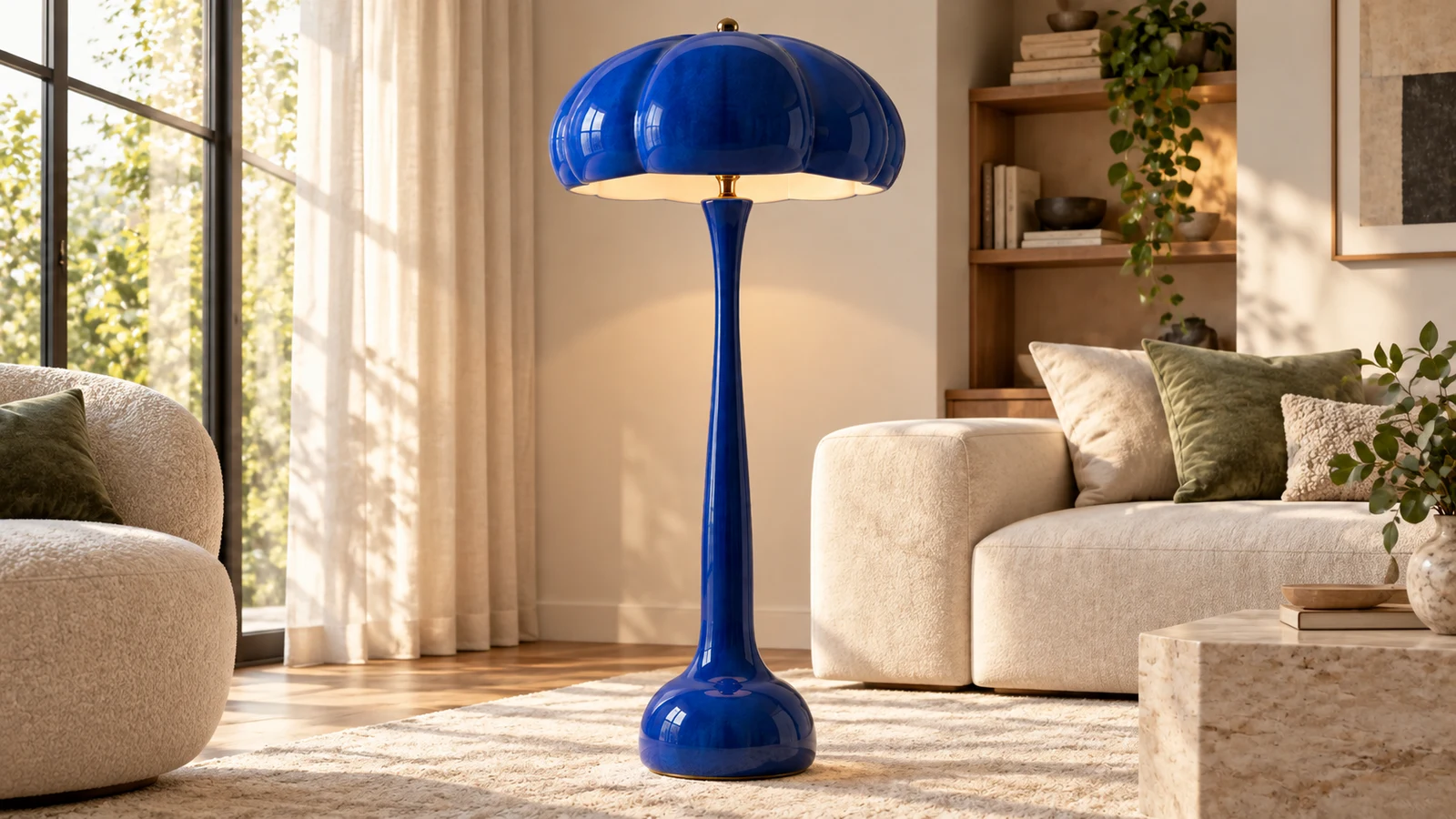
Creative editing showcase
Edit the Background, Details and Style Around Your Image
Start with an existing picture and describe what to keep and what to change. Develop the subject, setting and visual mood around the purpose of your image.
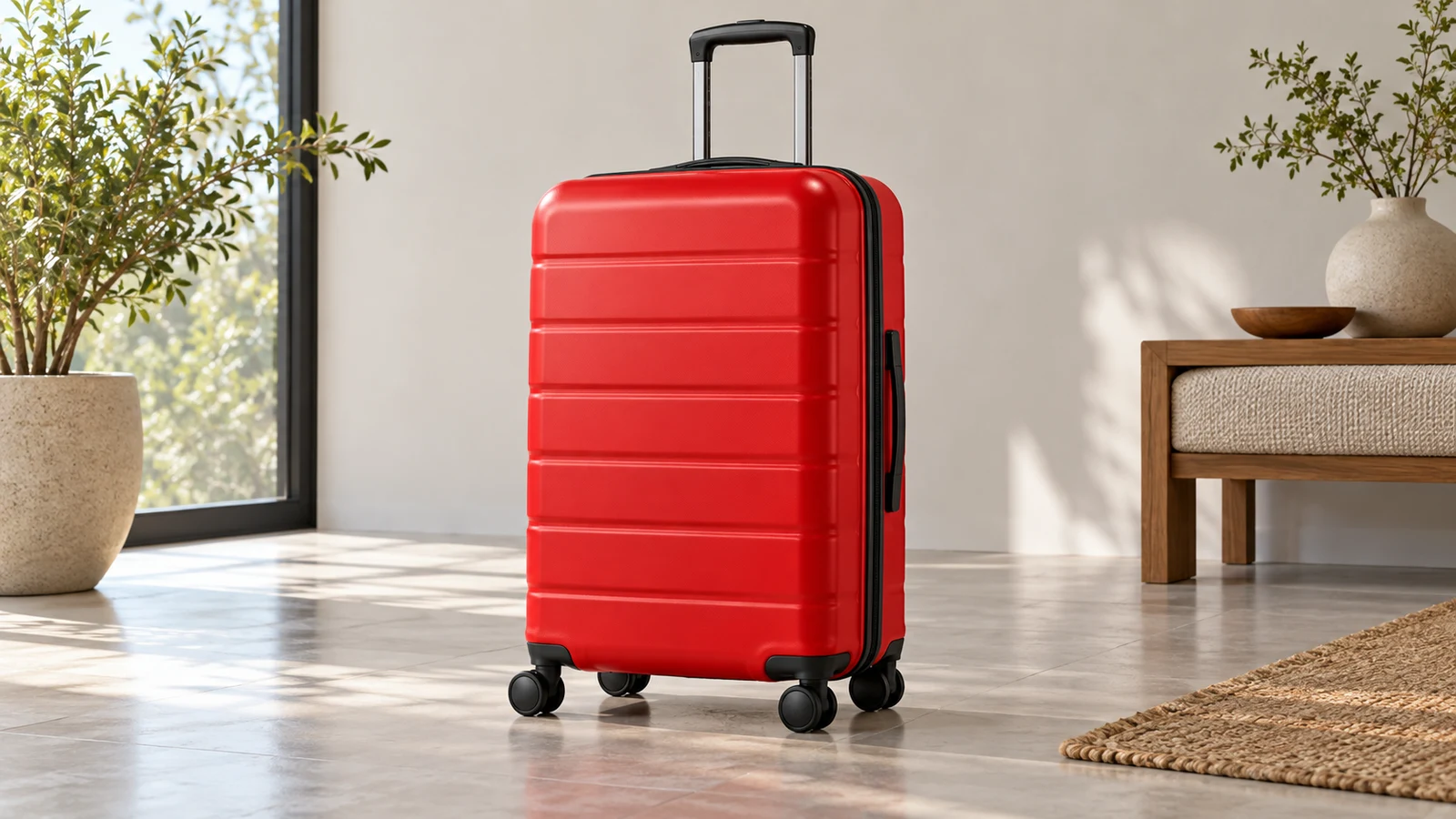
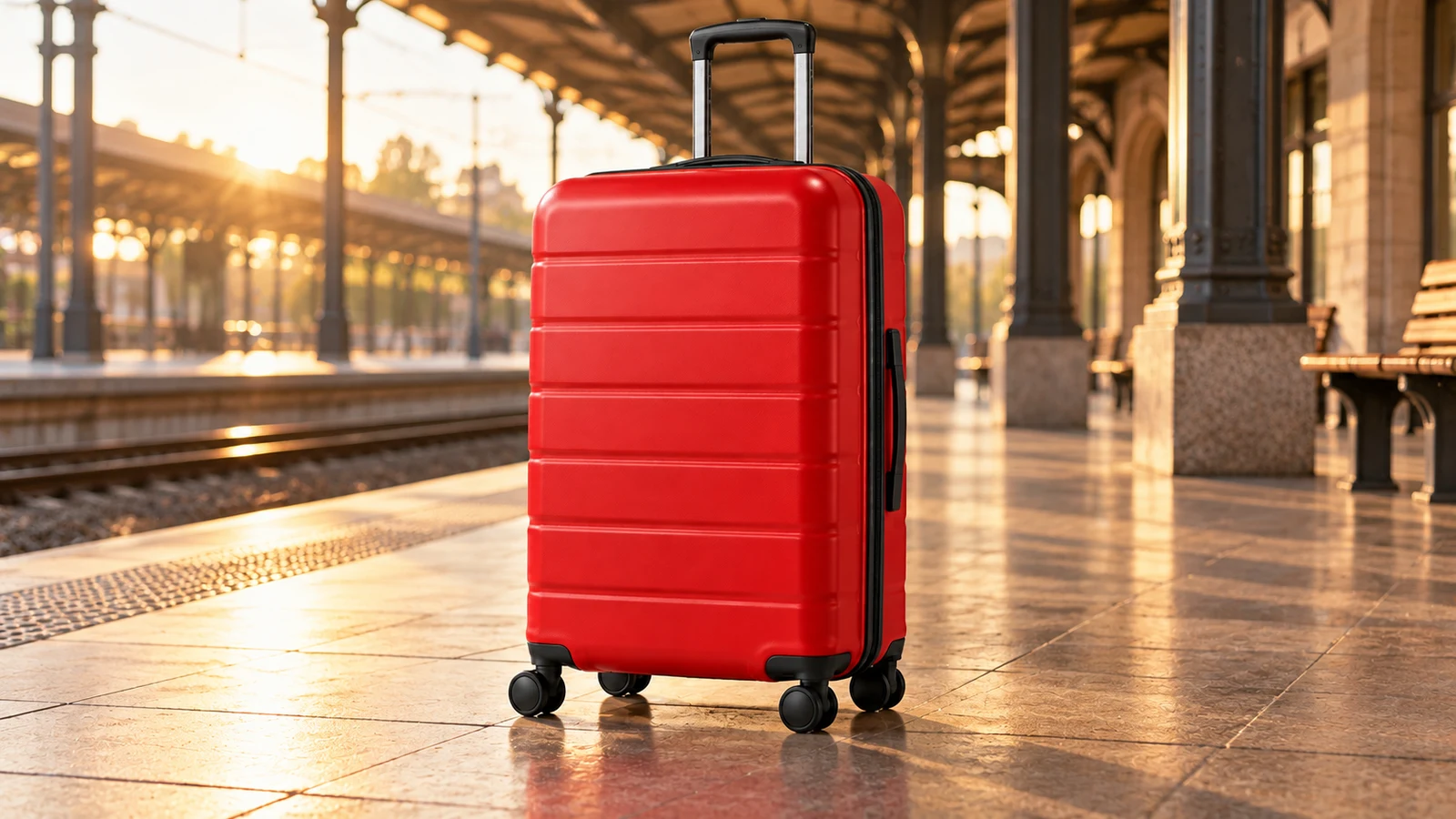
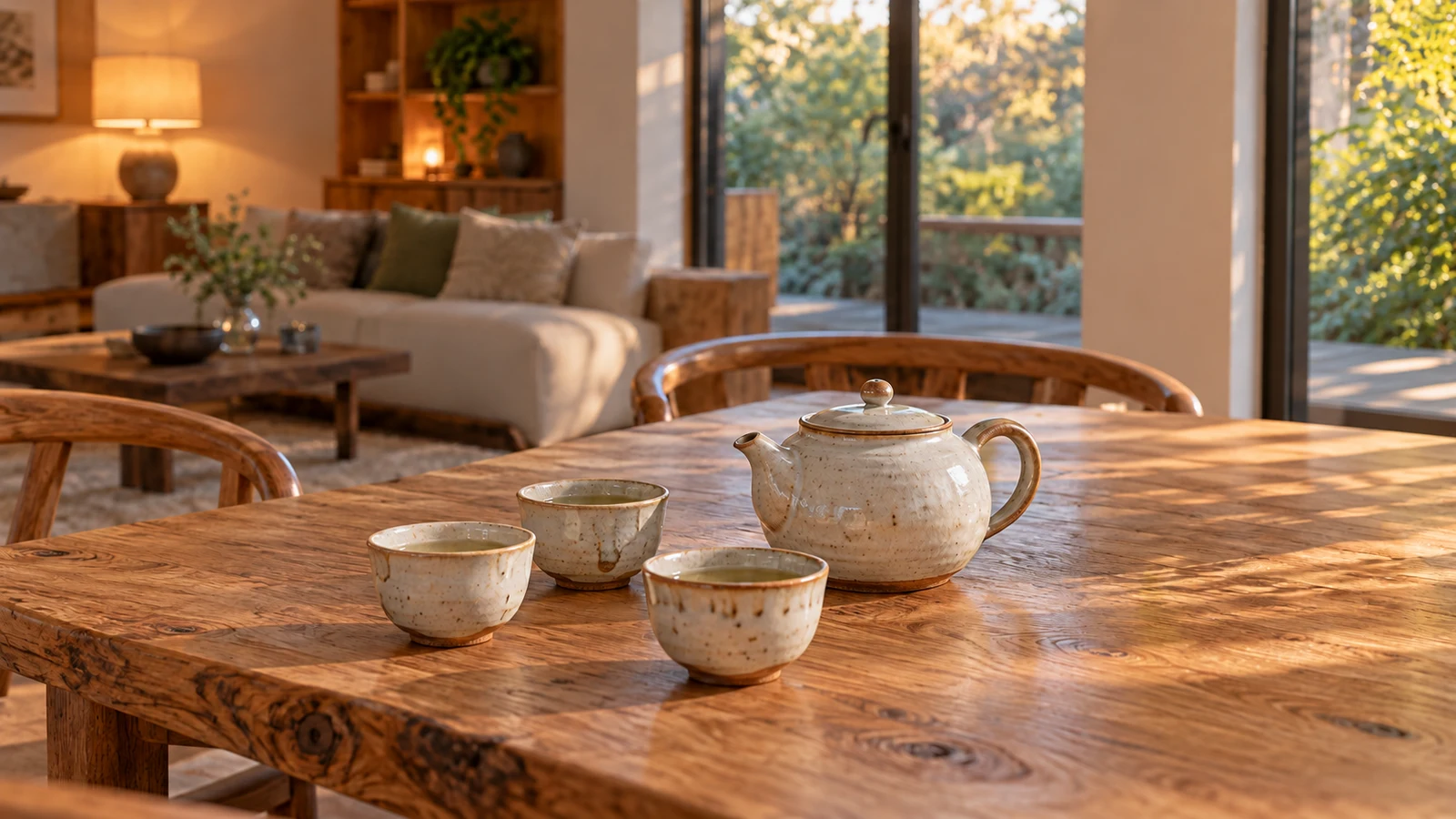
Place Your Subject in a New Setting
Give a product, person or still life a different environment, from a simple backdrop to an interior, natural setting or creative set. Describe the subject details to keep and the lighting, position and mood of the new scene.
Review edges, shadows and perspective to see how the subject fits its setting. For a transparent cutout, explore the dedicated background-removal tool.
Start editing ↗AI Background Remover ↗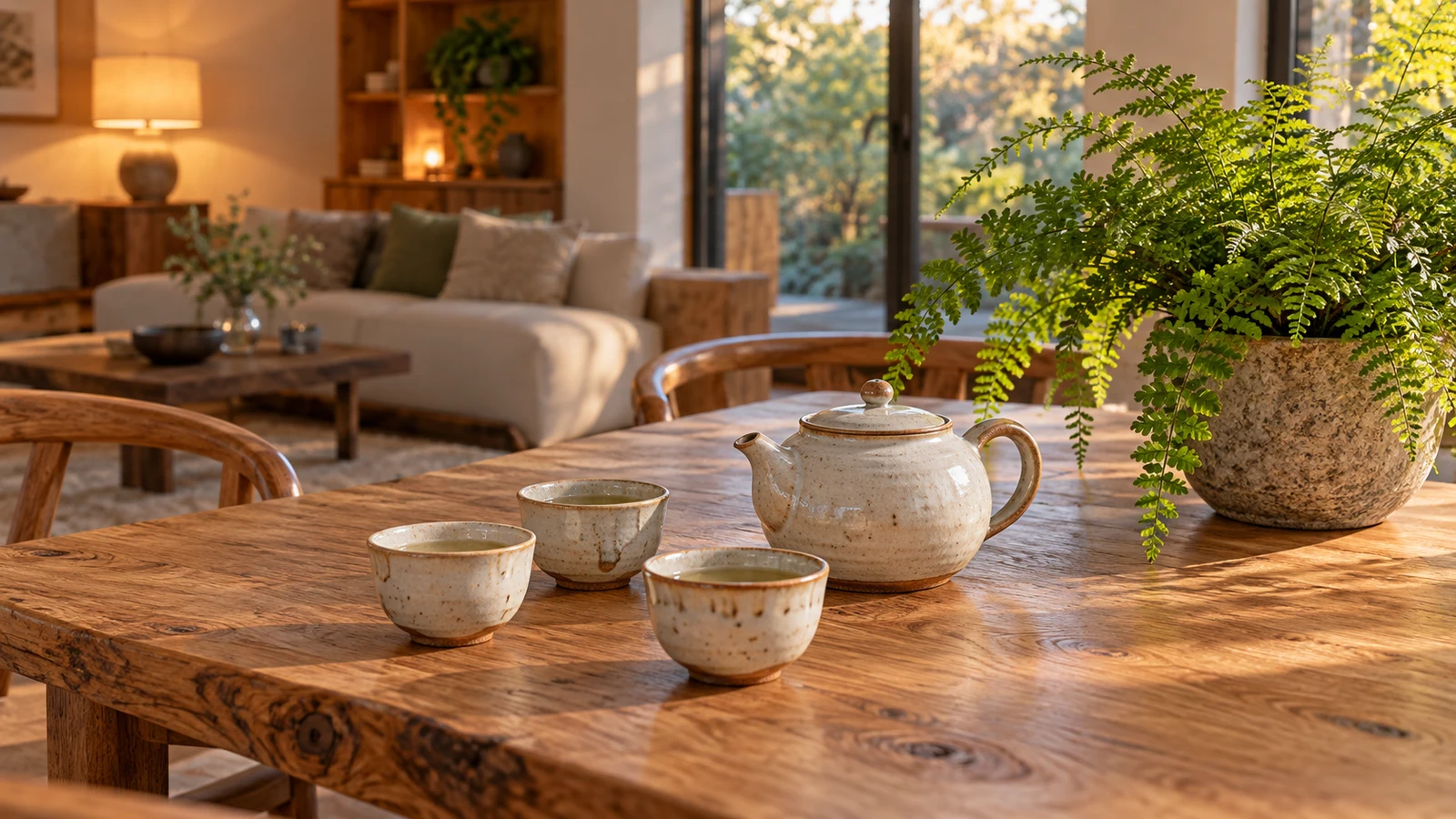
Refine Objects and Focus Within the Picture
Describe an object to remove, replace or add to clarify the focus of an existing image. Start with an unwanted prop, a distracting background detail or a decoration you want to change.
Explain which areas should remain. Review textures, spatial relationships and neighbouring details after the edit, then refine the result for its intended use.
Start editing ↗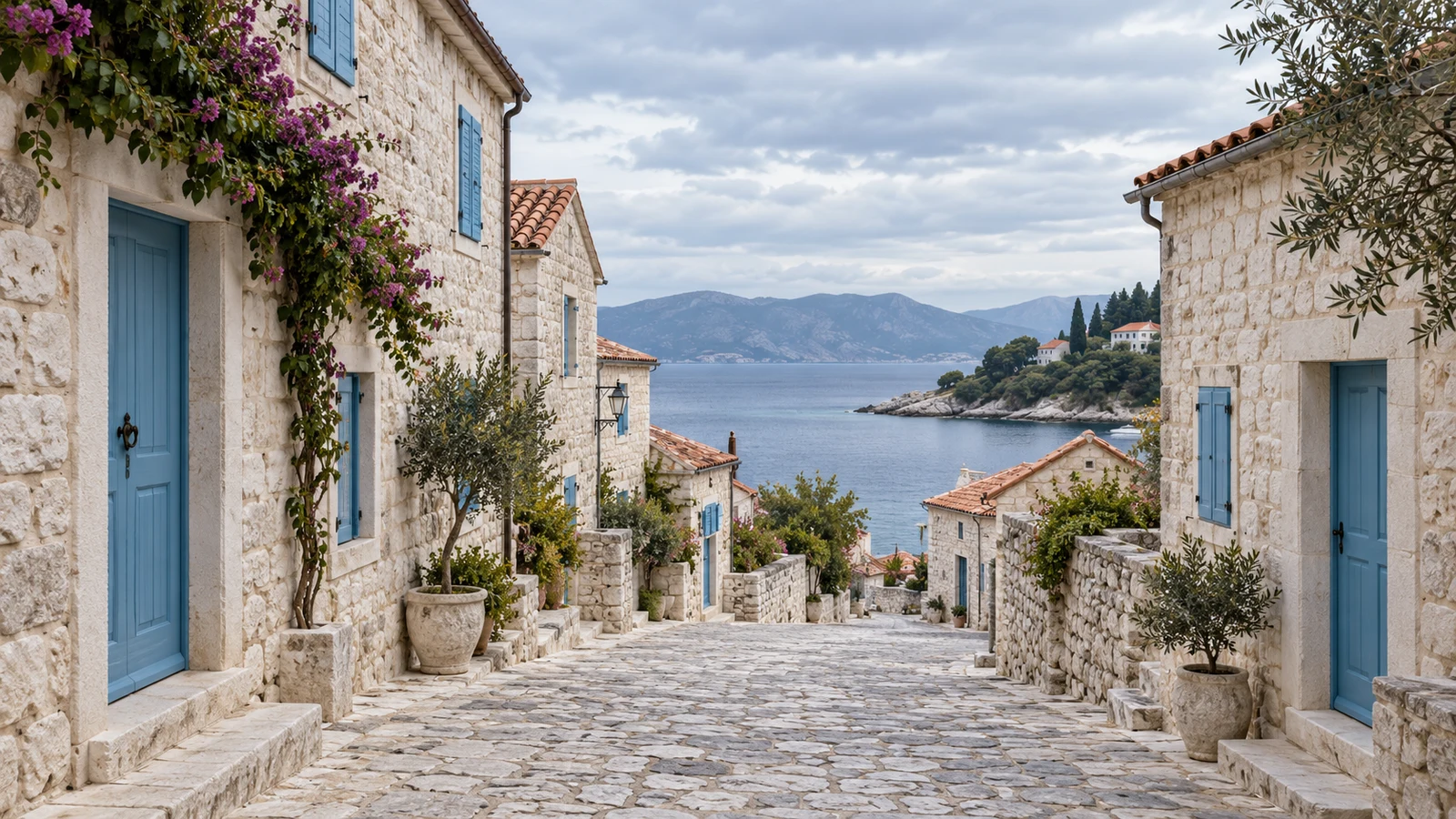
Shape the Mood with Light and Colour
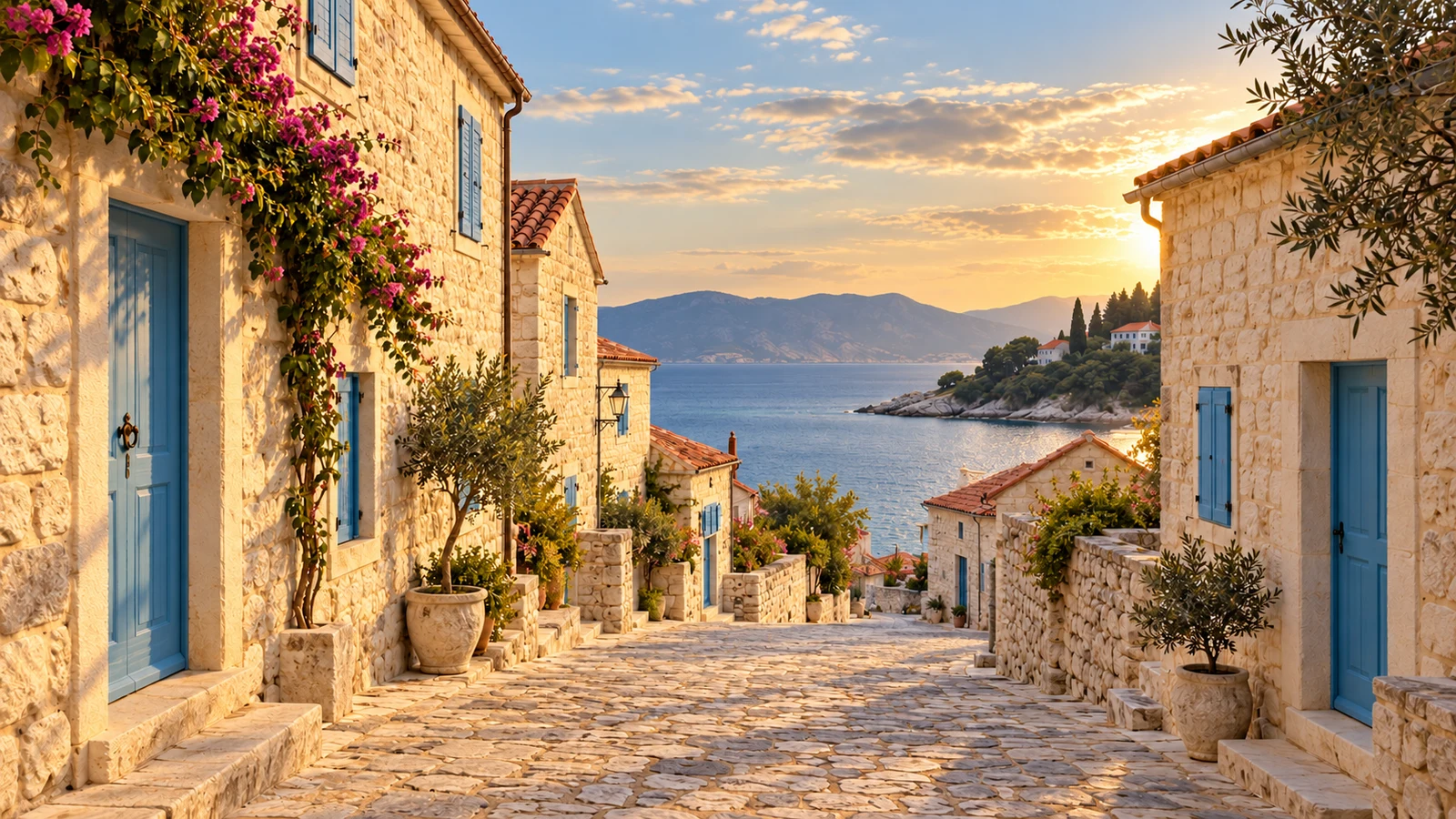
Explore softer morning light, a warmer interior or a brighter, restrained or cinematic colour direction. Describe the time of day, light source and mood to give the picture a coherent visual character.
Lighting changes can also affect materials and skin tones. Compare detail, colour and realism with the original. For dedicated upscaling or clarity work, explore the photo-enhancement tool.
Start editing ↗AI Photo Enhancer ↗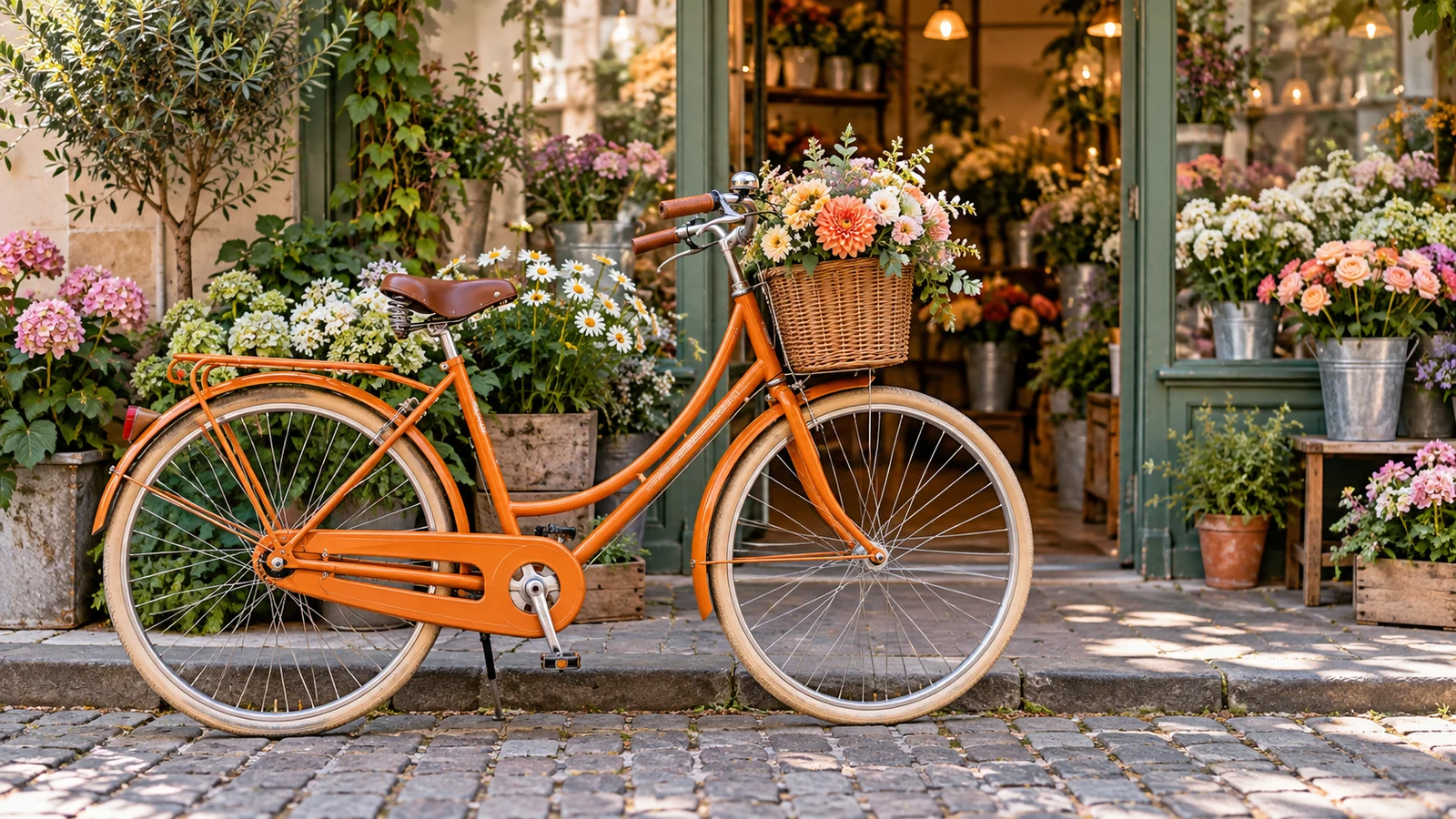
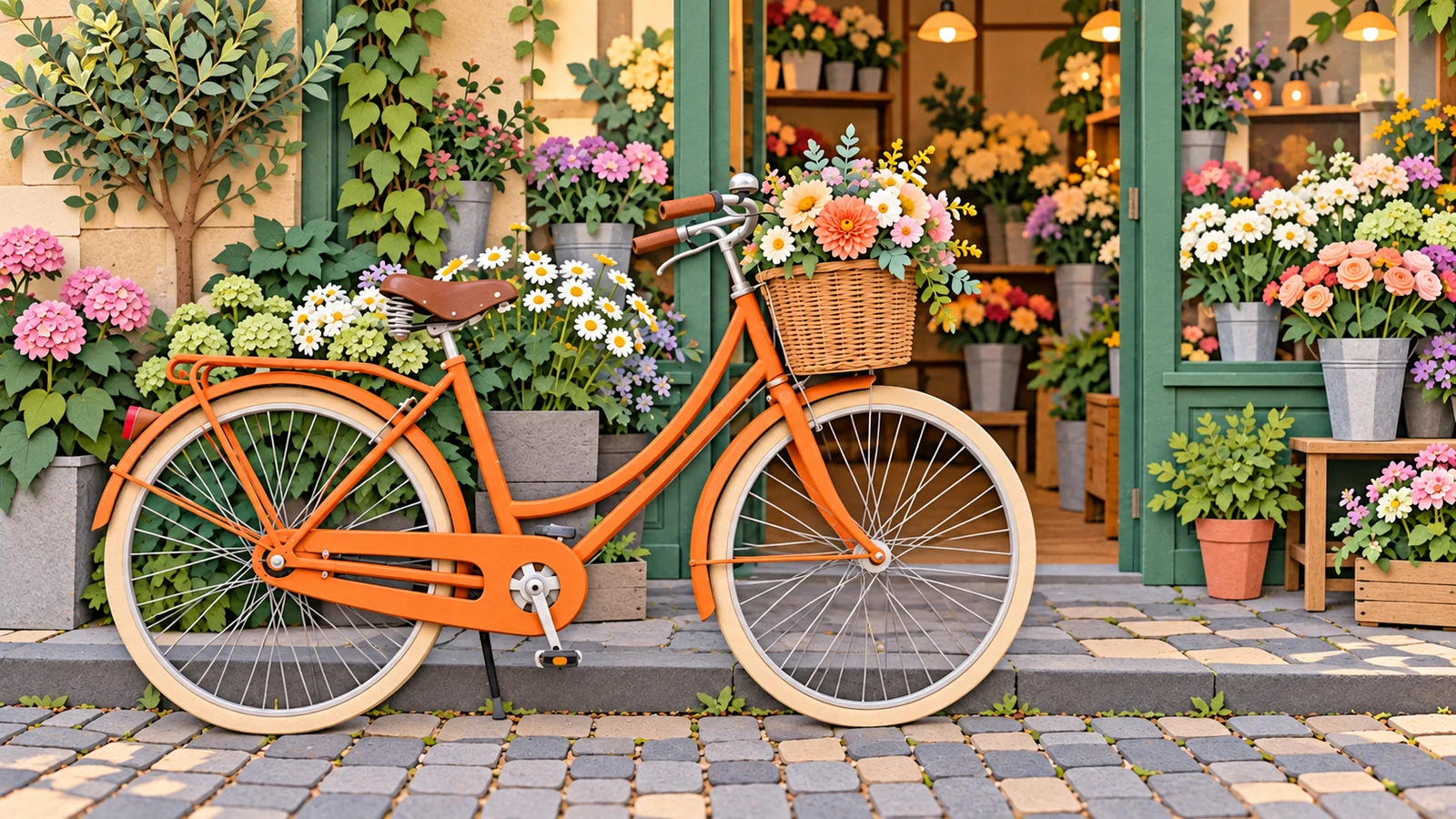
Explore a Different Visual Style
Develop a photograph into an illustration, paper-art image or another visual style, or explore a new creative direction around the picture. Specify the composition, objects and colour relationships you want to retain.
Style changes reinterpret details. Choose a direction for a cover, social post or visual proposal, and review text, faces, patterns and important brand elements.
Start editing ↗Adapt Existing Images for New Content
Develop pictures around products, people, spaces and publishing needs, and connect each visual direction to a practical purpose.

Product and Ecommerce Content
Explore settings, props and lighting for product images, campaign visuals or social content. Before publishing a product listing, verify its shape, colour, labels and materials against the actual item.
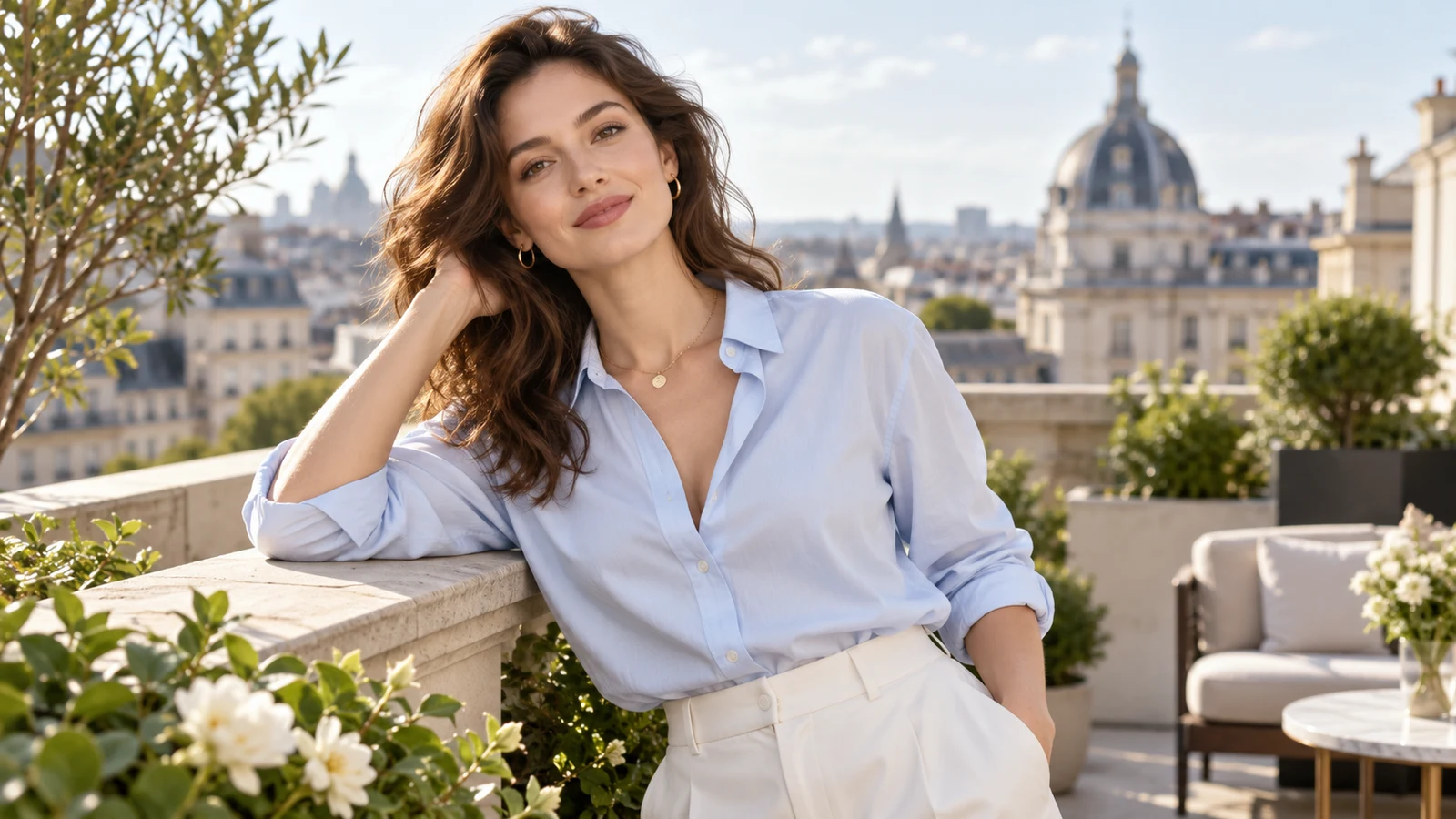
Portraits and Personal Images
Develop backgrounds, lighting and visual styles around a portrait for a profile, personal content or image proposal. Review facial features, skin tone and naturalness, and respect the person’s preferences.
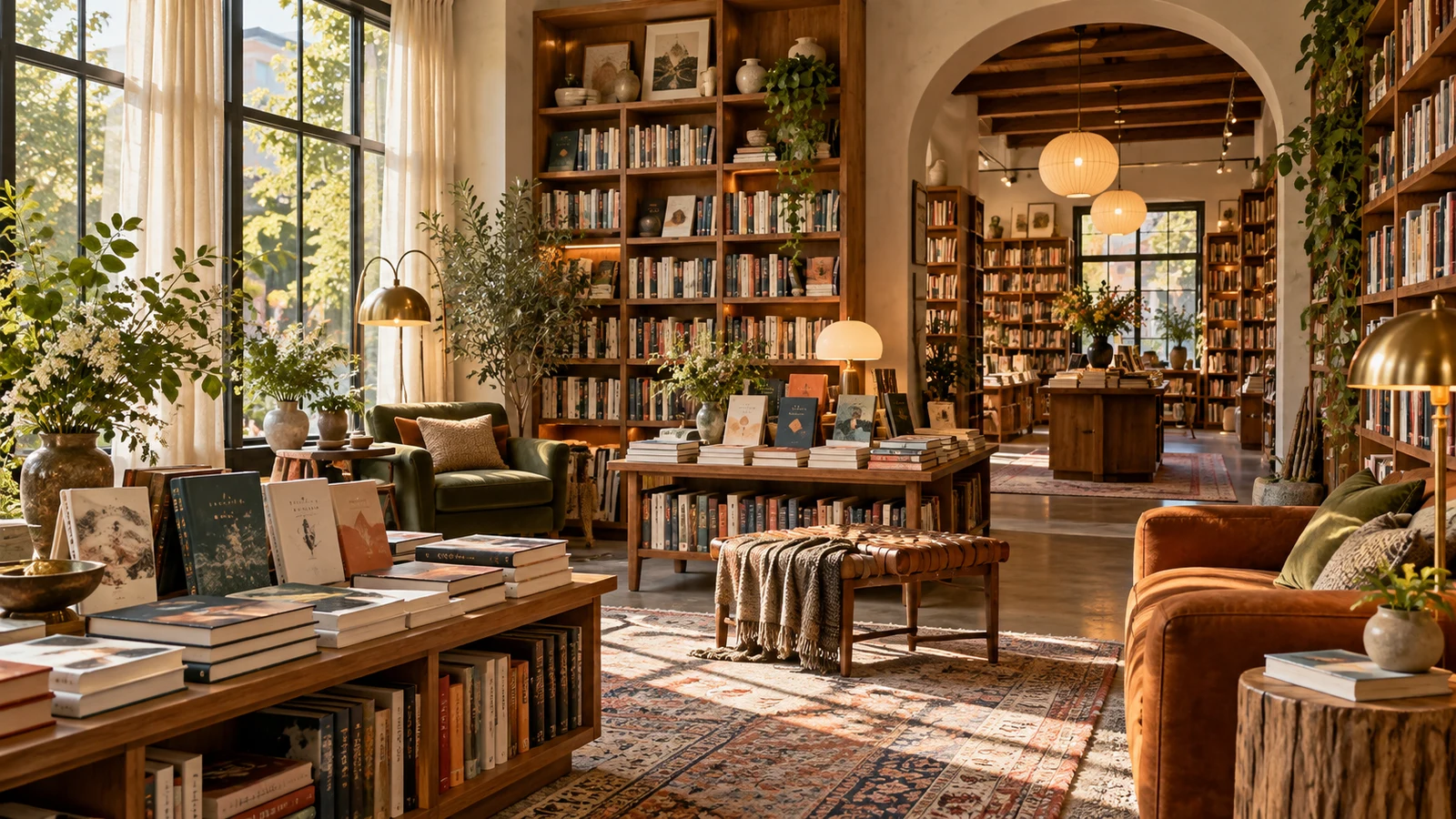
Spaces and Event Visuals
Explore decoration, atmosphere and visual changes for interiors, exhibitions or events. Use creative edits to discuss a direction while keeping them distinct from the actual venue and an executable plan.
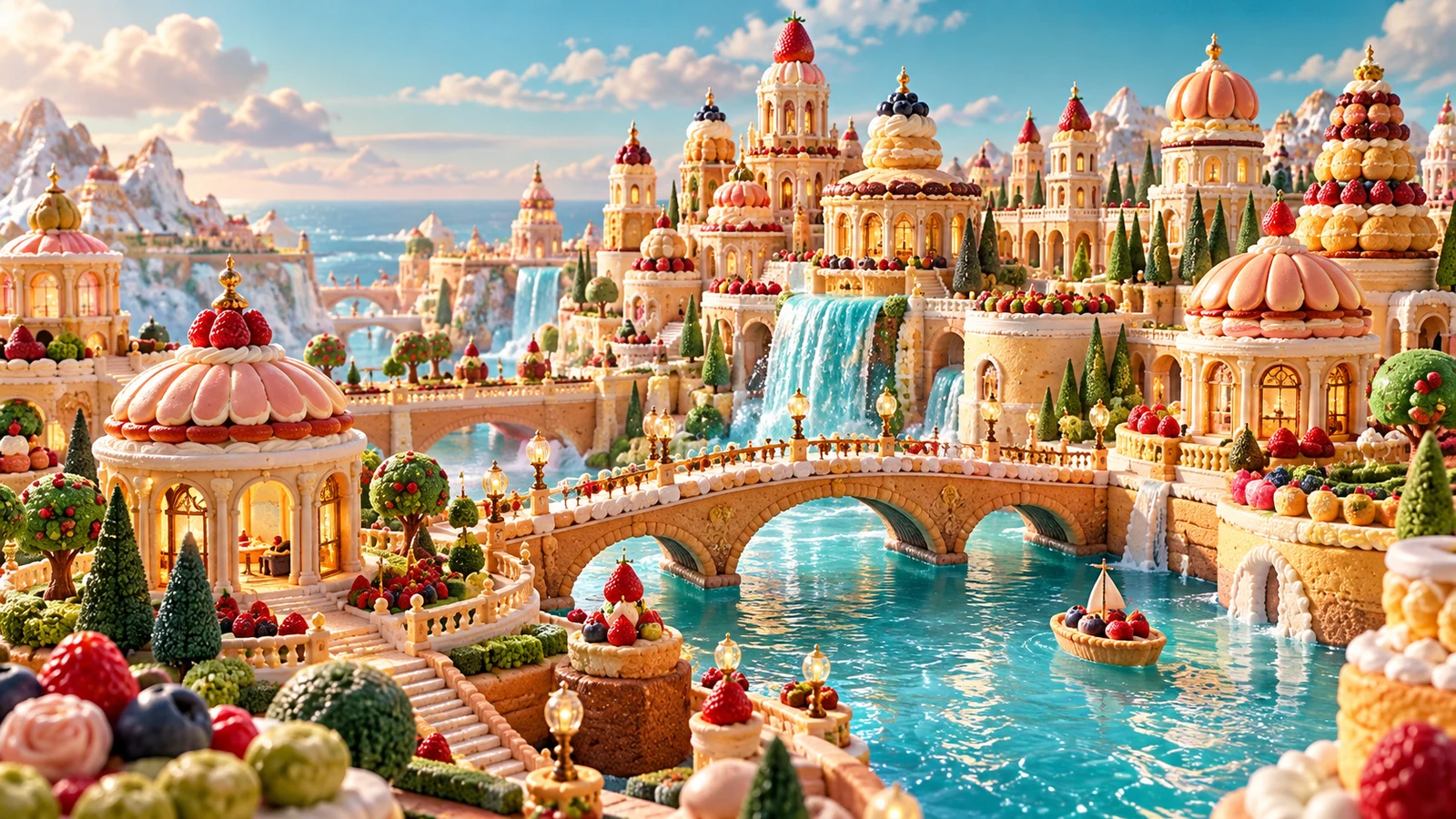
Social Content and Visual Proposals
Try different colours, settings and styles around a theme to develop content images and proposal material. Let the visuals serve the message, then finish the text, layout and publishing format.
Explore Models for Image Creation and Editing
Explore the capabilities of different image models, then choose an available model and editing options in the editor.
GPT Image 2.5
Explore image generation and editing with GPT Image.
Explore model ↗Nano Banana
Explore creation with reference images and conversational editing.
Explore model ↗Seedream
Explore visual creation combining text and images.
Explore model ↗FLUX 3 Image
Explore FLUX image creation and reference-editing capabilities.
Explore model ↗How to Edit an Image with Text
Start with an image and a clear editing goal, then review the result.
- 01
Add your image
Add an image and view the original on the canvas.
- 02
Describe the edit
Describe what to keep and change, then choose an editing model and settings.
- 03
Apply and compare
Review the estimated credits and submit. Compare the result, download it or continue from a version.
AI Photo Editor FAQ
What is an AI photo editor?
An AI photo editor uses an existing image and editing instructions to develop a new version. Describe changes to the background, objects, lighting or style, then review the result.
How is this different from an AI image generator?
Image editing starts with an existing picture and focuses on what to keep and change. Text-to-image creation can begin with a description alone. They may use related image models but have different inputs and goals.
Can I describe edits in Chinese?
Describe the edit in Chinese or English, making the subject, area and desired change clear. Refine the instructions based on the result.
Can I change a background or remove an object?
Describe these changes in a mode that supports reference editing. Review edges, shadows and neighbouring details. For a transparent background, use the dedicated background-removal tool.
Will it preserve every face or product detail?
Generative edits can change facial features, text or product details. Specify what should remain and compare the result with the original before publishing, particularly for factual product attributes.
Which image formats and reference counts are supported?
Use JPG, PNG or WebP files within the selected mode’s size and reference limits. Check the editor’s requirements and follow its feedback if an upload fails.
How does AI photo editing use credits?
Tasks use credits according to the selected model and settings. Review the estimate before submitting and visit the pricing page if you need credits.
Can I publish an edit commercially?
Check rights to the original image, people, trademarks and other material, along with the applicable model and site terms. Verify accuracy and permissions for product or client work.
Does it replace precise layer-based editing software?
AI editing is useful for exploring changes through text. For pixel-level control, layered layouts or strict colour management, finish the work with suitable editing software.
Give Your Image a New Direction
Add an image, describe what to keep and change, and start your next edit.