
AI Video Generator: Bring Text and Images into Motion
Describe an action or a scene, or start with an image. Choose a video model on bikabika AI to create product films, story shots and social content with their own rhythm and camera movement.
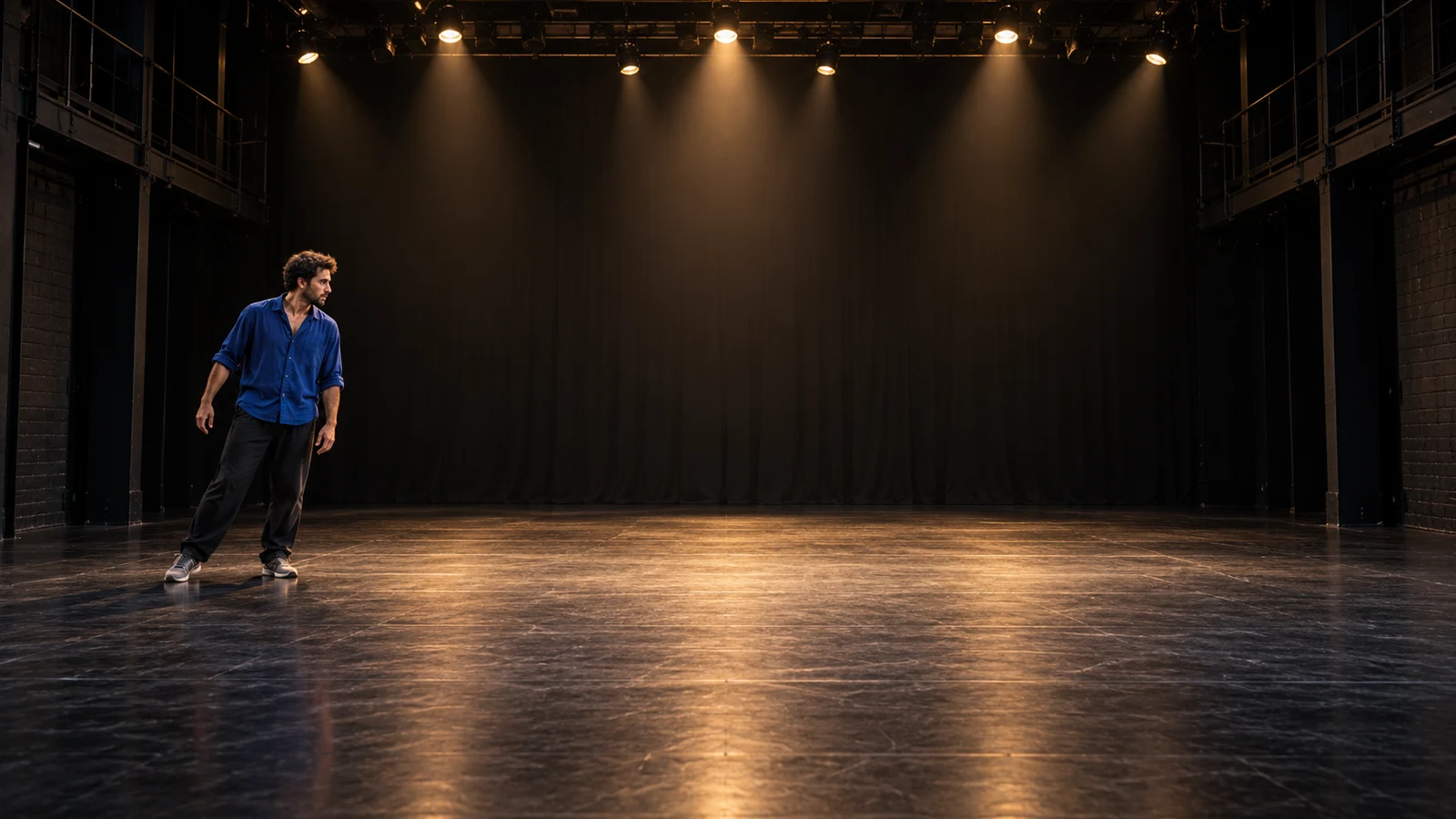
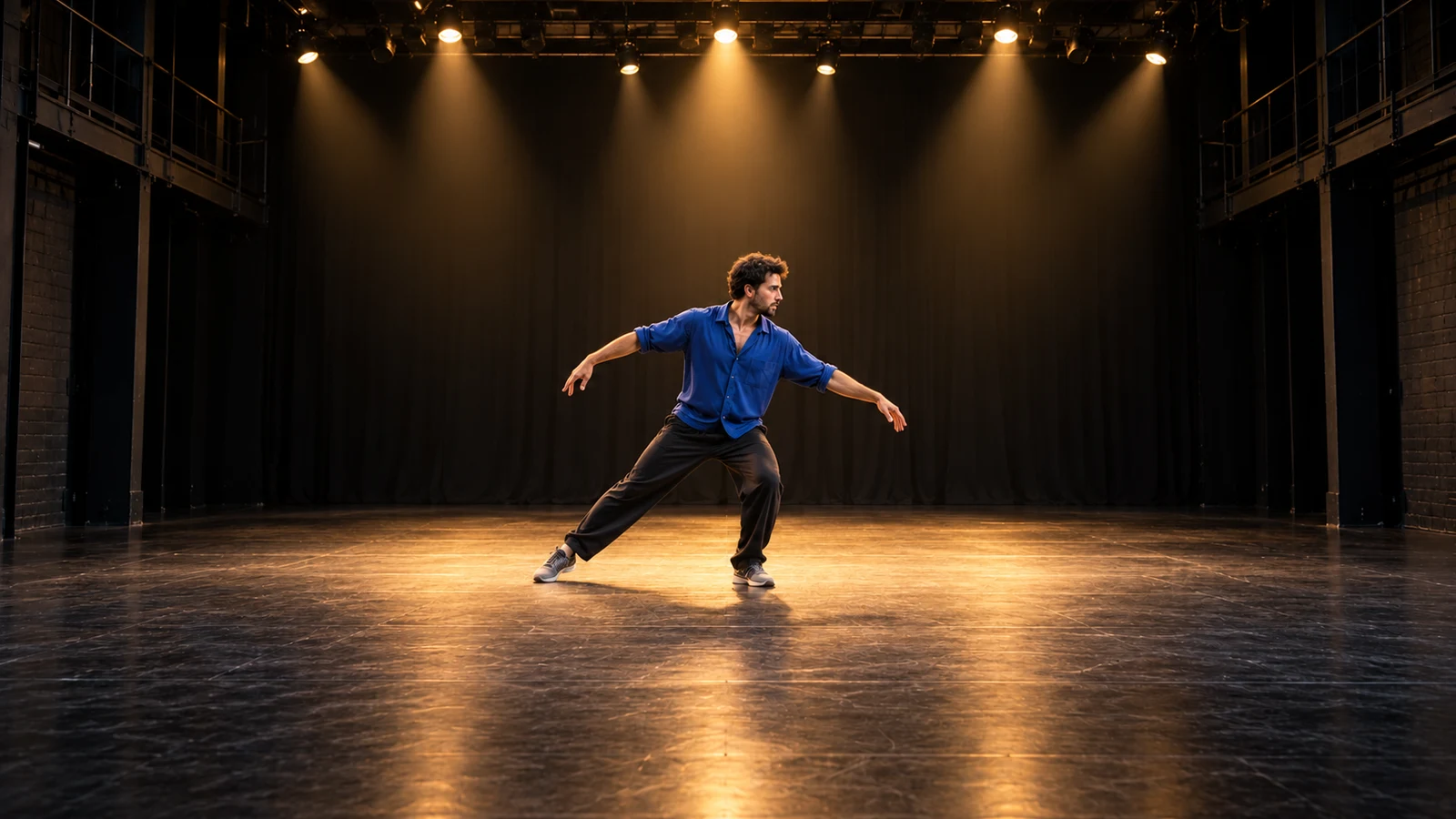
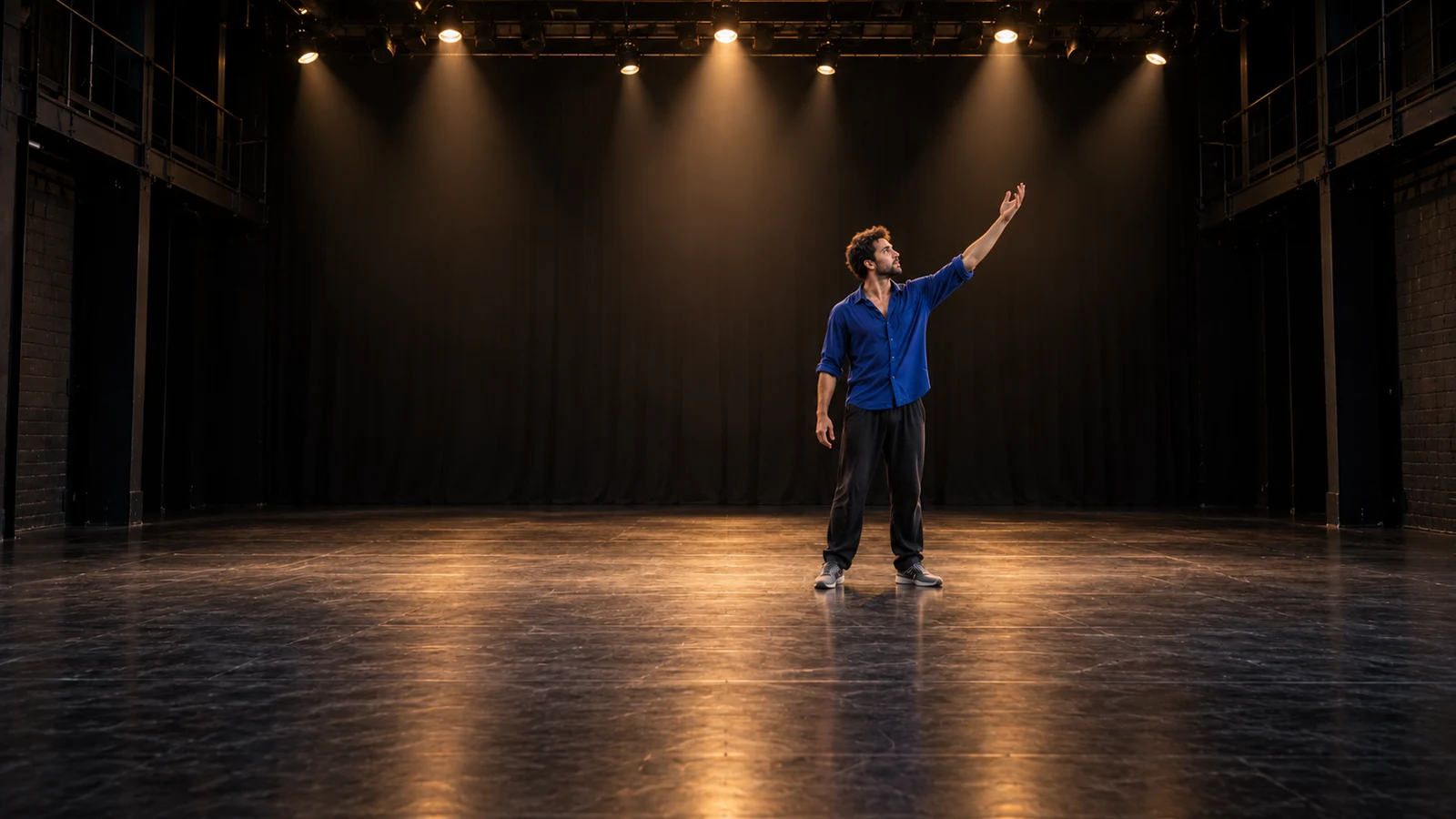
Creative storyboard
From a Visual Idea to Motion and Rhythm
Start with text or visual references, then develop the action, camera movement and atmosphere. Describe what you want to see and choose a model to take the idea into video creation.
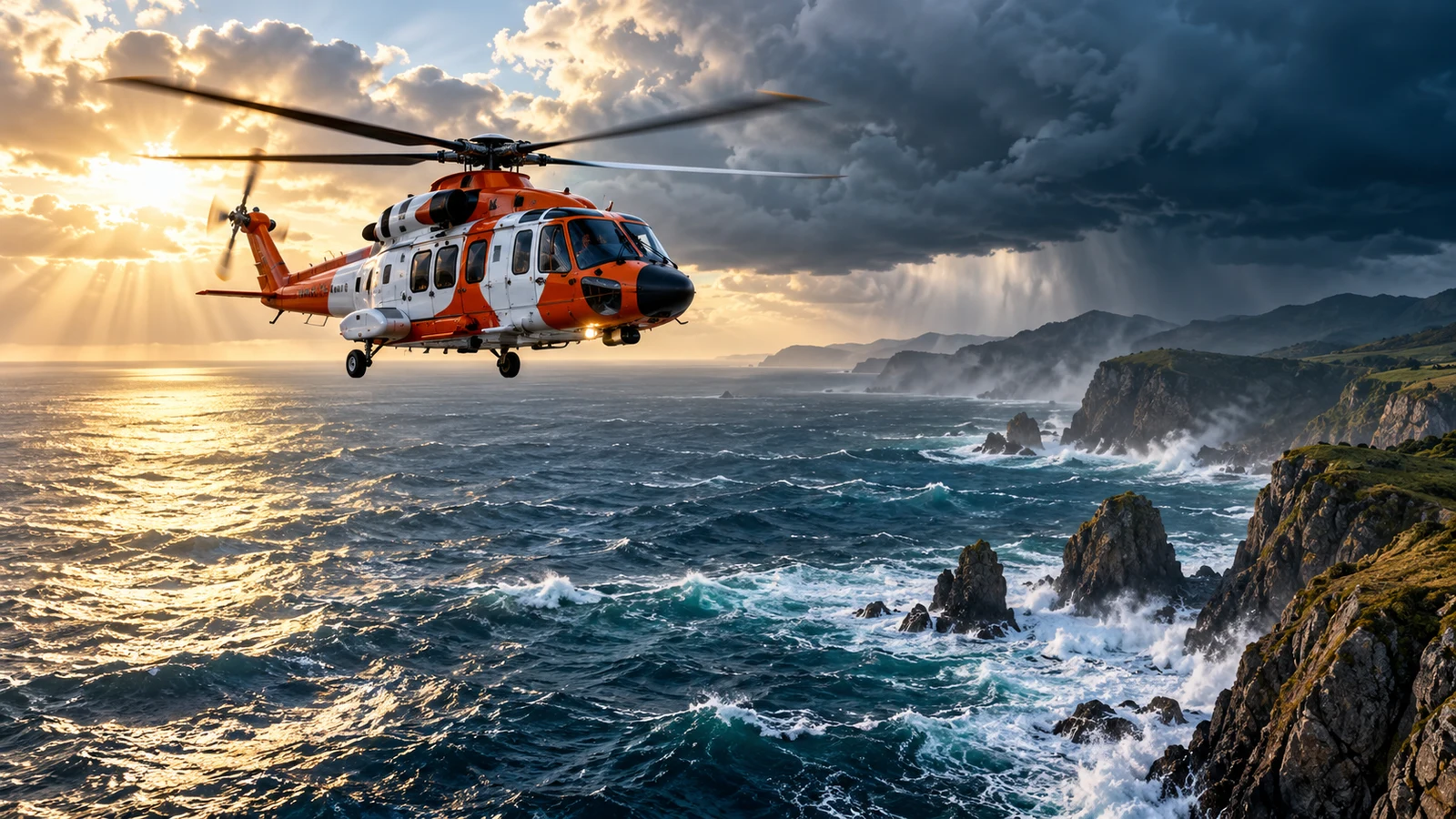
Text to Video: Describe the Shot You Have in Mind
Use natural language to describe what a subject does, where it is and how the camera sees it. A person crossing a street, shifting light by a window or a train entering a valley can all become starting points for text-to-video creation.
Video adds movement and change over time to a visual idea. Describe the main action, camera direction and atmosphere to give the shot a clear purpose.
Create a video ↗
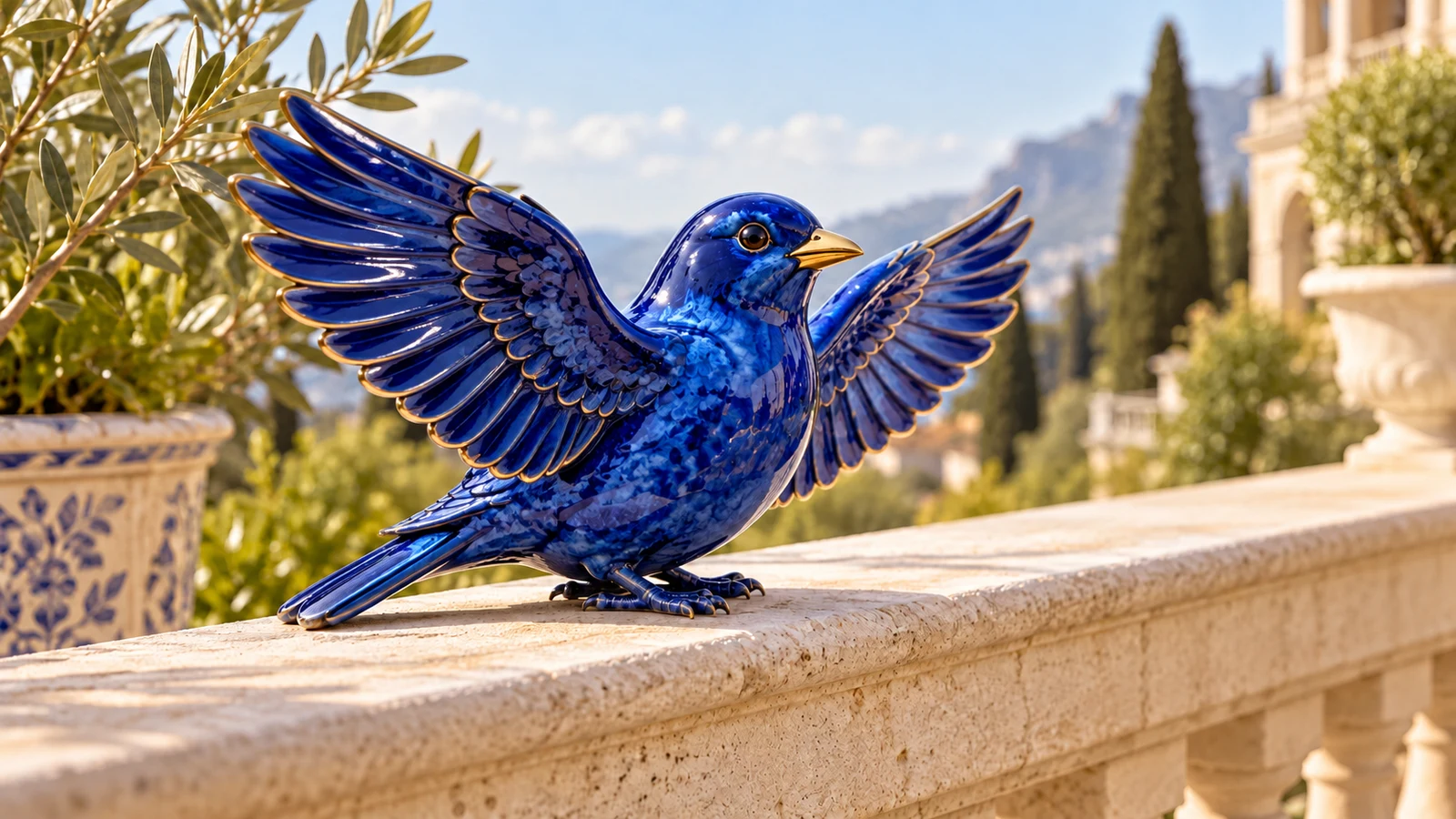
Image to Video: Develop an Existing Picture
Start with a product photo, character illustration or scene design, then describe the action and camera movement you want. Image-to-video creation is useful when you already have a visual direction to develop.
Explore subtle subject movement, changes in the environment or a moving camera. Modes that support first and last frames can also use two images to describe a clip’s starting and ending points.
Create a video ↗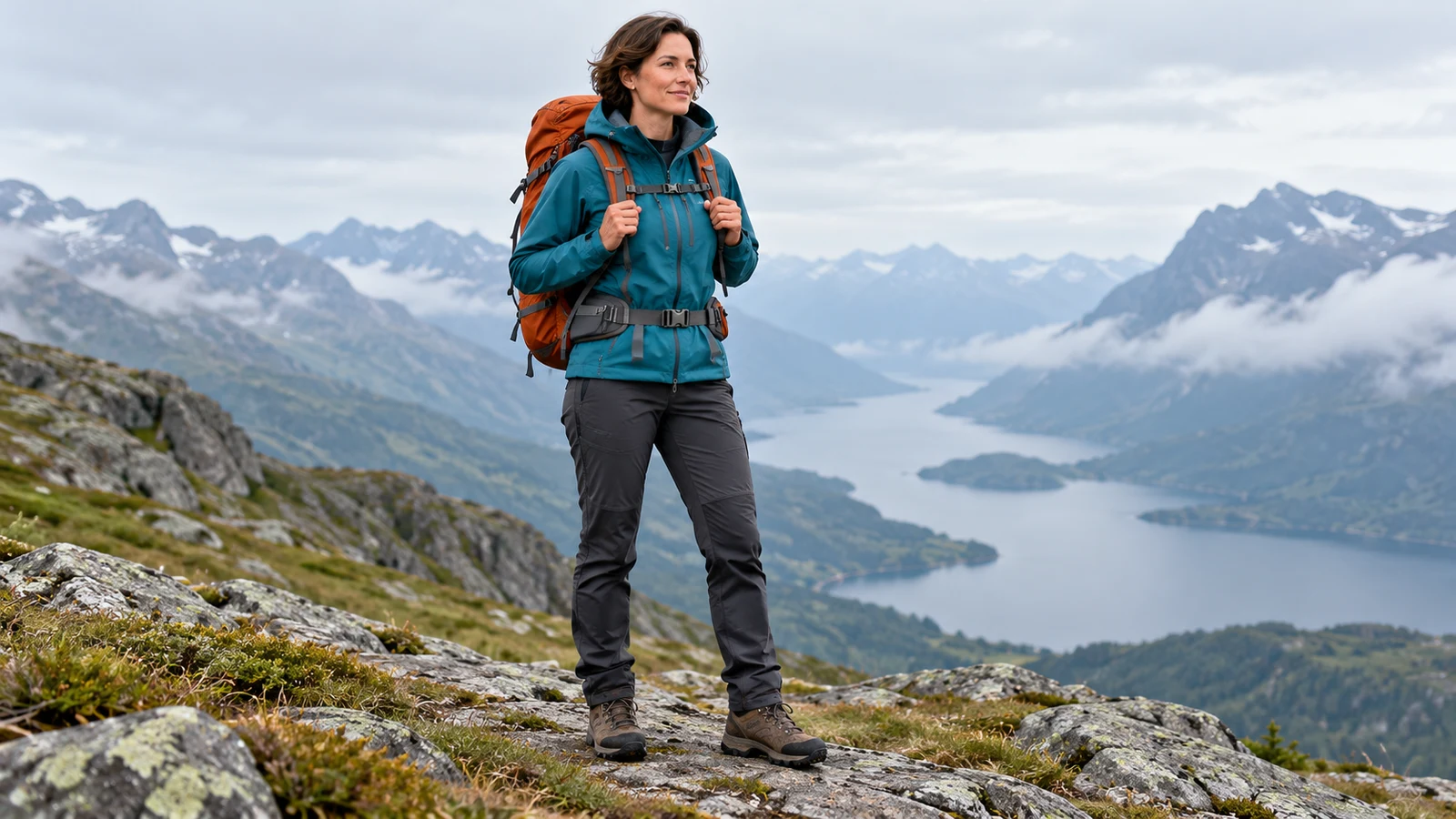
Use References to Define Subjects and Settings
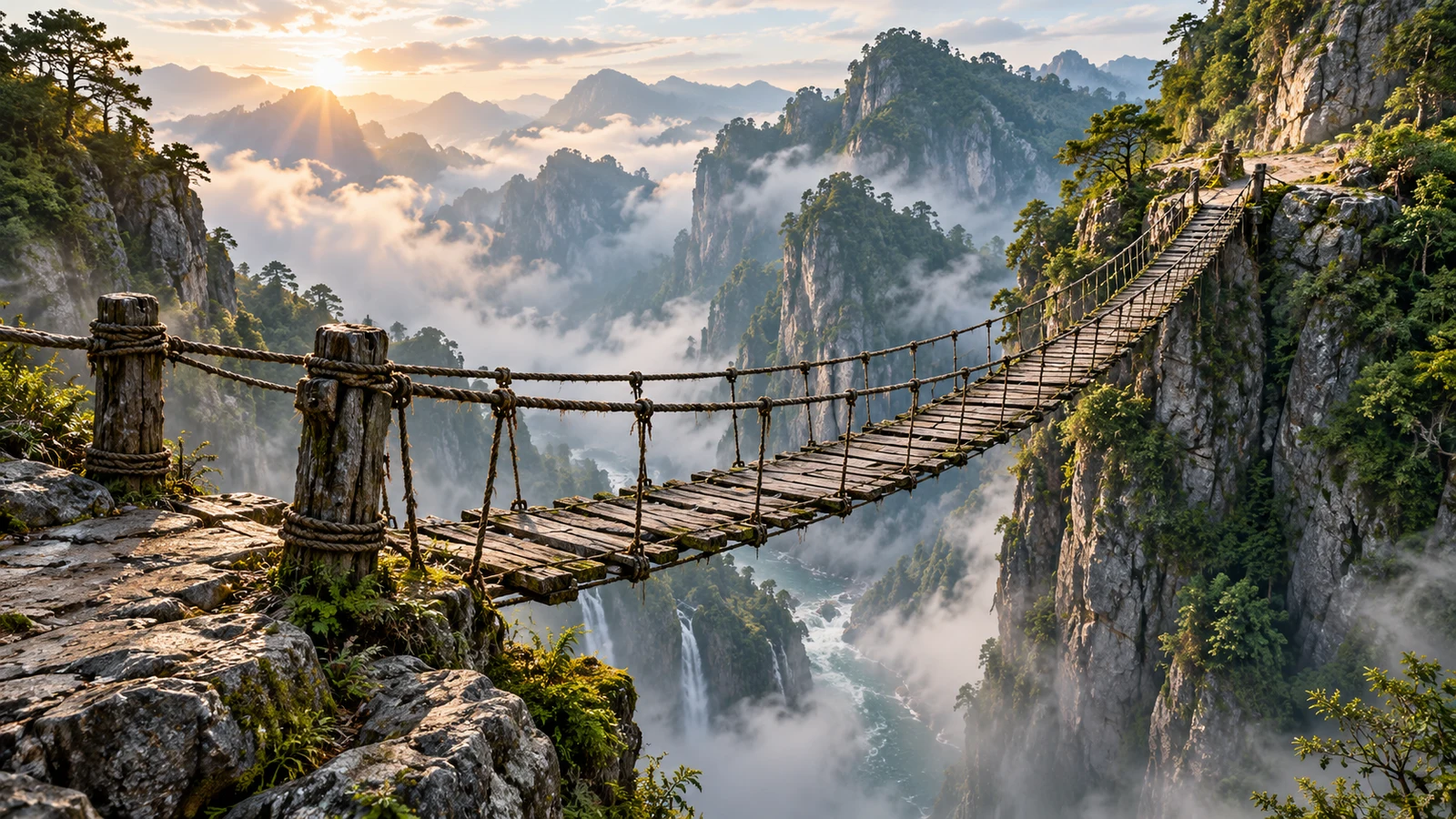
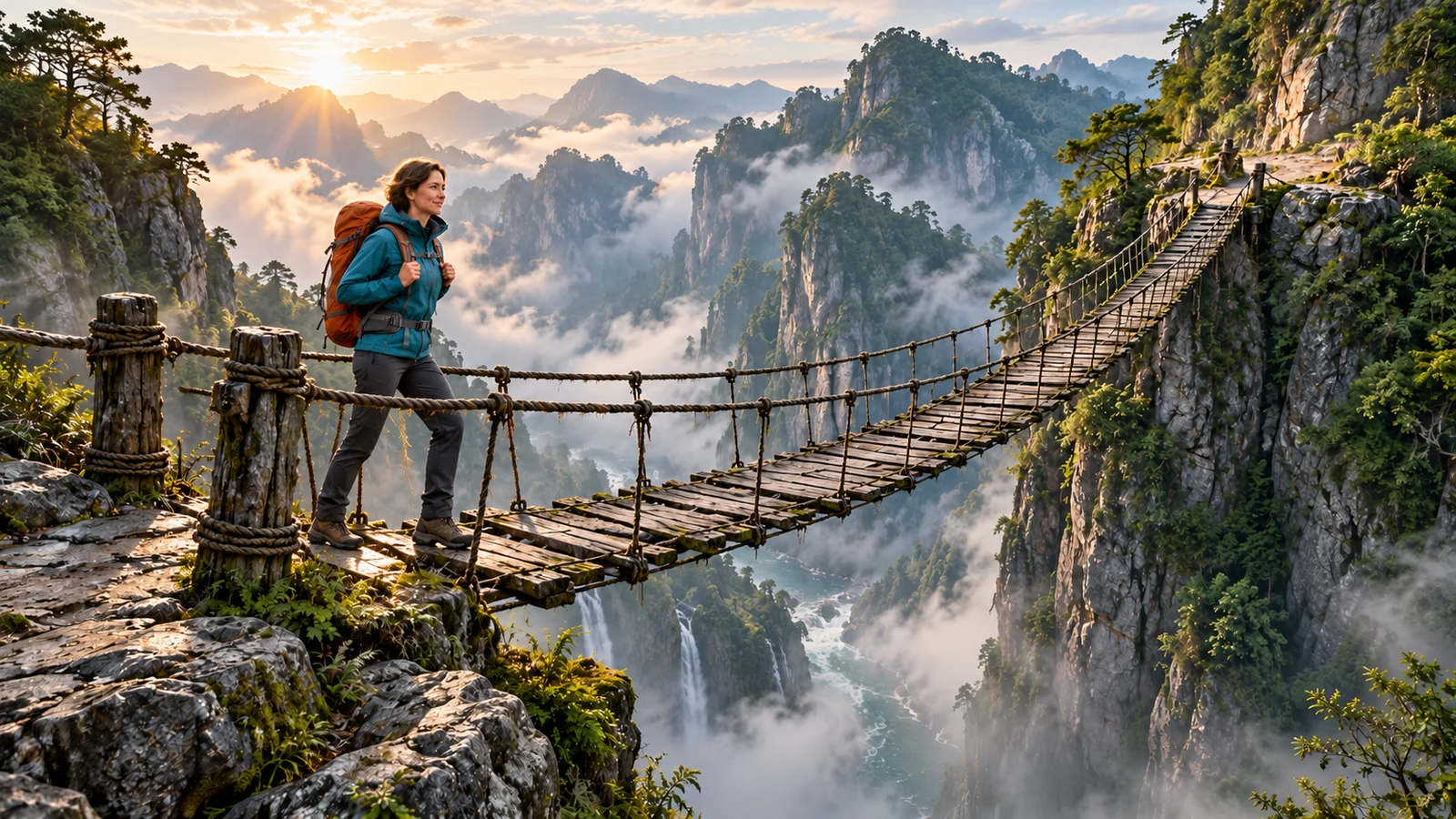
References can communicate a character’s appearance, a product’s shape or the setting of a story. They are useful when you want to develop different shots around the same subject.
Reference options vary by model. Some accept images, while others also support video or audio references. Add the relevant material for your selected mode in the workspace.
Create a video ↗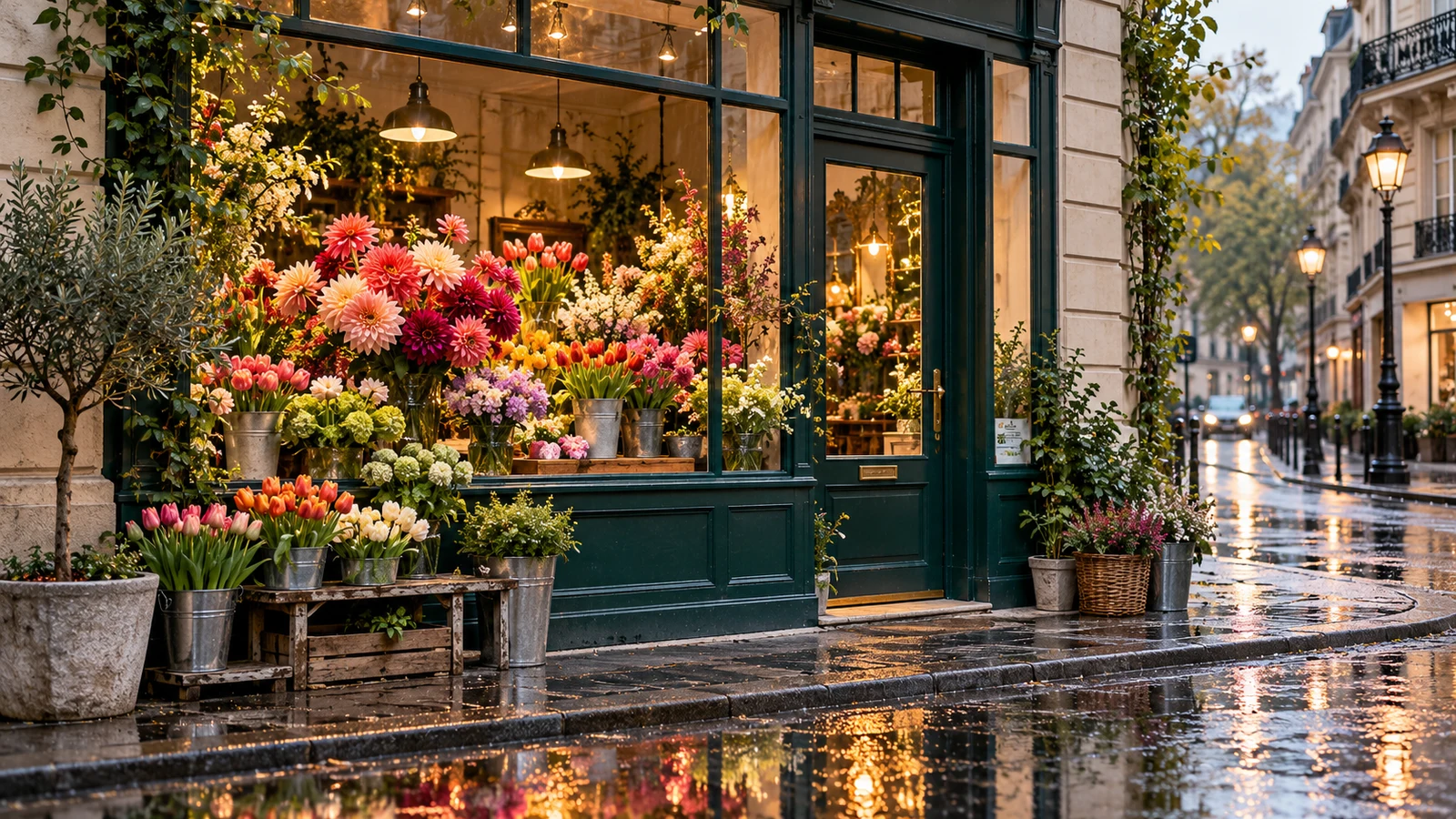
Make Camera Movement Part of the Story
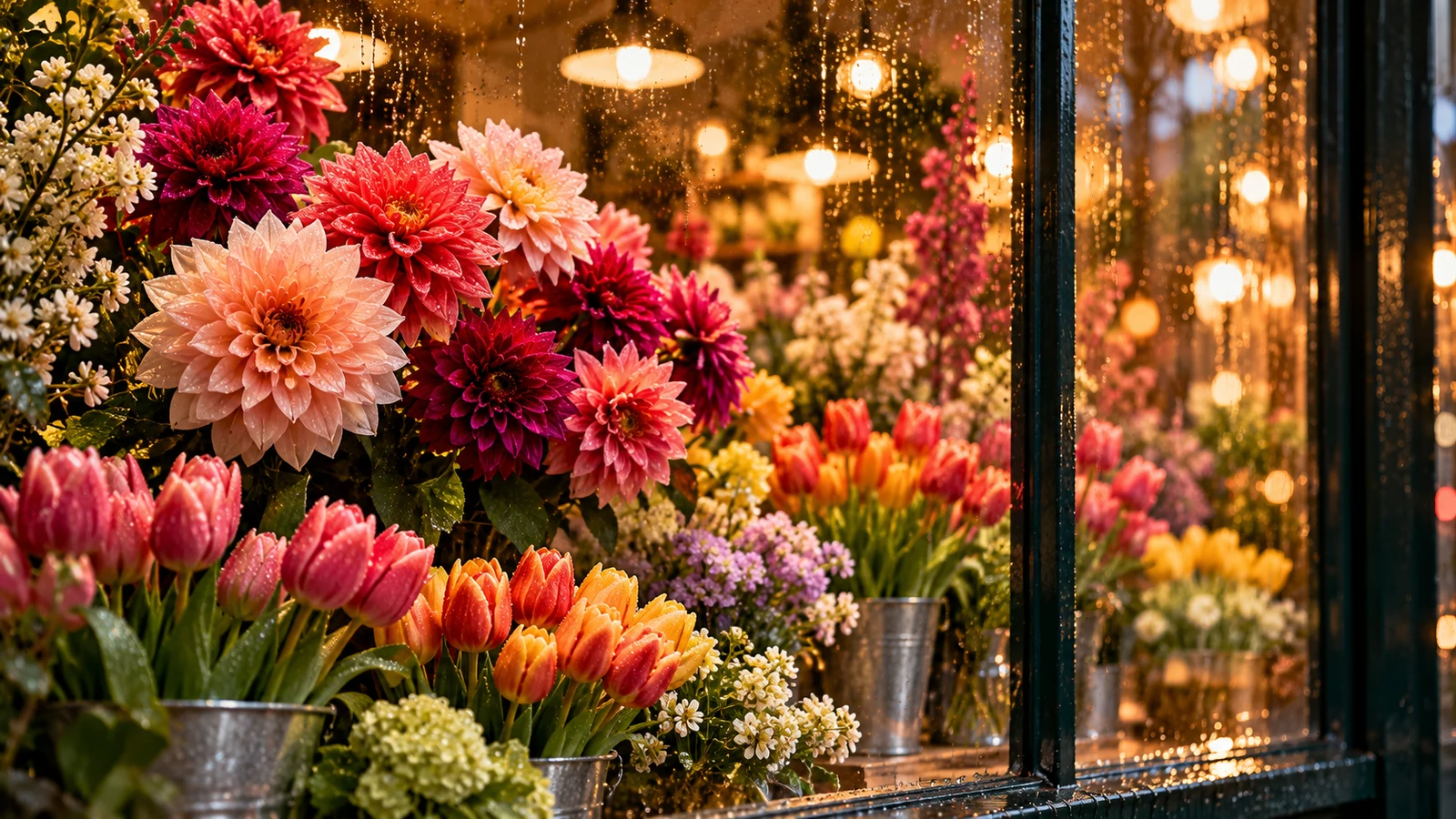
A push-in can draw attention to a detail, a pull-back can reveal the setting and a tracking shot can follow the subject’s journey. The camera can help tell the story as well as show movement.
Describe the framing, viewpoint and pace to explore different shot ideas. For a sequence that needs precise continuity, define each shot’s role and develop the edit afterwards.
Create a video ↗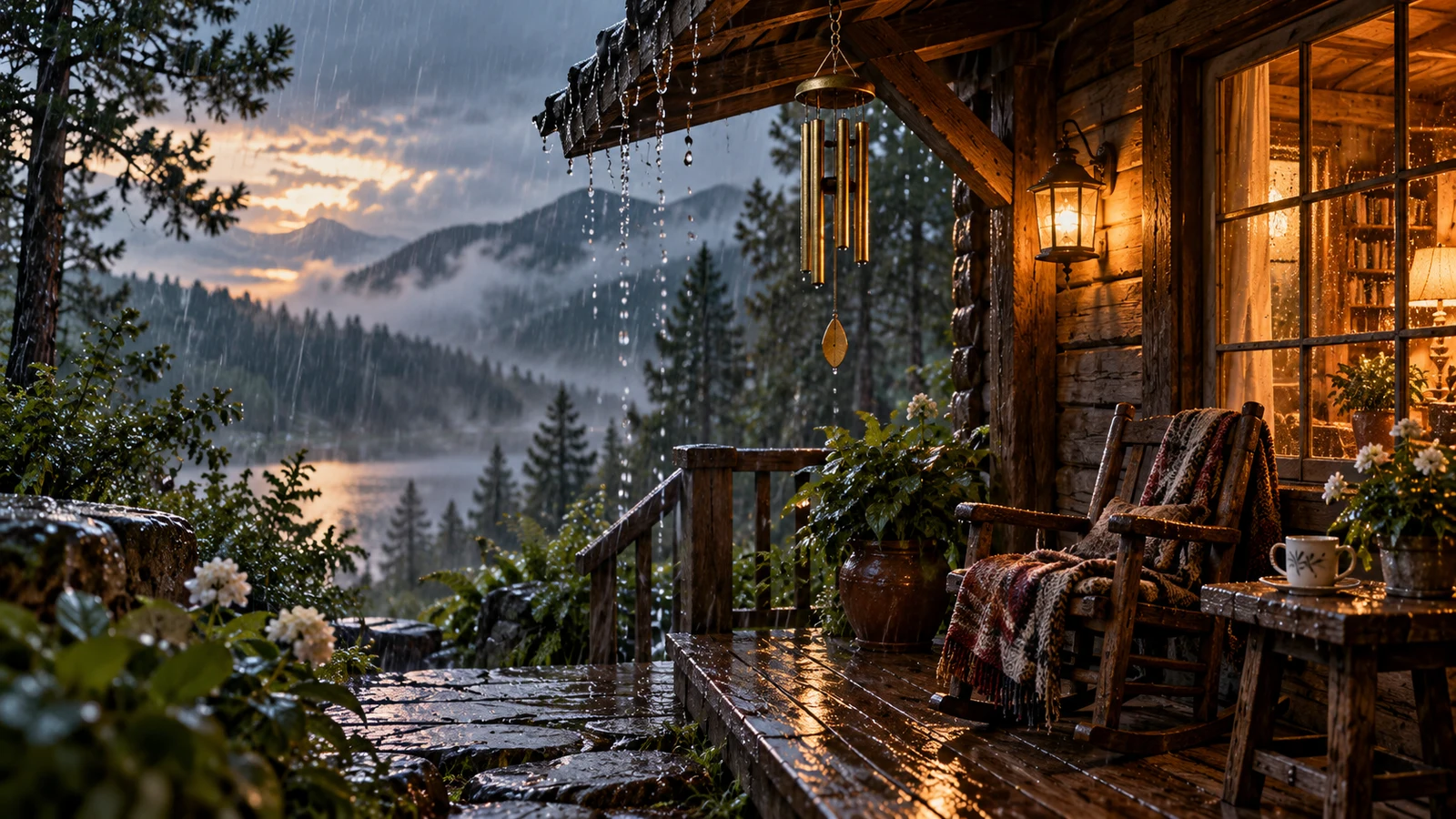
Explore Picture and Sound with Supporting Models
Ambience, sound effects and dialogue can change how a scene feels. Some video models generate audio natively, allowing you to describe what you want to hear alongside the shot.
Think of rain on a roof, conversation in a cafe or a line spoken by a character. Audio features and inputs vary by model and mode; review how the sound works with the picture afterwards.
Create a video ↗Create Video Ideas for Products, Stories and Content
From a single shot to a set of creative directions, build moving-image ideas around your subject and purpose.
Product and Brand Films
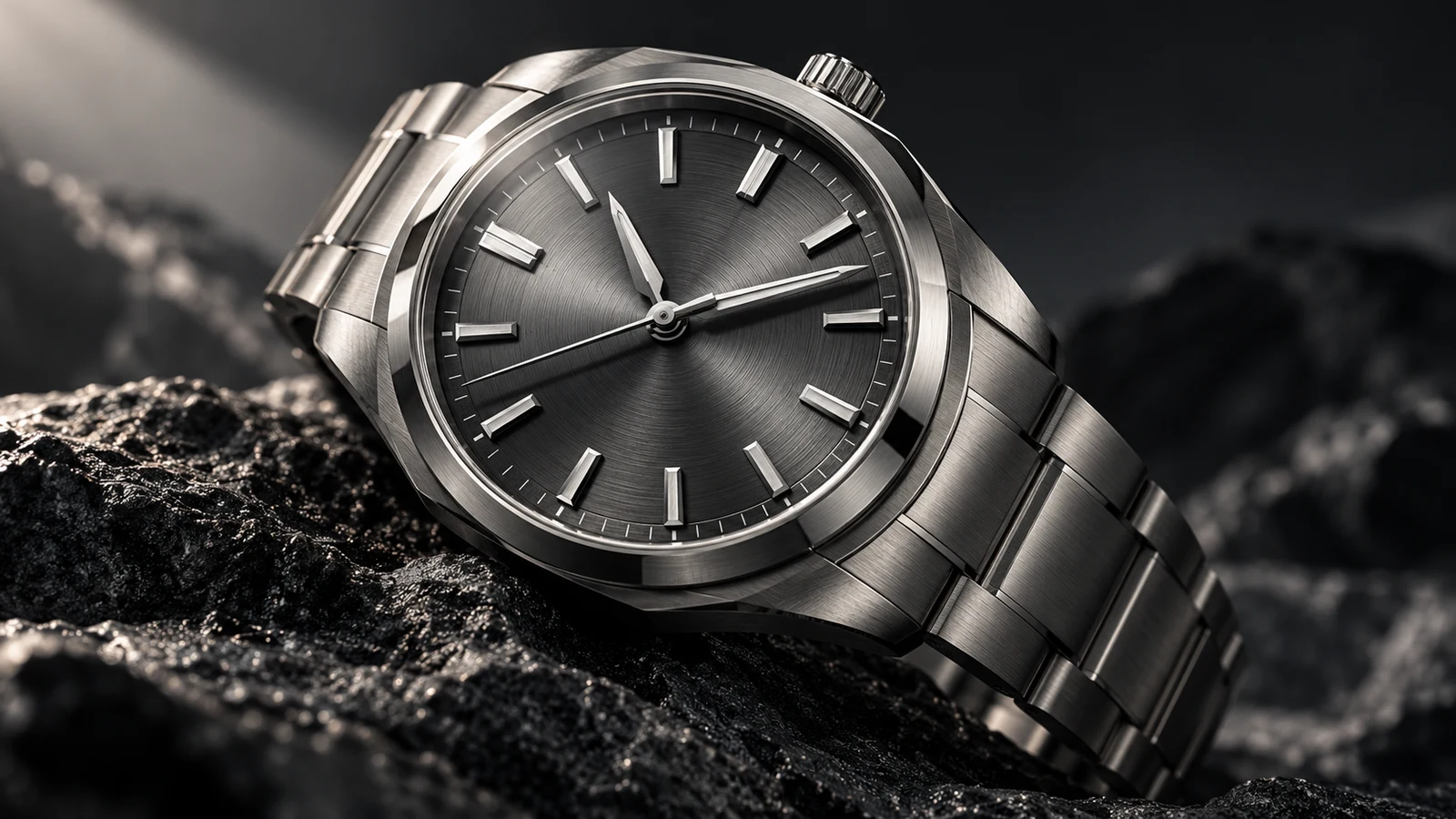
Develop shots around a product’s appearance, materials and context. Explore advertising openings, showcase clips and campaign visuals, using references and clear action descriptions to shape a direction for a brand film.
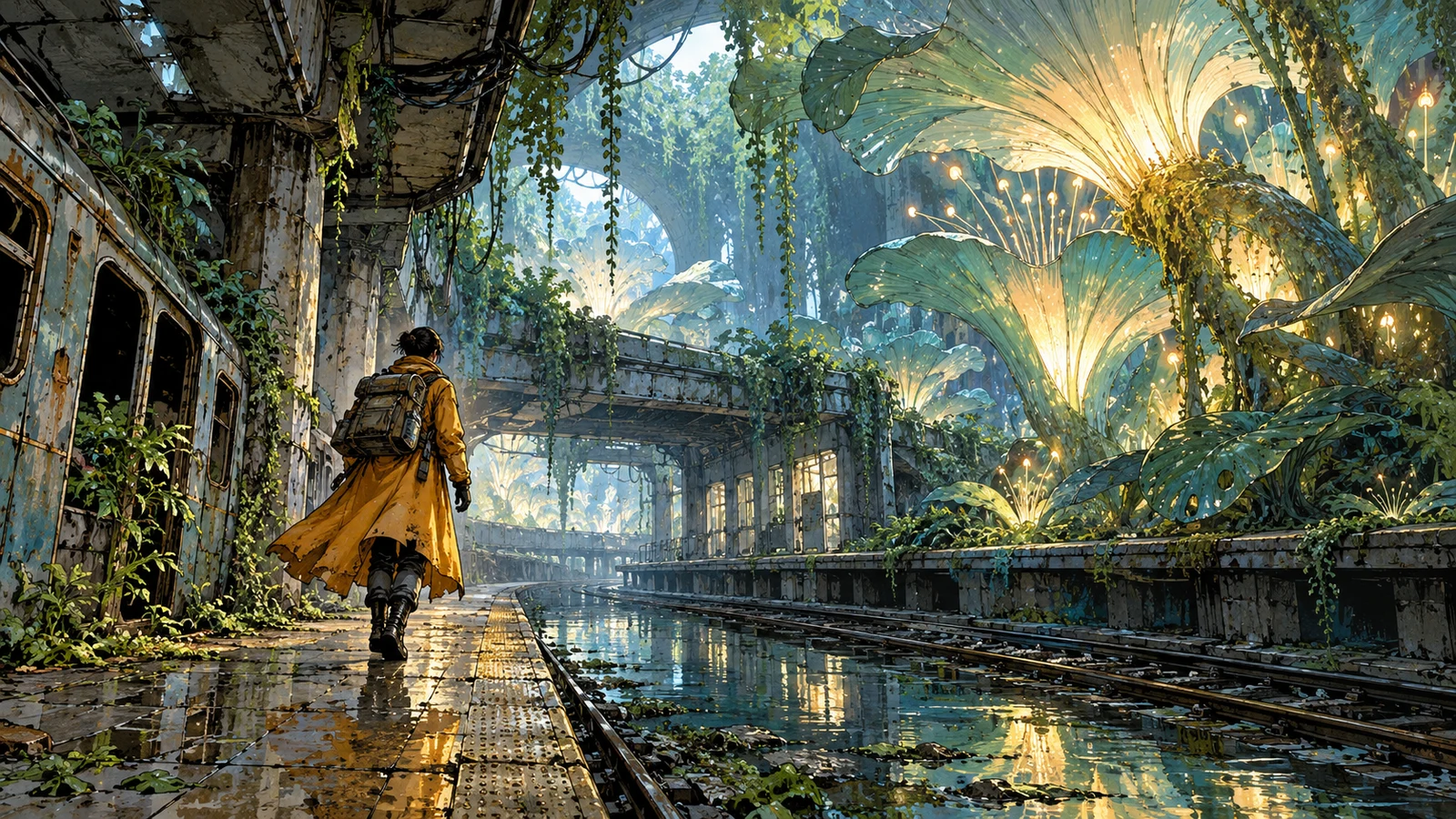
Stories and Character Moments
Develop an action or emotion into a shot: a character enters a new setting, examines an object or pauses at a meaningful moment. Give each clip a clear role before building a wider narrative.
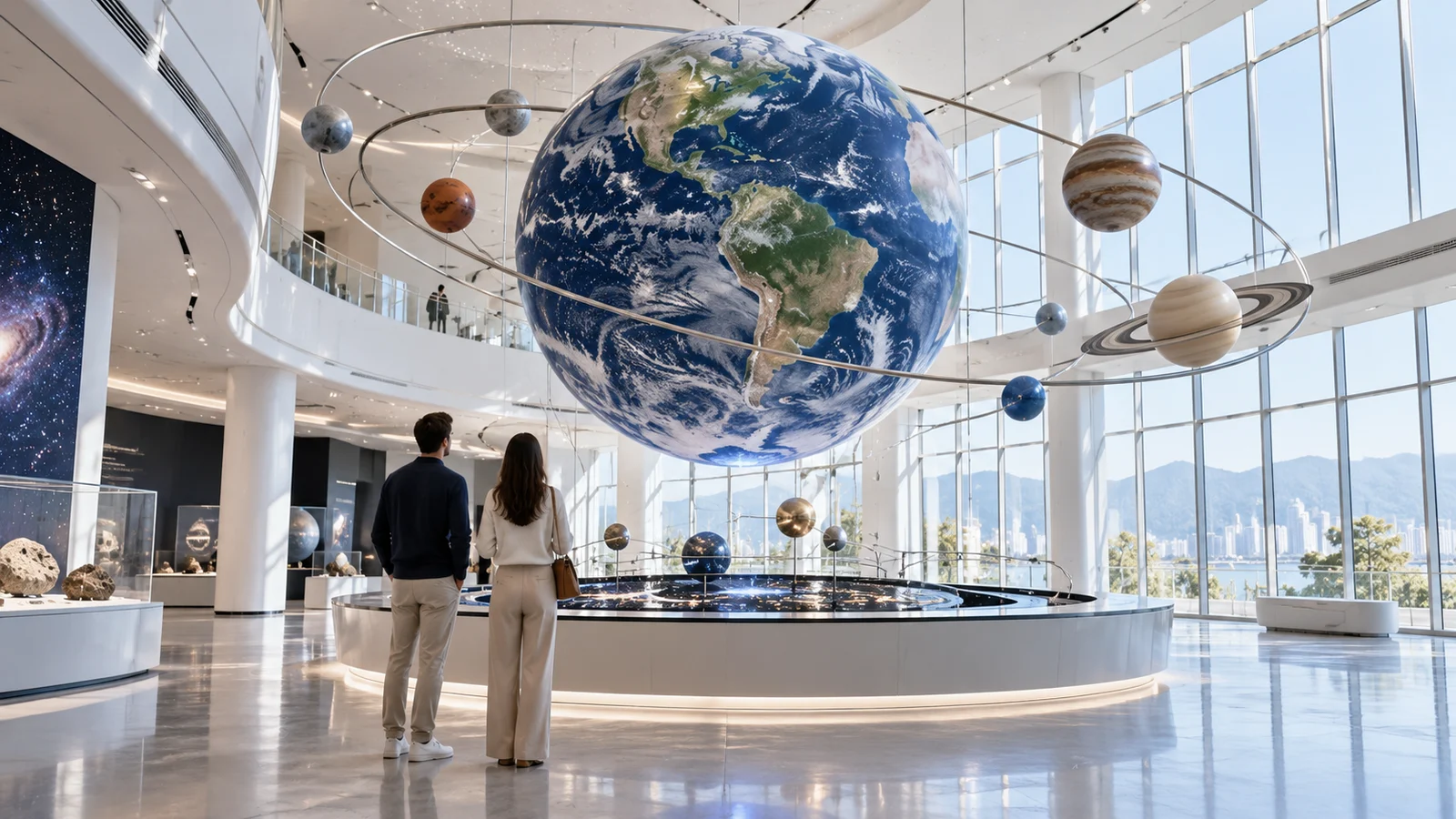
Social and Educational Content
Create visual clips for social topics, educational explanations or opening sequences. Use a concrete setting to support an idea, then develop the published version with narration, captions and editing.
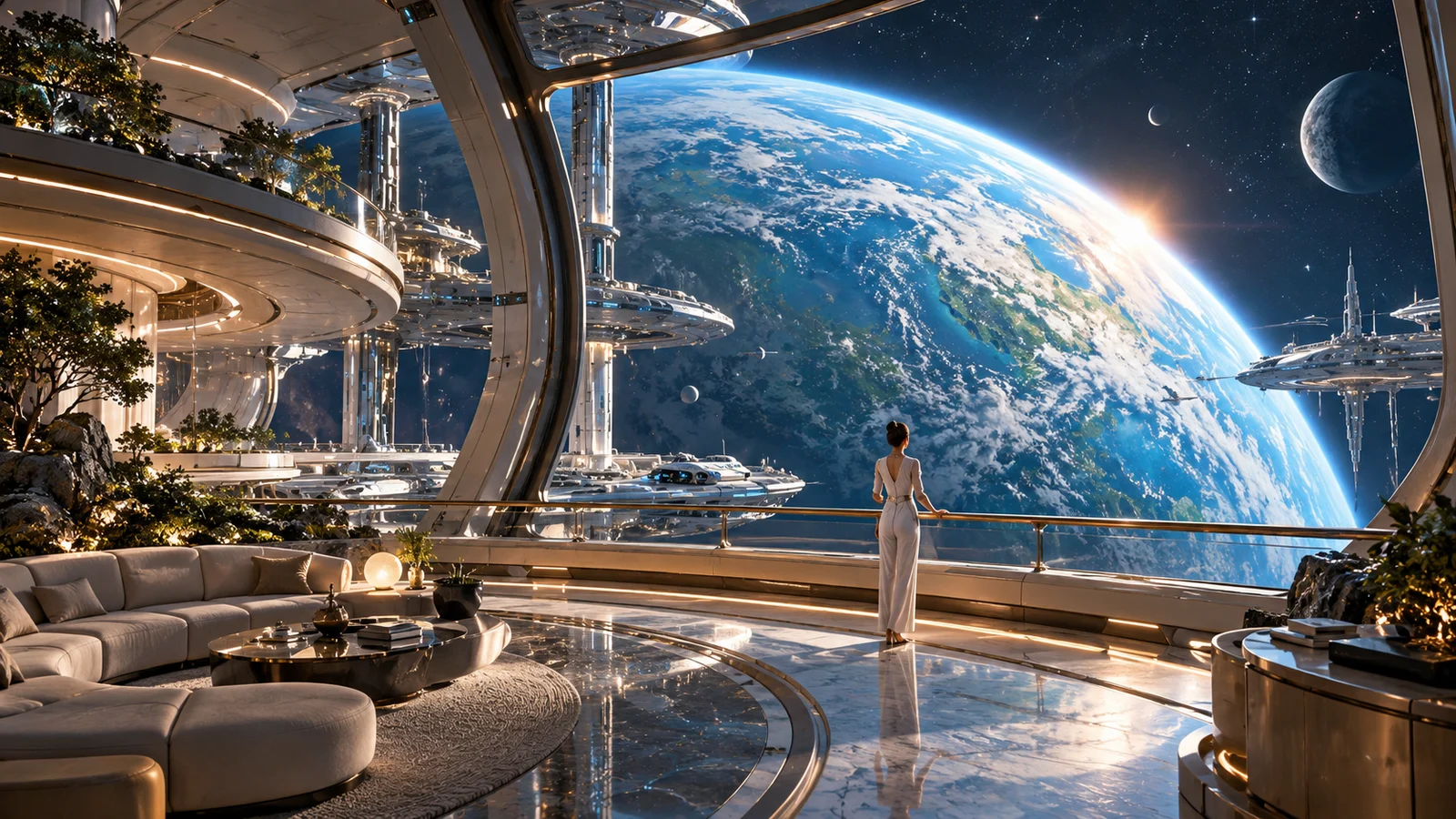
Film and Spatial Previsualisation
Explore settings, compositions and shot relationships before filming or production. Turn spaces and atmosphere that are difficult to describe into visual concepts the team can discuss and develop.
Explore Video Models on bikabika AI
Learn about each model family’s creative approach and capabilities, then choose an available model and mode in the workspace.
Kling
Explore Kling’s video generation and reference-based creation.
Explore model ↗Seedance
Explore video creation and multimodal references with Seedance.
Explore model ↗Veo
Explore video and audio generation with Google Veo.
Explore model ↗Vidu
Explore image-to-video and reference-based creation with Vidu.
Explore model ↗Wan
Explore video generation and creative inputs with Wan.
Explore model ↗HappyHorse
Explore video creation with HappyHorse.
Explore model ↗How to Create AI Videos Online
Start with a description, then choose the model and inputs in the workspace.
- 01
Describe your clip
Describe the subject, action, setting and camera, then open video creation.
- 02
Choose a model and inputs
Choose an available model and mode, add supported references, and review the settings and estimated credits.
- 03
Generate and review
Sign in and submit the task, review the result, then refine the action, camera or sound for your next version.
AI Video Generator FAQ
What is an AI video generator?
An AI video generator creates moving images from text descriptions or reference material. Describe the subject’s action, changes in the scene and camera direction to explore product clips, story shots or social content.
What is the difference between text to video and image to video?
Text-to-video generation builds the scene and action primarily from words. Image-to-video generation starts from an existing picture and uses your description to develop motion, which is useful when you already have a product image, character or scene concept.
Can I describe a video in Chinese or English?
You can start in Chinese or English. Explain the subject and main action, then add the setting, camera and atmosphere. Focusing on one clear clip makes the result easier to review and refine.
Can I turn a photo into a video?
Choose a mode that supports image input, upload the photo and describe the action or camera movement. Make sure you have the right to use the material and review the subject’s appearance and movement afterwards.
Do all generated videos include sound?
Not every video mode generates sound. Some models support native audio, sound effects or dialogue. Check the input and output options for your selected mode in the workspace.
What durations and aspect ratios can I use?
Duration, aspect ratio and output specifications vary by model and mode. Review the settings in the workspace and choose a clip length and composition for your content.
Does AI video generation cost credits?
Tasks use credits based on the model, mode and settings. Review the estimate before generating, and visit the pricing page if you need to purchase credits.
Can I use AI-generated videos commercially?
Before commercial use, check the model’s licence, the site’s relevant terms and your rights to image, video and audio references. Confirm the necessary permissions for people’s likenesses, brands and protected works.
Is this a model developer’s official website?
bikabika AI is a platform for creating with multiple AI models. It is separate from the model developers’ official websites. Explore model information here and create through the site’s workspace.
Give Your Next Idea a Shot of Its Own
Start with a description or an image, then develop your moving-image idea in the video workspace.