
Grok Imagine Image 2.0: AI image generation and editing
Grok Imagine Image 2.0 is Grok's image creation model, bringing together text-to-image generation, visual layouts, and image editing. Start with a design idea that includes words, or continue developing an image you already have.
Choose a model, enter a prompt and adjust the settings to generate, preview and refine images on this page.
Open full workspaceEstimated cost—pts
Creative illustrations
From words and composition to the next image revision
Connect generation and editing around written information, visual references, and the details of a creative brief.
Make words part of the design
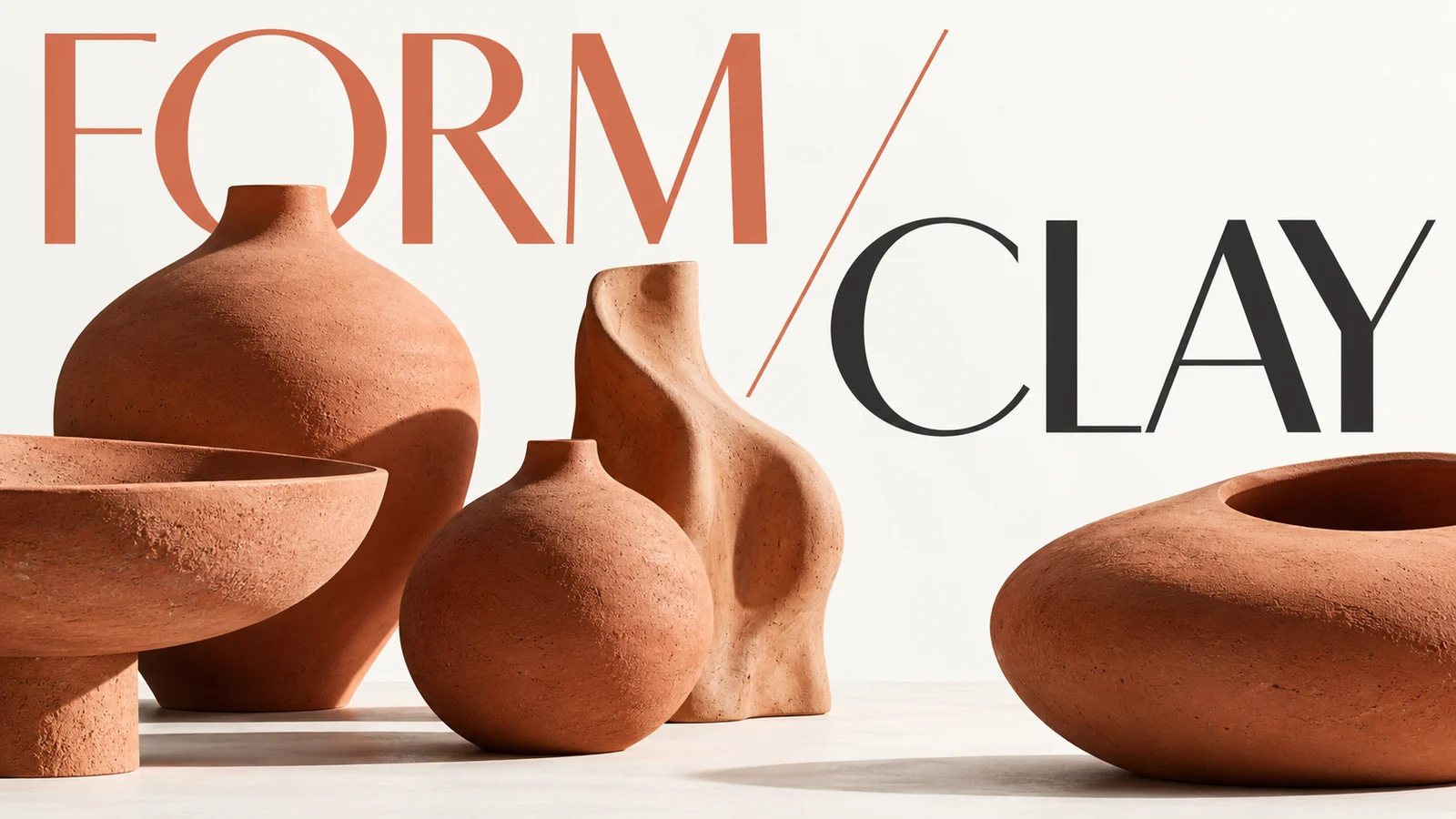
The official Image 2.0 introduction emphasizes typography and layout, connecting headings, objects, and information hierarchy. Explore a poster, cover, or graphic with a defined theme, rather than treating its words as an afterthought.
A ceramics visual might balance a large title with the position of an object and the space around it. Check names, dates, and small print carefully before completing the final layout.
Start creating ↗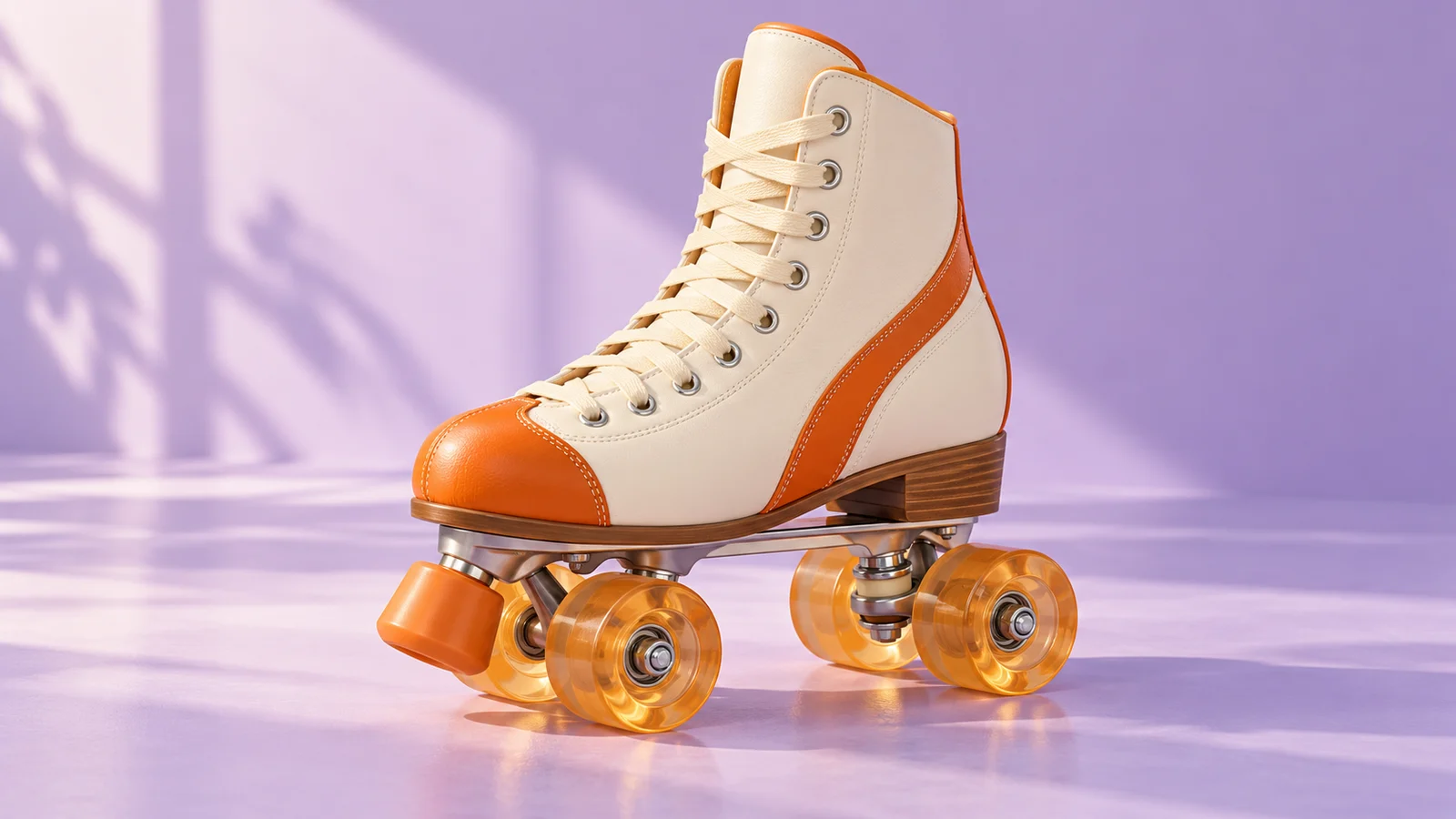
Continue an image with a specific edit
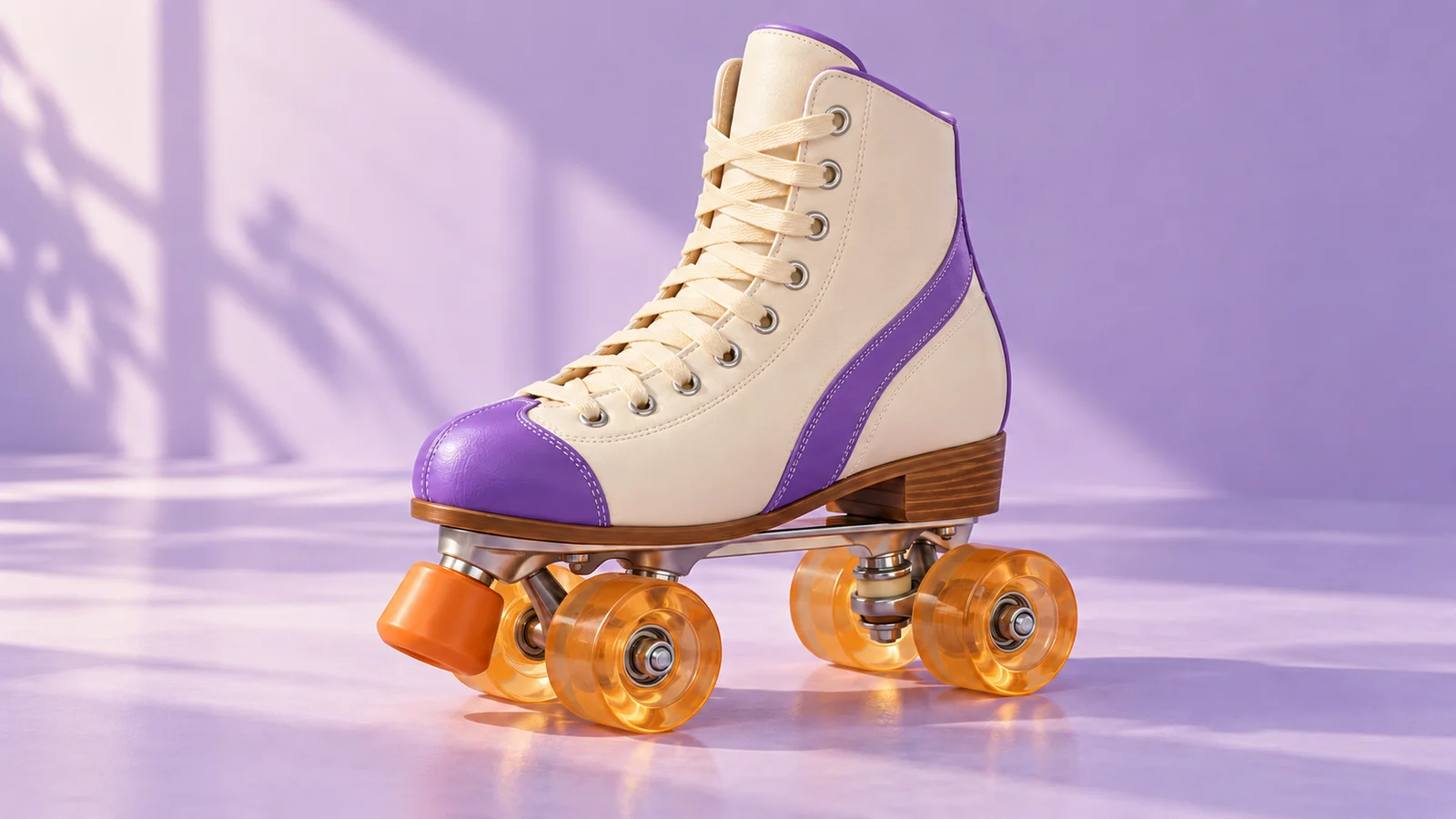
Image editing gives an existing visual a next step. Describe a change to color, light, or appearance and develop a revision around that request, without starting the entire composition again.
For an original pair of roller skates, a new upper color can become a focused design variation. Compare the laces, wheels, edges, and shadows as well as the requested change.
Start creating ↗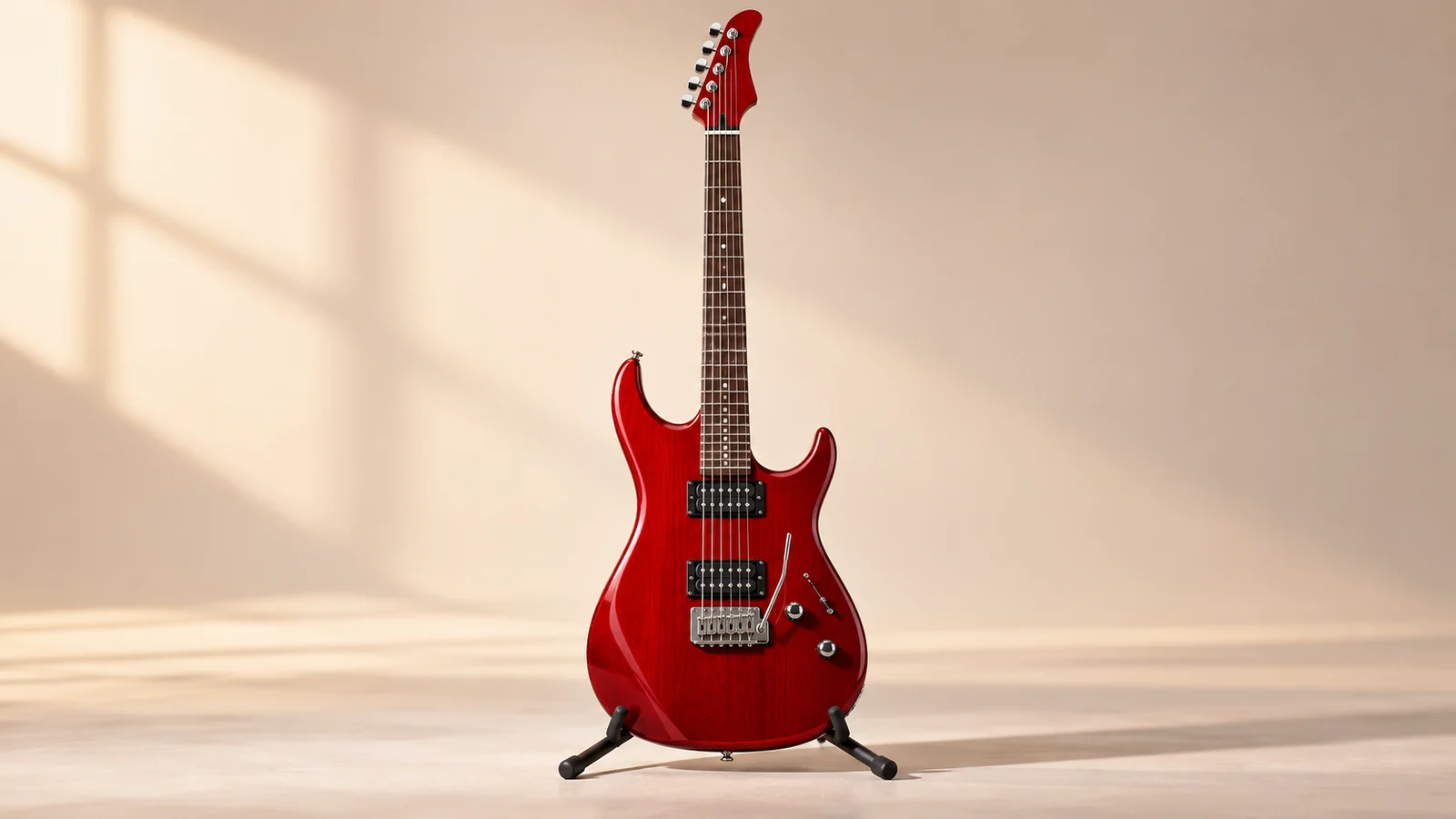
Bring several references into one scene
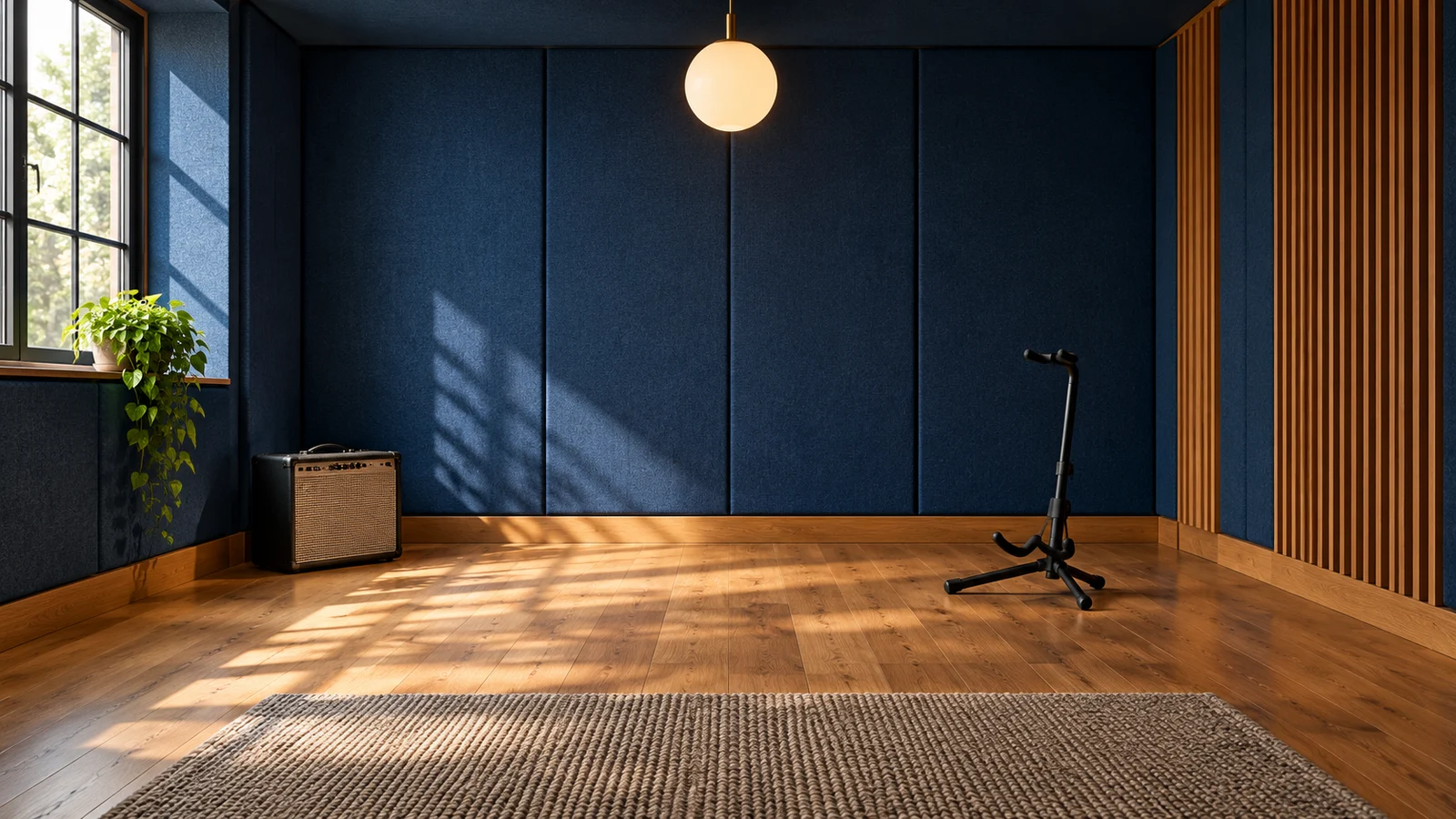
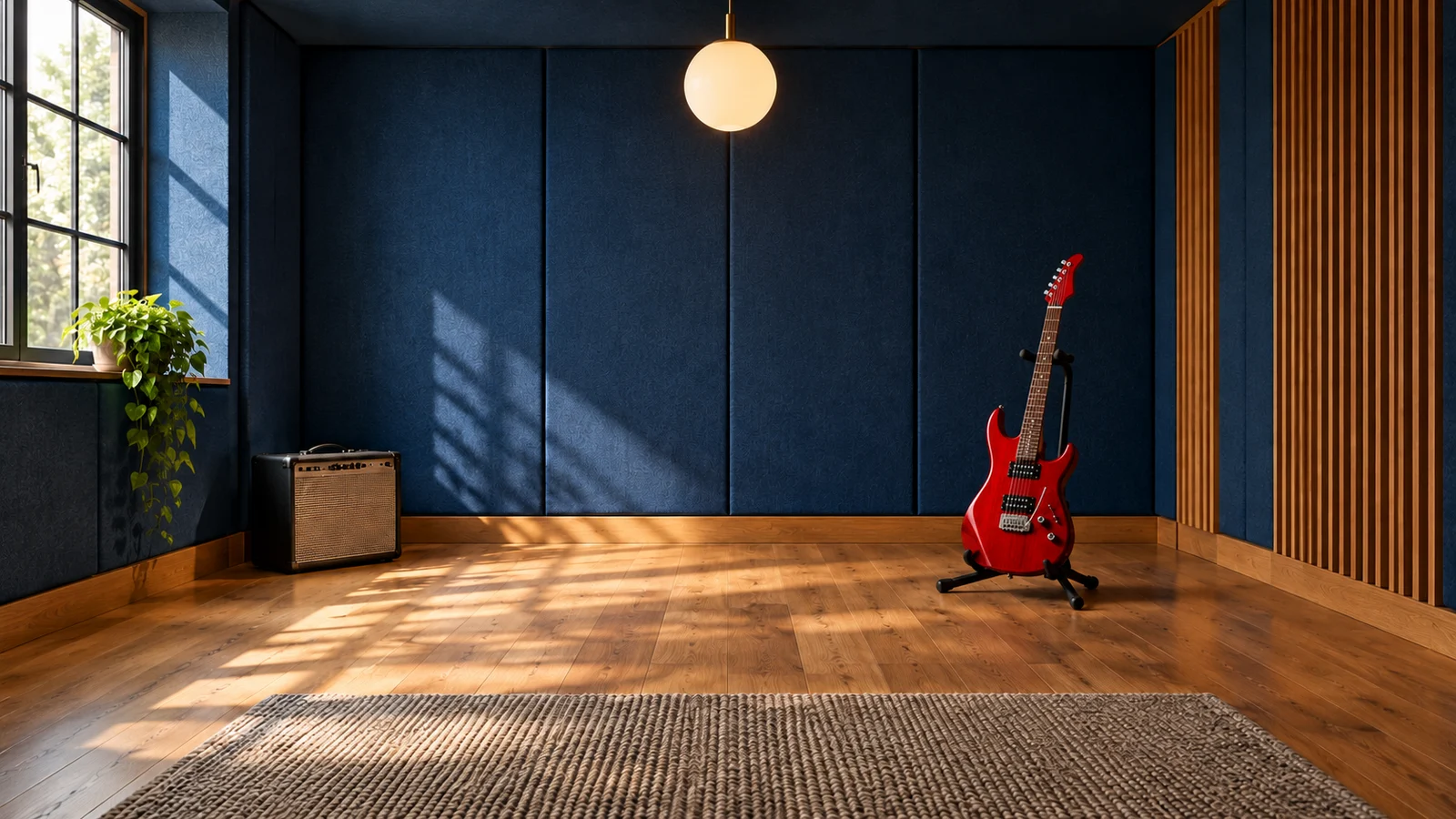
Multi-image editing combines visual information from different sources. One reference can establish the subject while another defines the setting; a written request explains how they should come together.
An original electric guitar and a rehearsal room can become a scene-based product concept. Give each reference a clear role, then review scale, perspective, and light. Prepare the number of uploads shown for the selected mode.
Start creating ↗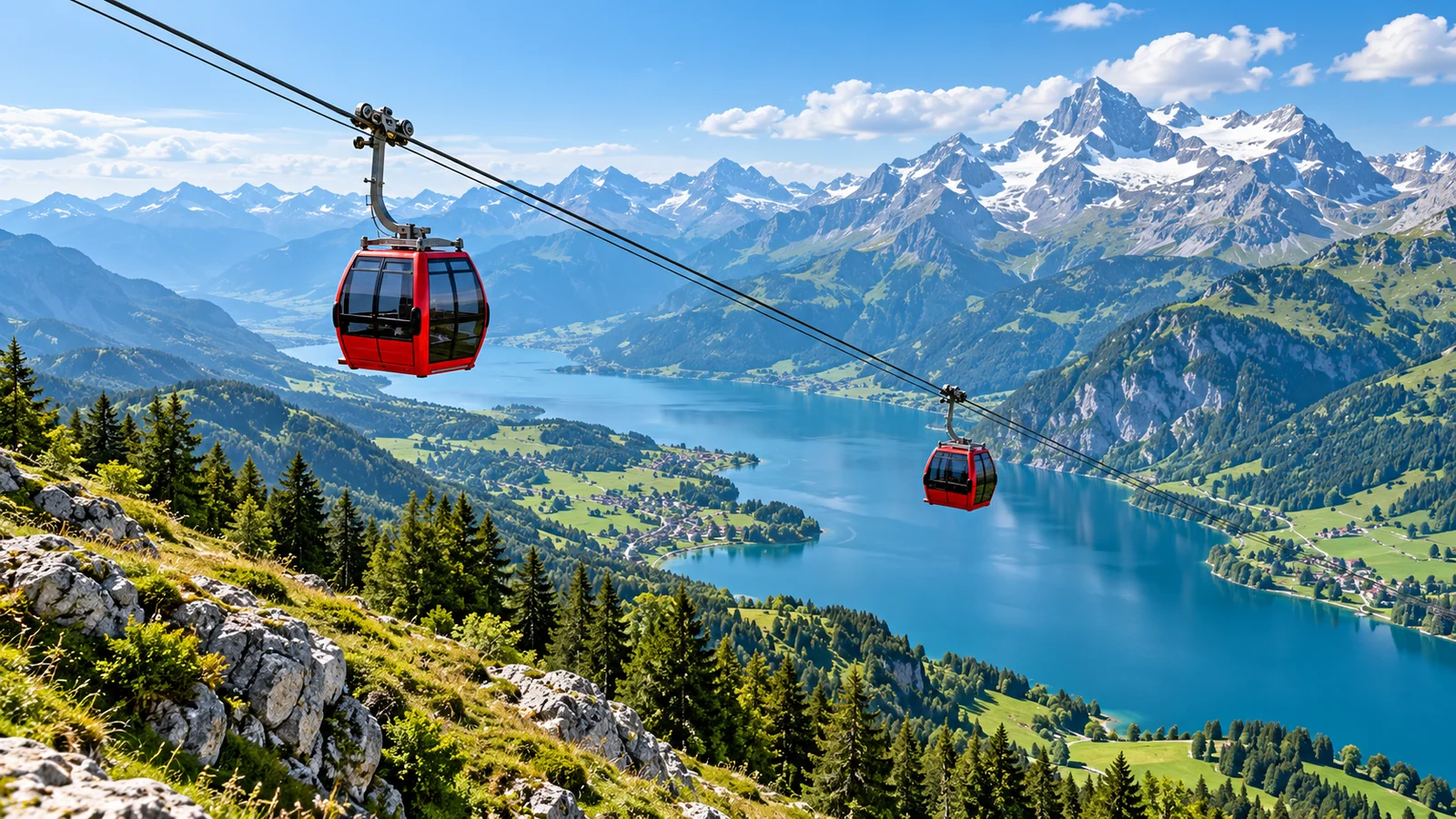
Explore photography, illustration, and artistic styles
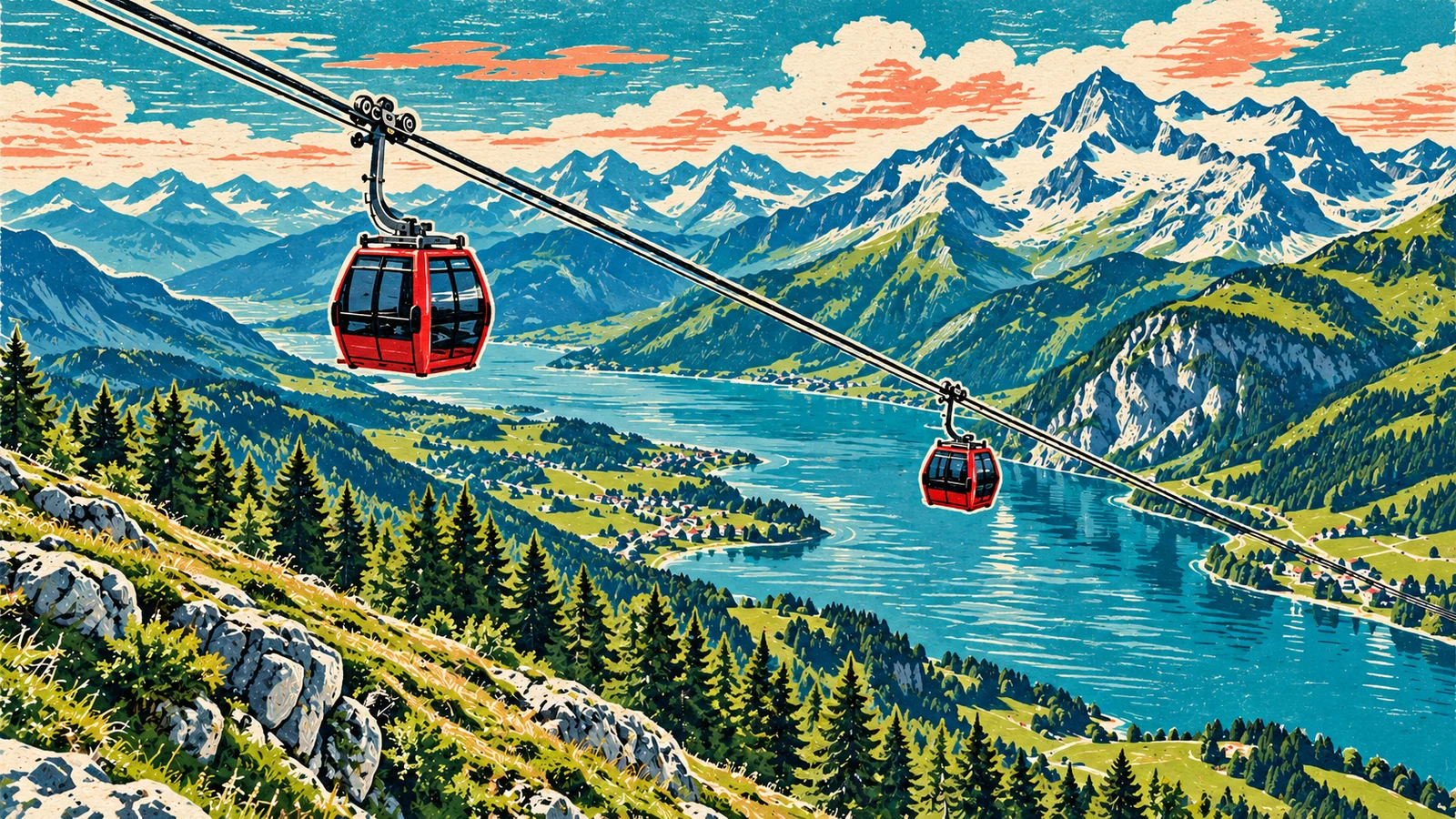
Image 2.0 supports different visual treatments through descriptions and image edits. A photograph, print, or painted version can give a shared subject a different visual voice.
A mountain cable-car scene might retain the mountain line and cabin positions while changing color, texture, and mark-making. This makes it easier to compare the treatment without losing the original theme.
Start creating ↗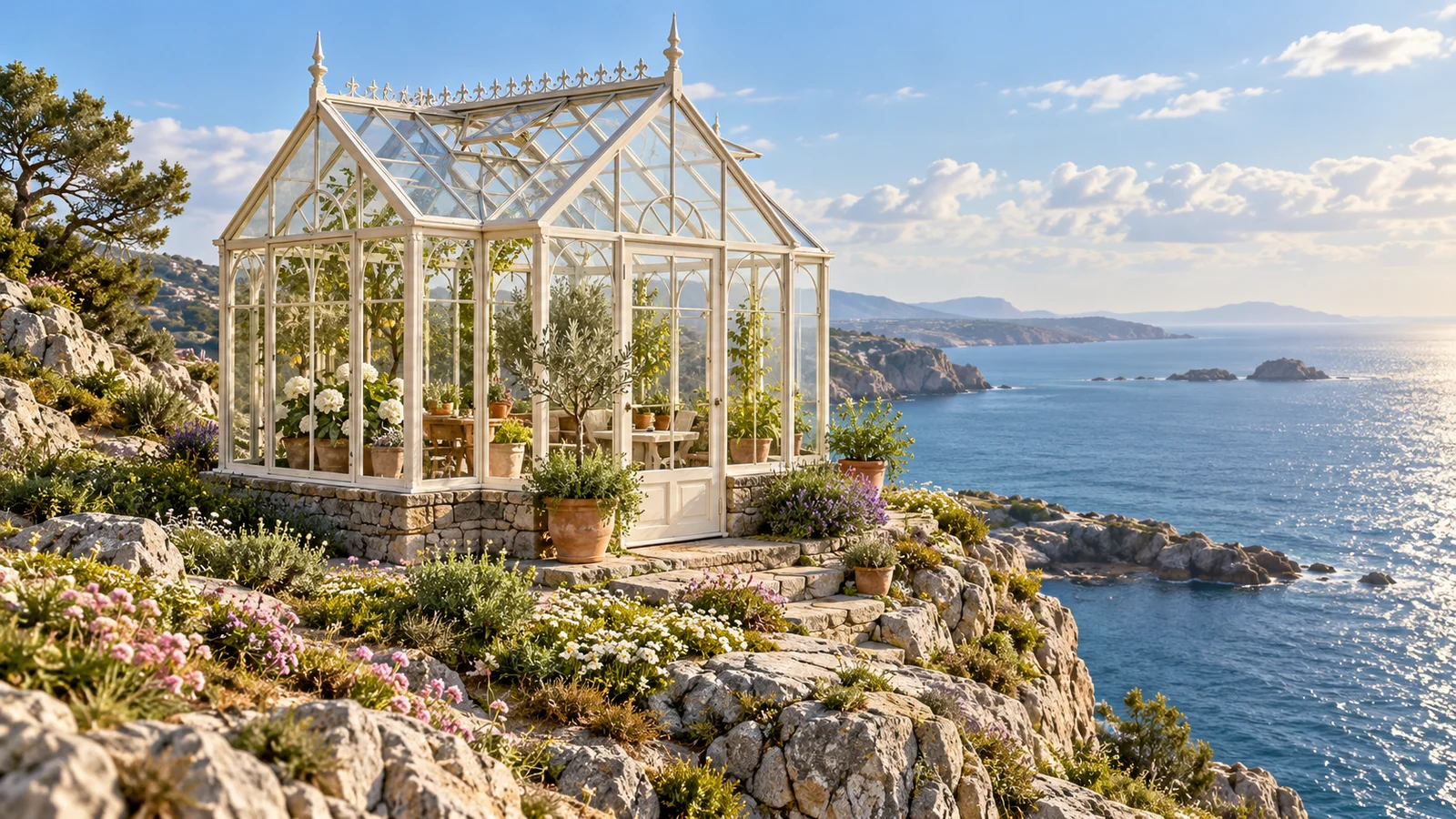
Rework the space around a subject
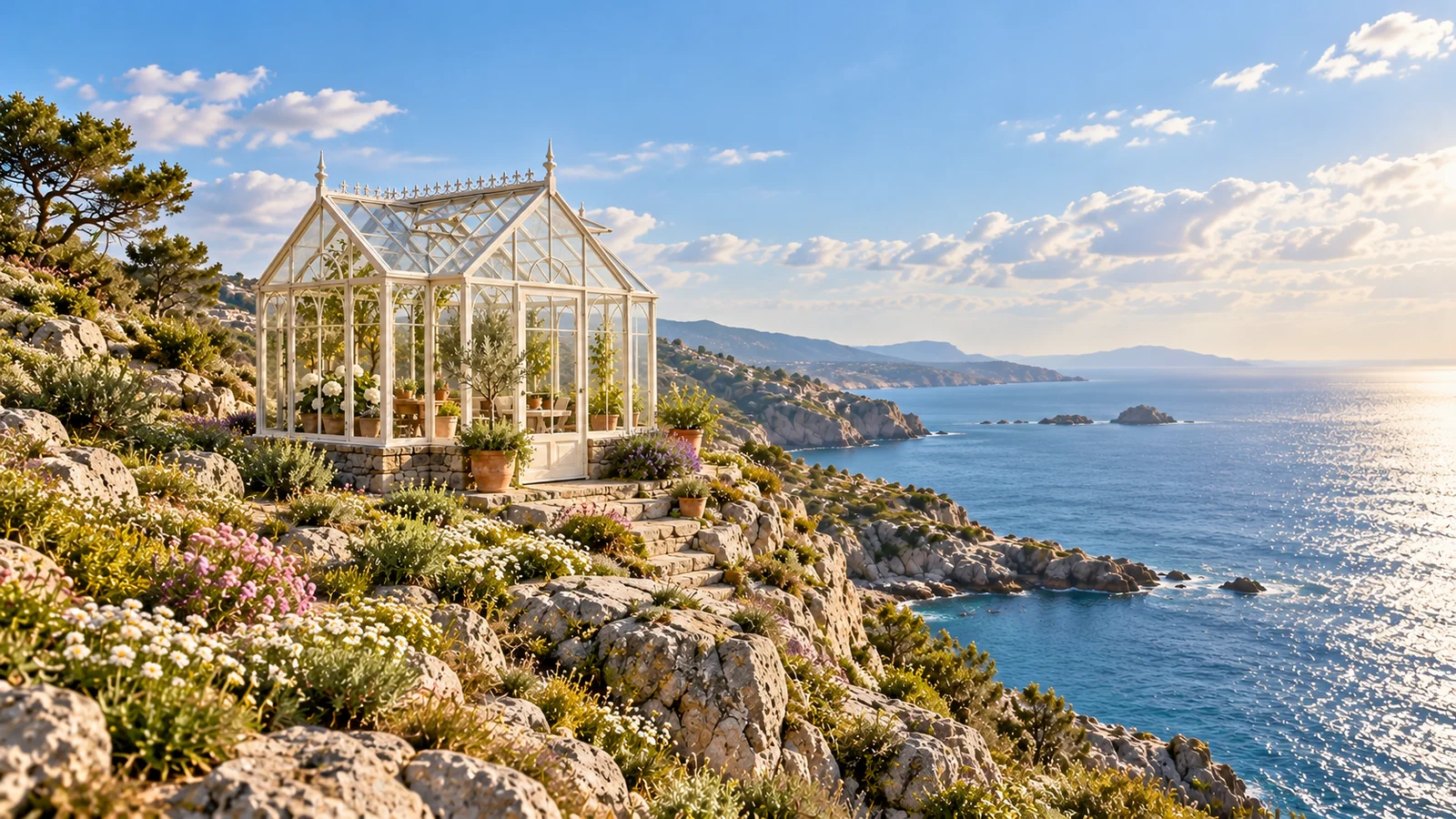
A subject may need a cover, banner, or social composition. The officially described resizing and composition capabilities offer ways to retain an idea while reconsidering its surrounding space.
A cliffside greenhouse could appear as a close architectural study or within a wider view of coast and sky. Inspect its position and newly developed areas after a change, and choose available ratios and output settings in the generator.
Start creating ↗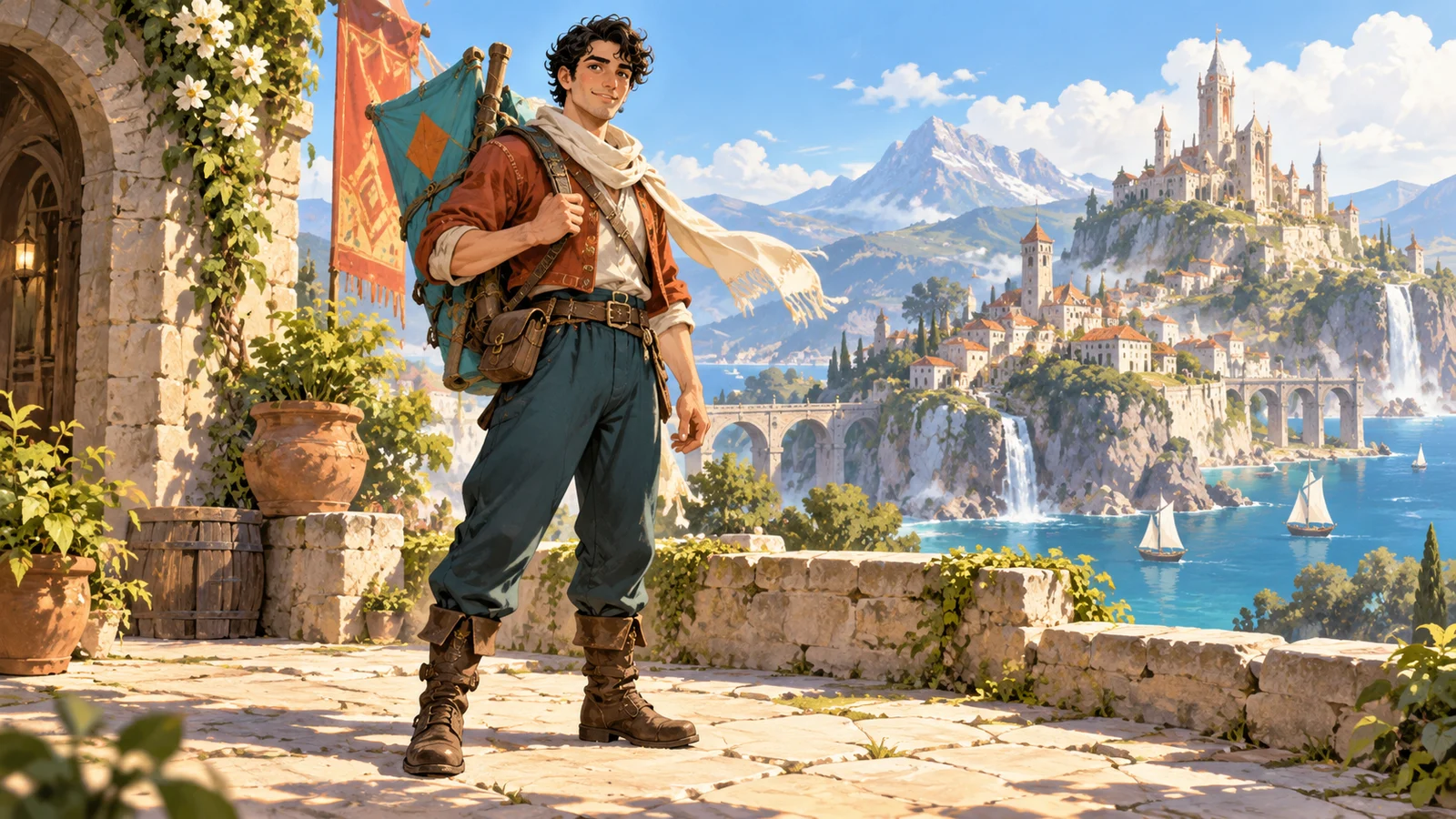
Connect characters, places, and props
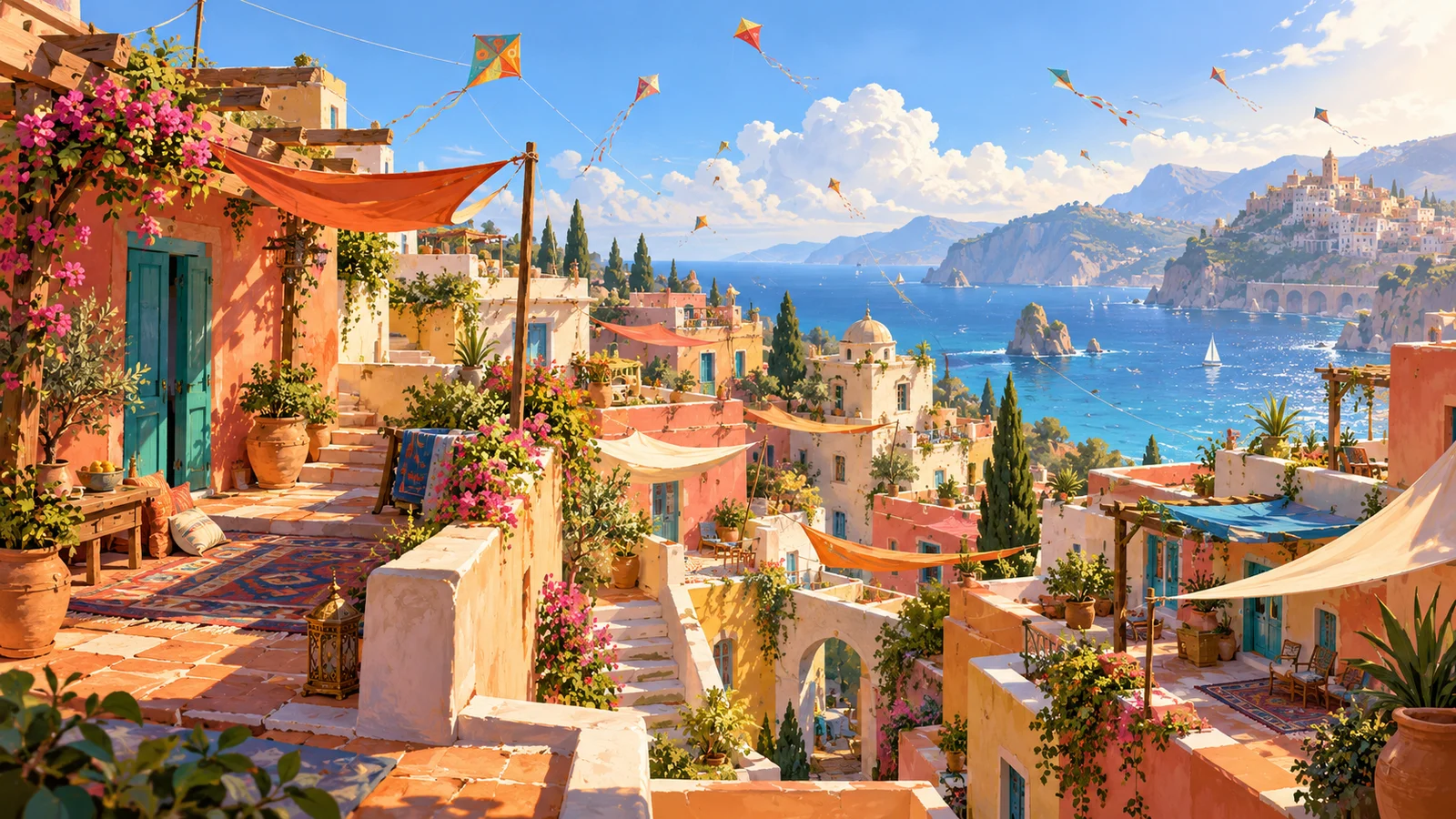
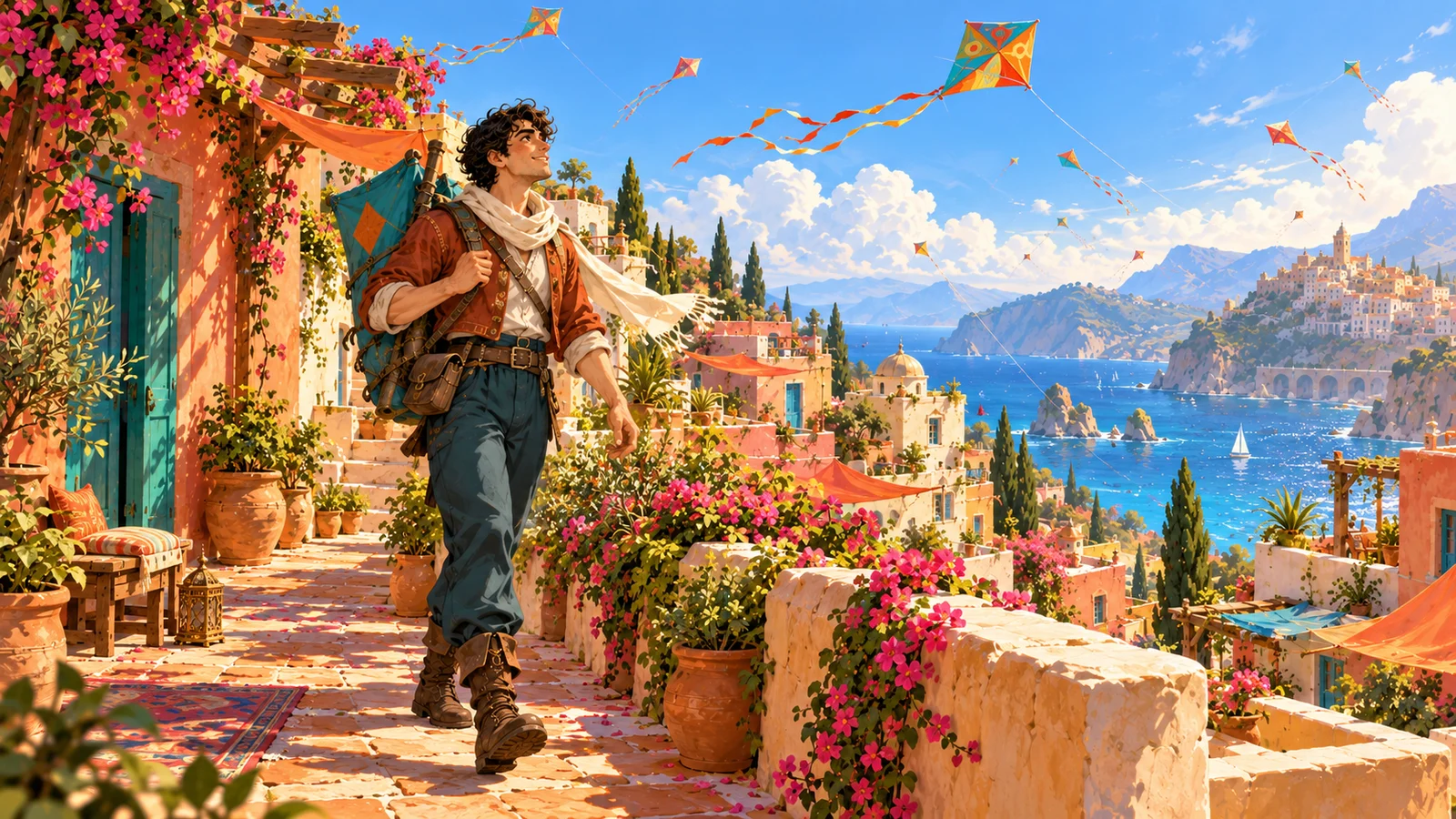
A visual series needs a relationship between character appearance, palette, and atmosphere. References and iterative editing can connect character development with settings and narrative imagery.
Develop an original courier and kite bag, then explore scenes across a neighborhood of colorful rooftops. Carry forward the clothing, prop, and palette while checking each image's details as the story develops.
Start creating ↗Put Grok images to work in creative projects
Develop a single design direction or a set of related visuals for publishing, communication, and original creative work.
Product and brand visuals
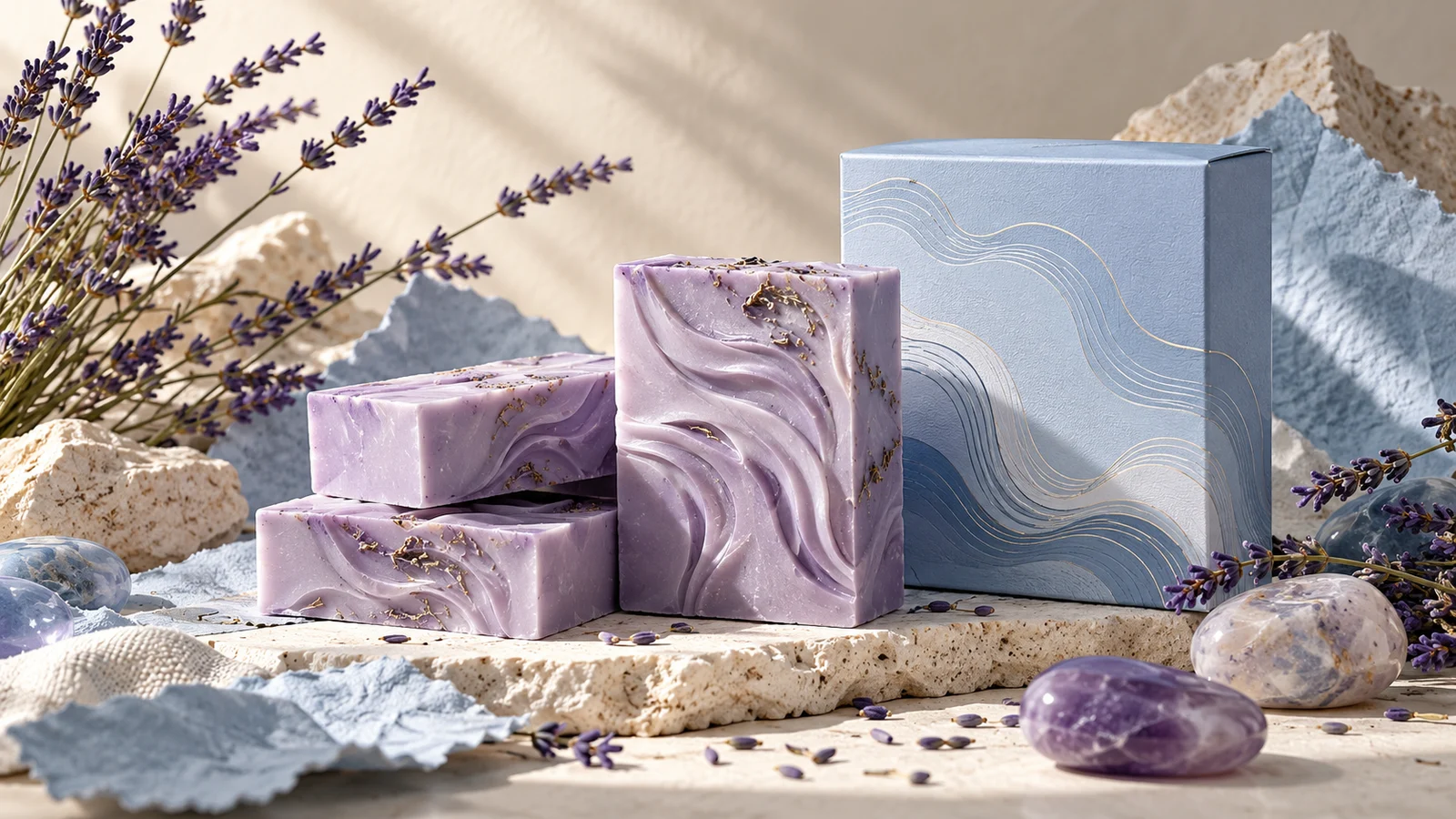
Explore packaging, materials, and settings to find different ways of presenting a product. Check labels, structure, and text against the real item before publication.
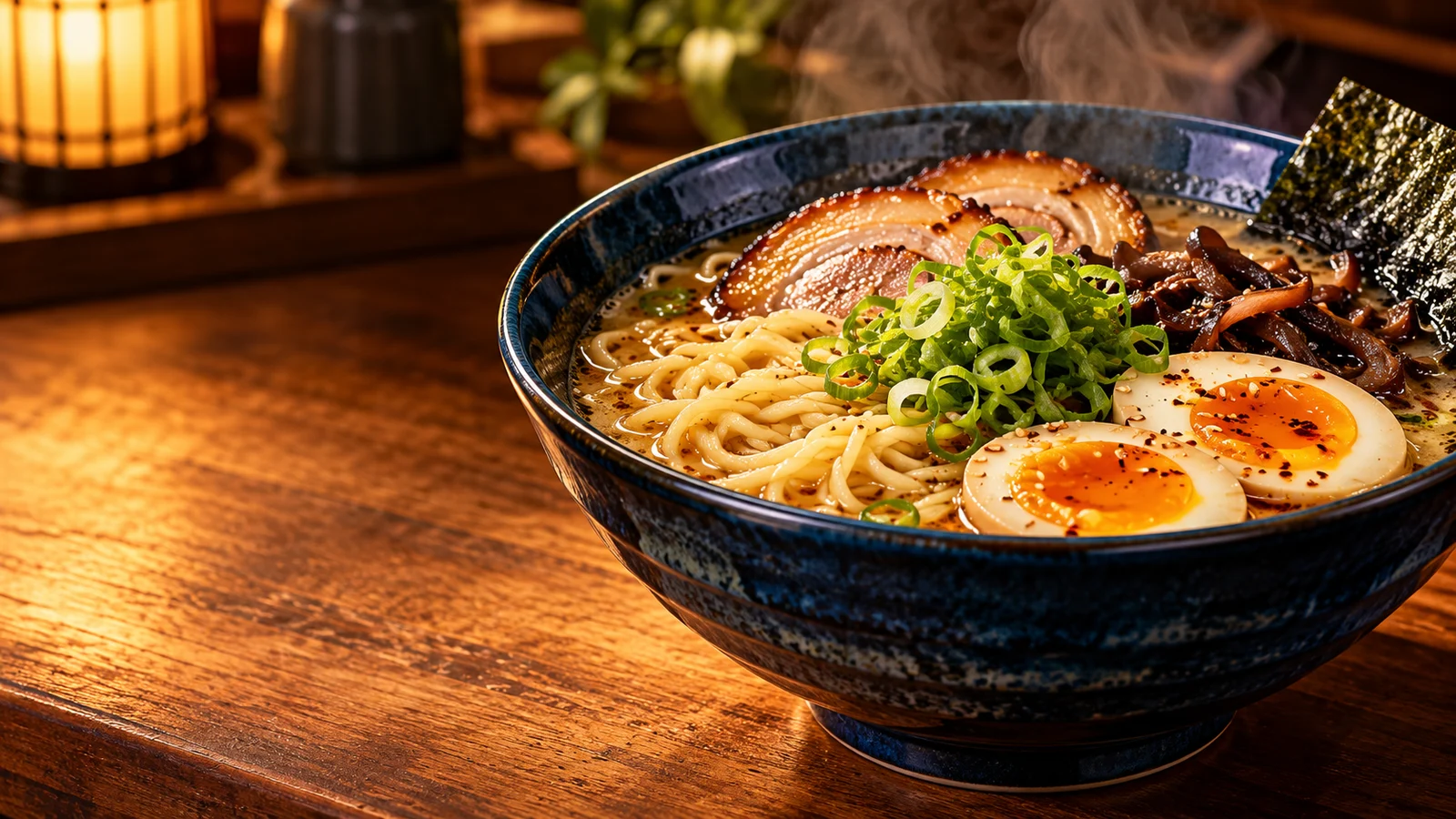
Covers and editorial features
Develop a lead visual for a food feature, social post, or article. Consider the subject, title space, and reading order together so the image supports the topic.
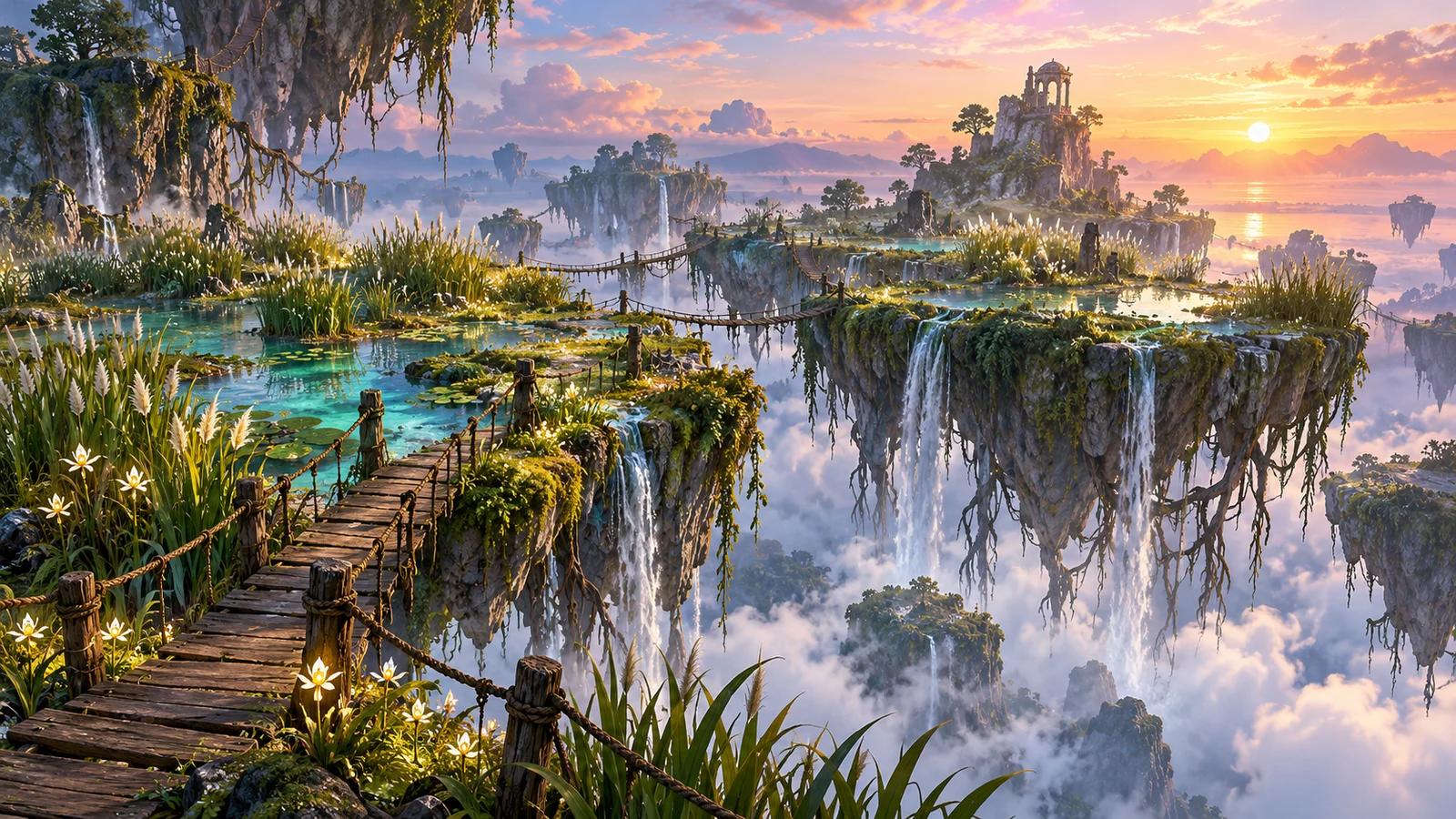
Game and story concepts
Give an original world visible places, characters, and props. Compare atmosphere, palette, and narrative relationships through related concept images.
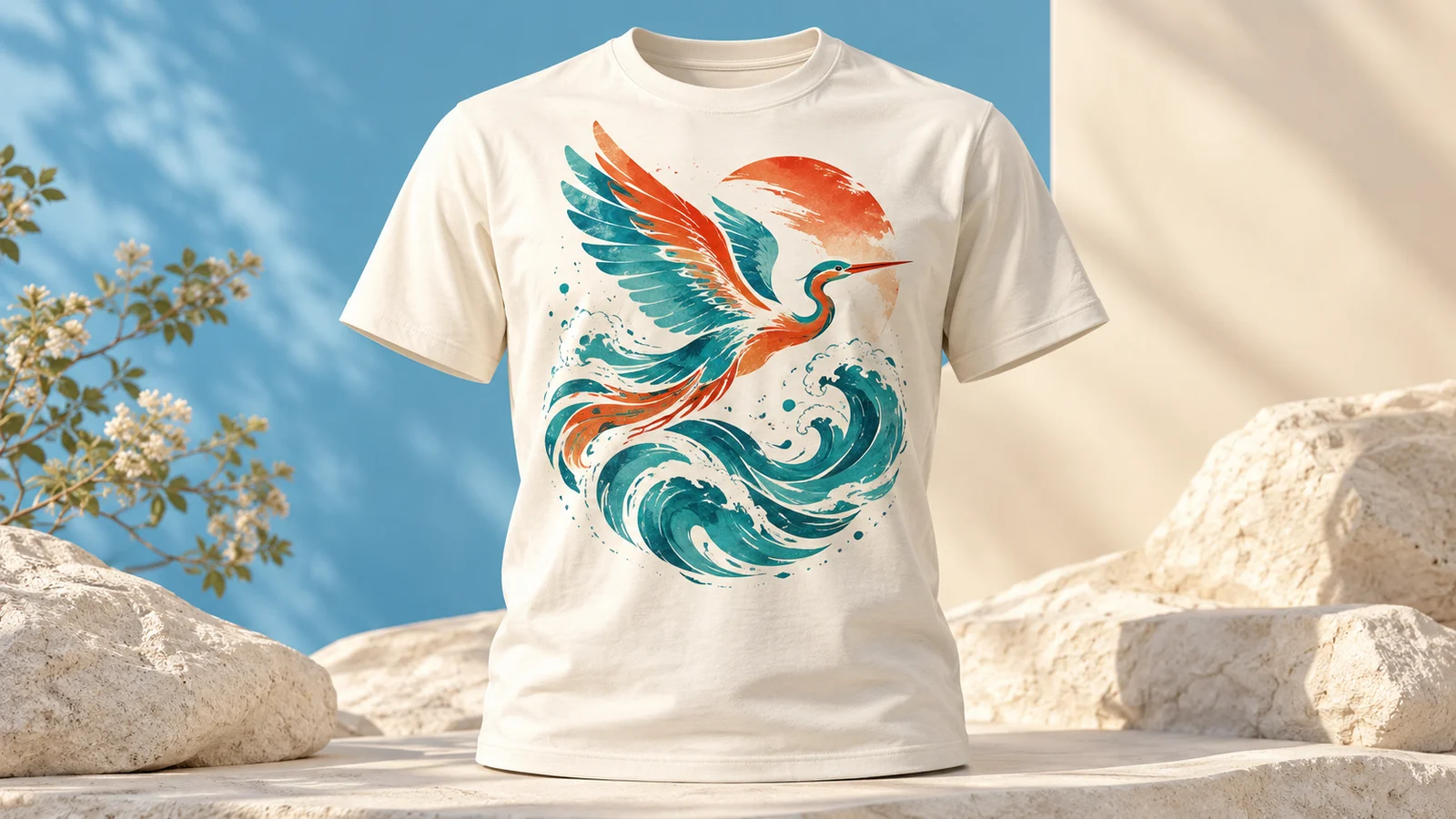
Patterns and merchandise concepts
Explore graphics and presentation ideas for clothing, prints, and creative merchandise. Evaluate the artwork separately from the product mockup before preparing production files.
How are Grok images different from Imagine video?
This page covers Grok Imagine Image 2.0, which produces still images through generation and editing. Imagine also includes video products. Work involving movement, shots, and clip duration needs an appropriate video model.
Image 2.0 has its own official release. Check the complete model name when creating: image versions, quality settings, and video models are different choices.
Start a Grok image project
- 01
Describe the image
Define the subject, purpose, and style. Add permitted references when editing.
- 02
Review the settings
Check the selected model, available controls, and estimated credits before generating.
- 03
Develop a revision
Inspect text and details, retain a useful version, and continue with a specific change.
Frequently asked questions
What is Grok Imagine Image 2.0?
It is Grok's image generation and editing model. Develop an image from text or continue with existing images and visual references. This page covers the image product.
How can I use Grok AI image generation online?
Enter a description in this page's generator and confirm Grok Imagine Image 2.0 and the current settings. Follow the sign-in and credit flow, or carry your input into this site's image workspace to continue.
Can Grok create posters with text?
Typography and layout are emphasized in the official Image 2.0 introduction. Describe the wording, title, and layout relationships, then proofread spelling, numbers, and small print in the result.
Can I upload an image to change its color or style?
Image-based editing lets you describe a requested change. Prepare references for the selected mode and inspect the revised subject and details.
Can I use several reference images?
Official multi-image editing accepts up to five source images. The generator shows the actual upload limit and supported modes on this site; check those before adding material.
Are Grok image generation and Imagine video the same?
They produce different outputs. This page's model makes still images. Video projects also involve motion, shots, and duration, and need a suitable video model.
Will a character look exactly the same in every image?
References and iterative editing can help carry an appearance forward, but clothing, props, and character details may change. Keep key references and compare the images in a series.
How many credits does Grok image generation cost?
The cost depends on the model, mode, and output settings. Enter your request and choose settings to see estimated credits in the generator. Visit the pricing page for credit and plan terms.
Is this the official Grok website?
This is bikabika AI, a creation platform with access to multiple AI models. It is not the official Grok or xAI website.
Give your next idea a visible form
Begin with words or a reference, compare the images, and develop the next creative revision.