
GPT Image 2 — Create and Edit Images Online
GPT Image 2 is an AI image model from OpenAI that turns written ideas and visual references into starting points for creation. Generate portraits, product visuals, posters and imagined scenes, or develop an image you already have.
Choose a model, enter a prompt and adjust the settings to generate, preview and refine images on this page.
Open full workspaceEstimated cost—pts
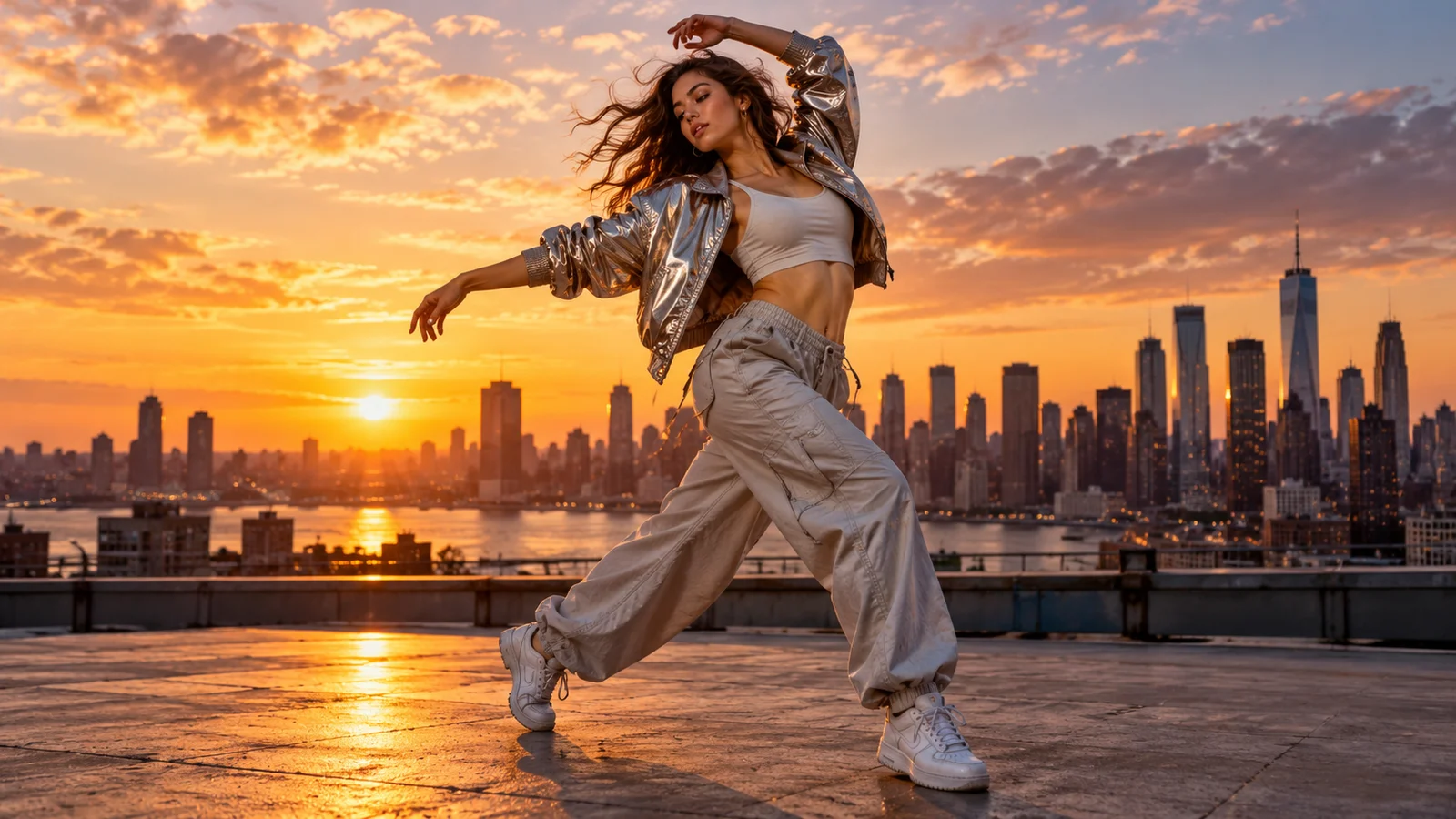
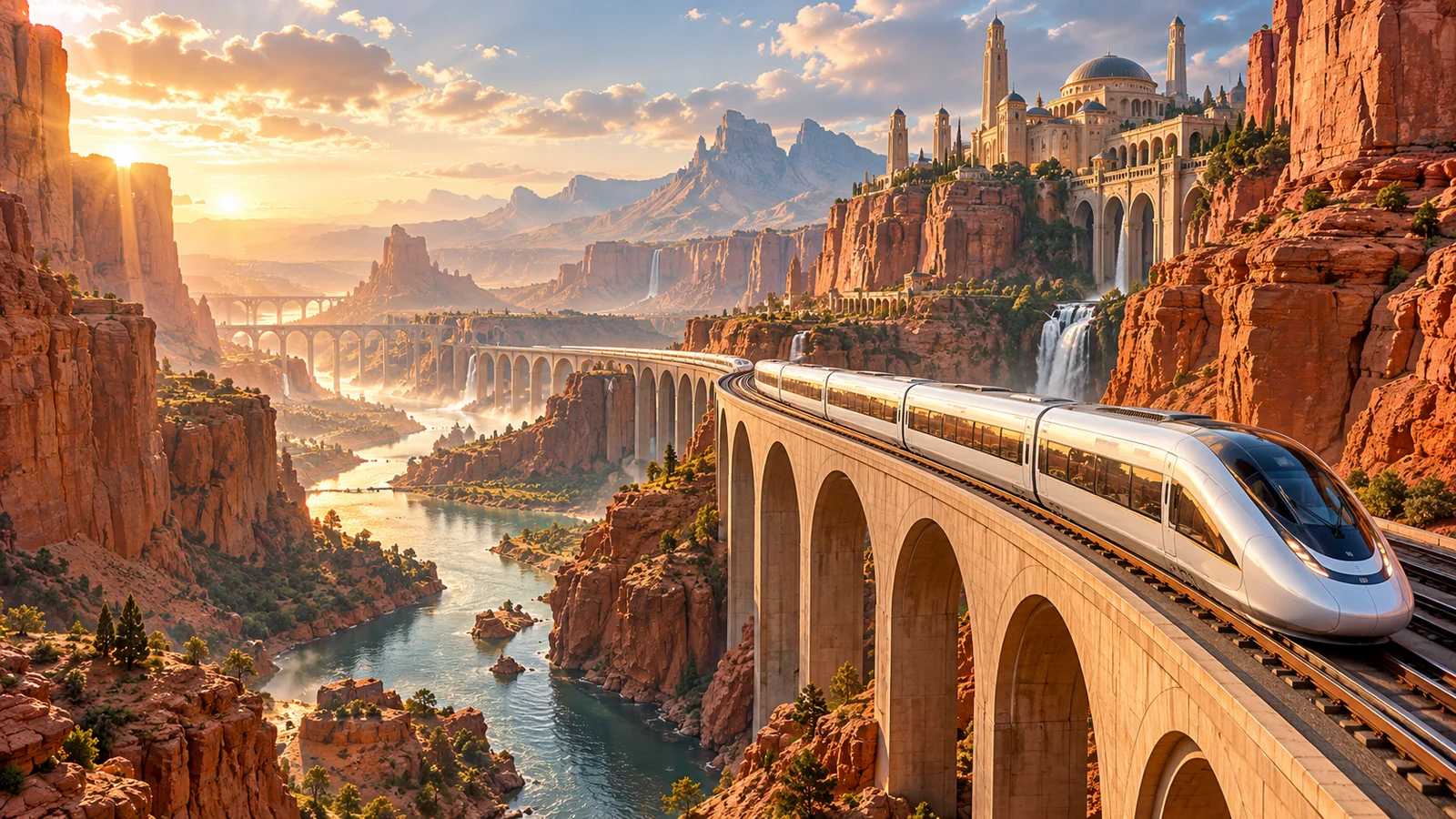
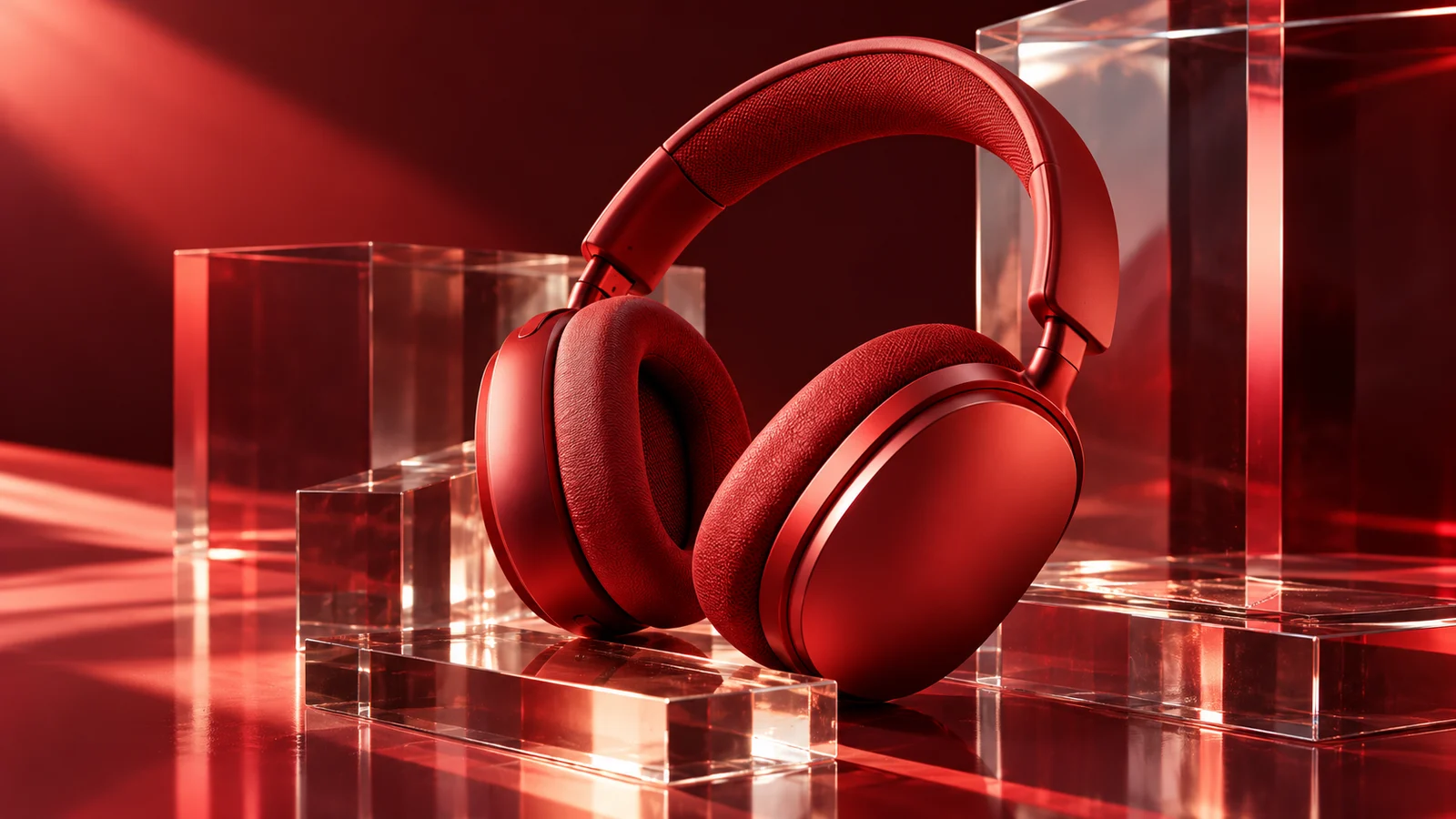
Bring a written idea into view
GPT Image 2 brings generation and editing into an image creation workflow. Start with an empty canvas, or use a visual reference to develop a subject, setting or style.
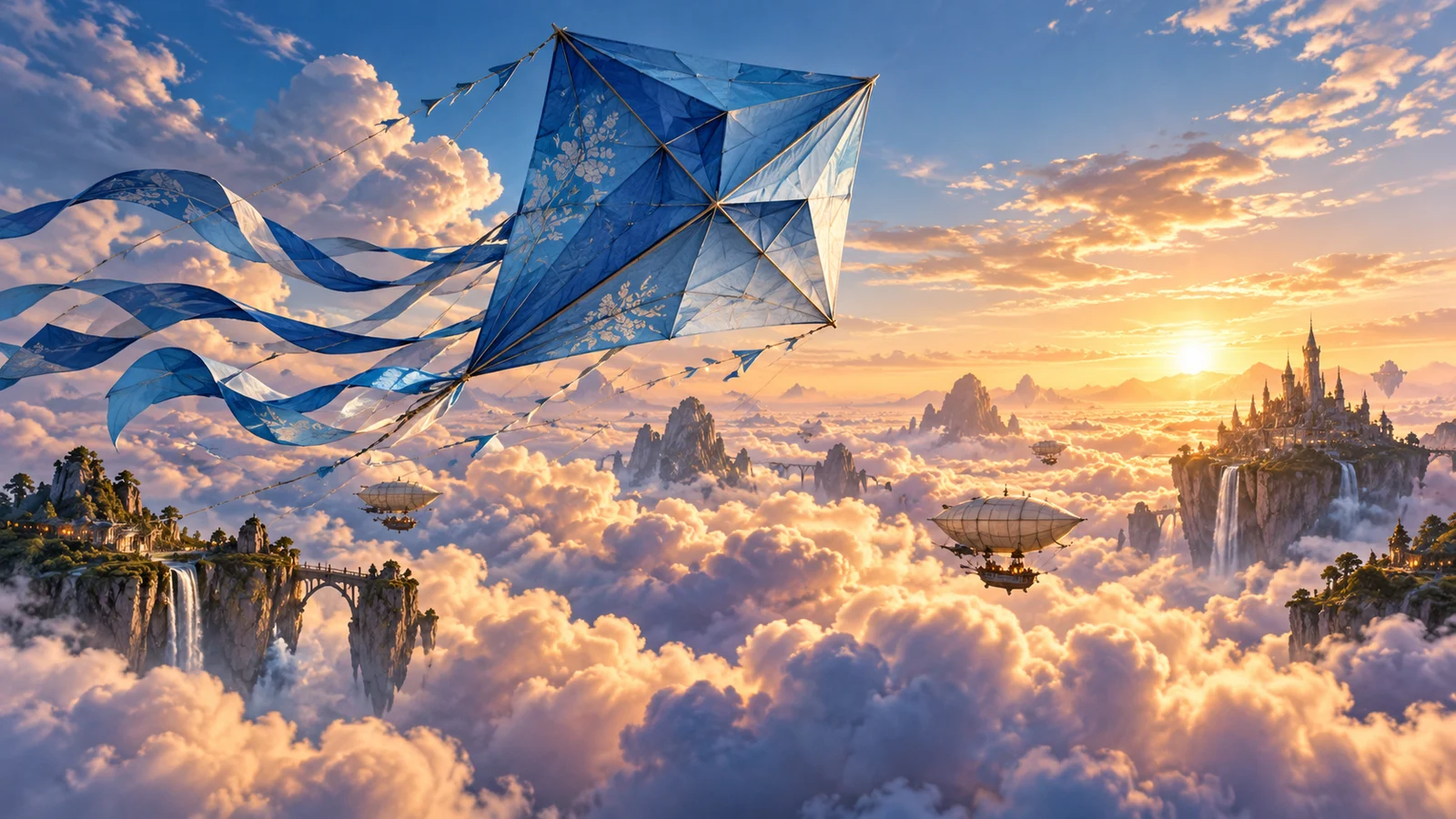
Build a scene from an idea
A subject, setting, action and atmosphere give an image its story. Text-to-image creation makes an unphotographed or undrawn idea visible, whether it belongs to everyday life or an imagined world.
Explore an expansive landscape, a detailed interior or a scene with a narrative focus. An abstract concept becomes a direction you can discuss, select and develop.
Start creating ↗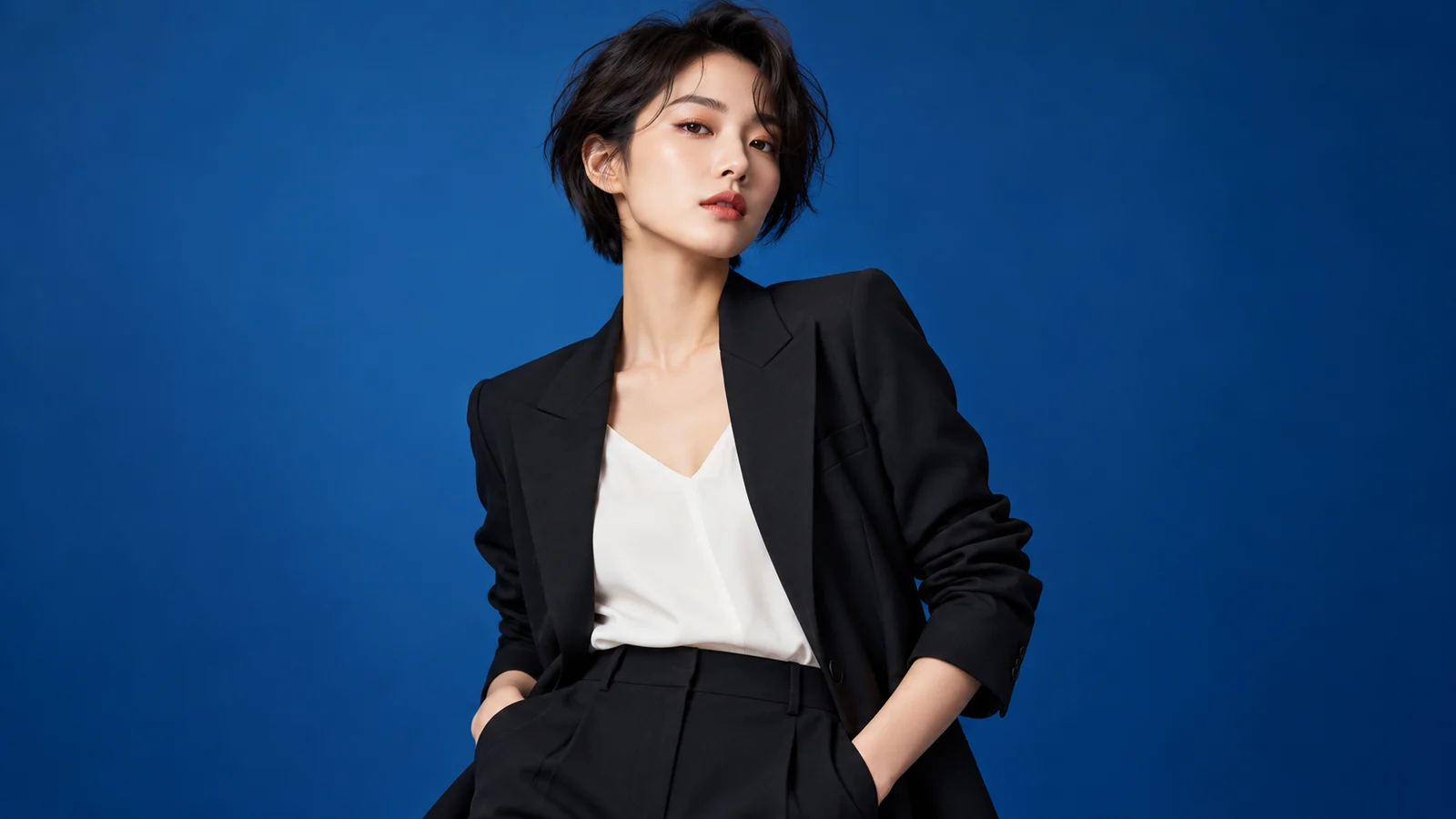
Express a visual mood through light and materials
Clothing and expression, surface reflections and the light in a space all shape how an image feels. Photographic directions offer ways to explore portraits, products and lifestyle content with a particular visual character.
From clear daylight to bold studio color, the direction can serve a brand, character or story rather than simply adding more detail.
Start creating ↗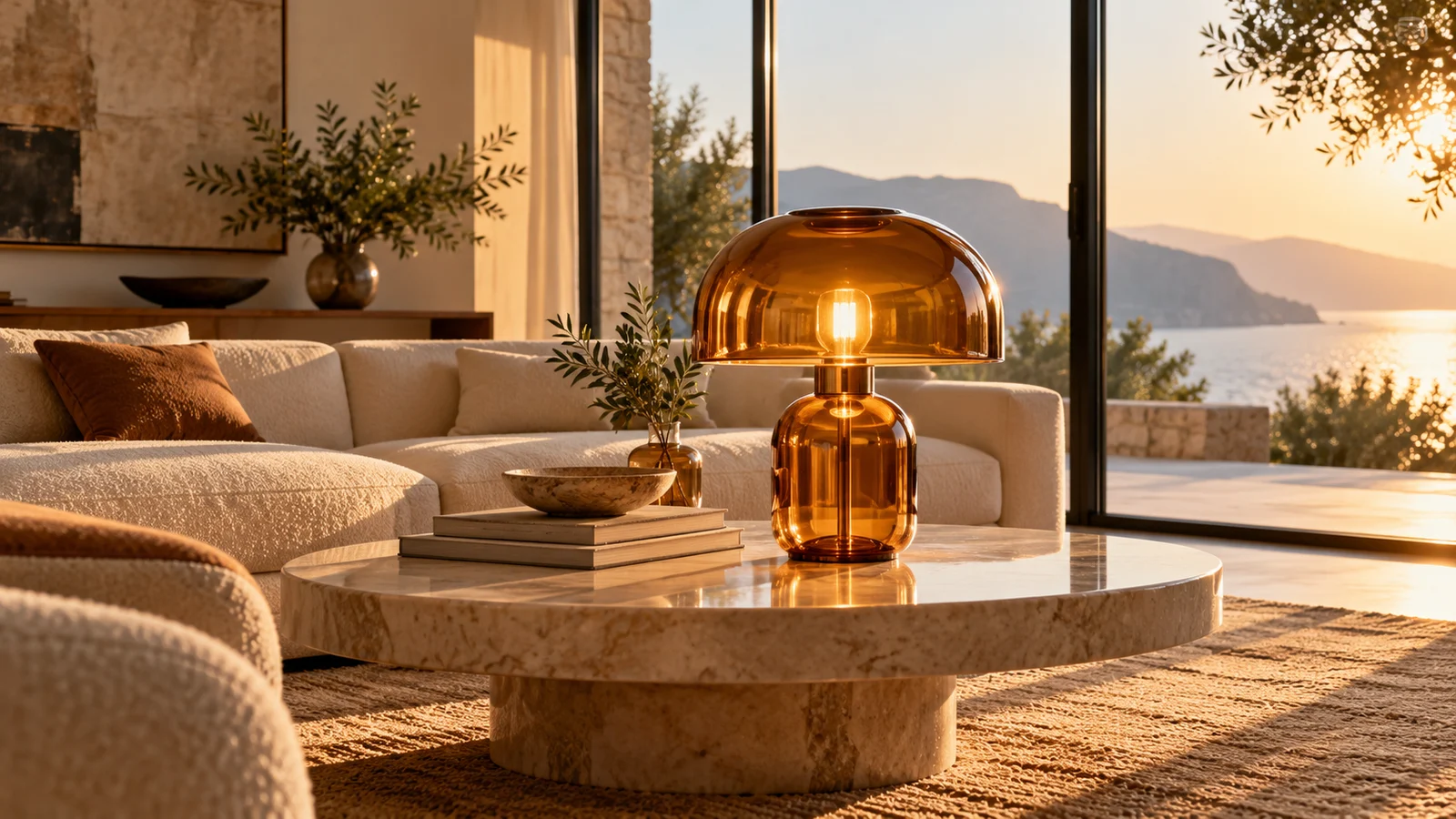
Develop a design from a visual reference
A reference can communicate a subject or style more directly than words alone. GPT Image 2 accepts image inputs, allowing a photograph, design asset or existing artwork to inform another image.
Explore a different product setting, a visual direction for a character or another presentation of an existing design. The reference supplies a starting point while the new composition opens another possibility.
Start creating ↗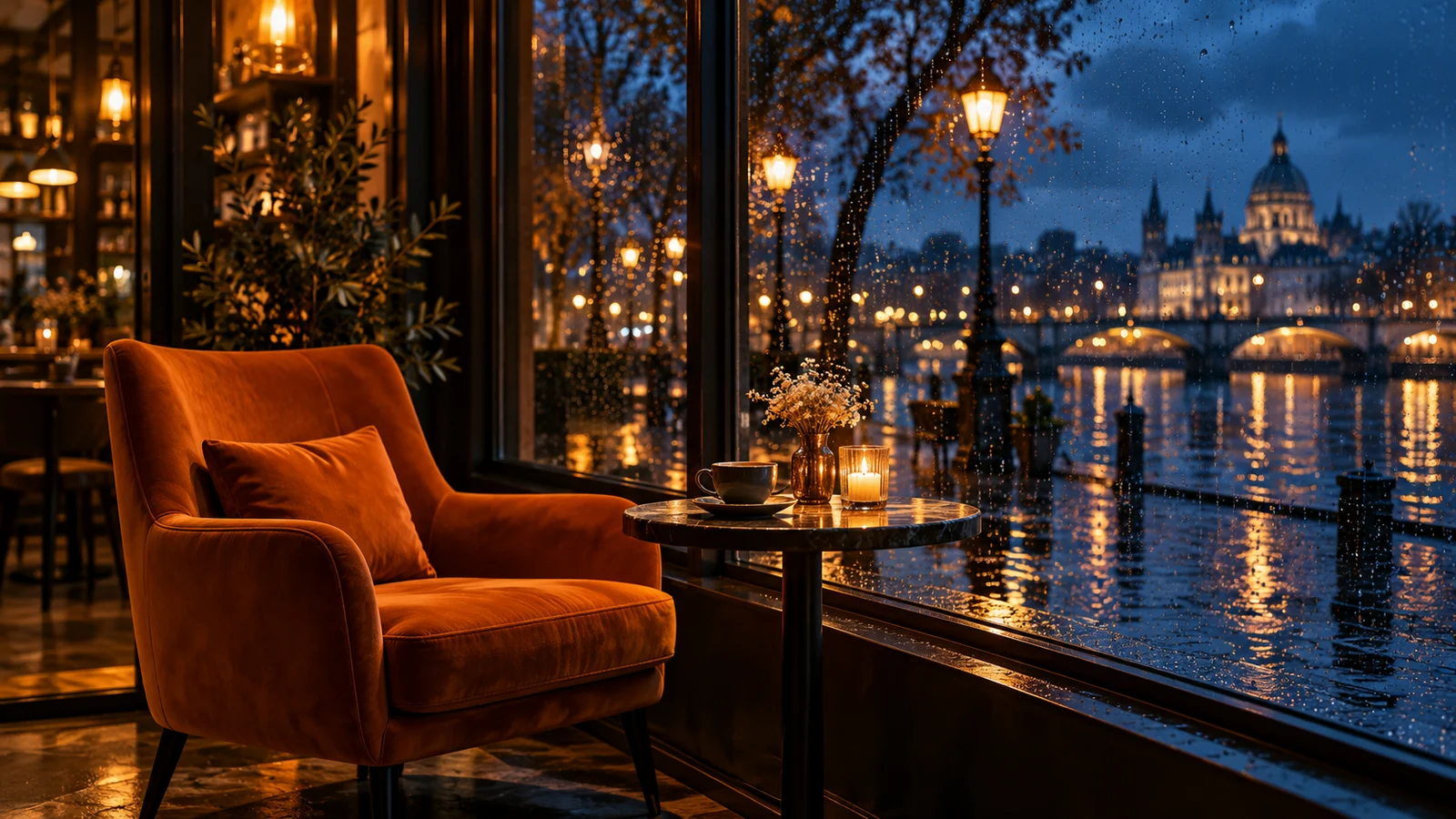
Keep an image moving forward with editing
An image does not have to be the end of an idea. Changes to a background, palette or atmosphere can move an existing composition closer to what you need.
Explore a space after dark or reconsider its visual focus. Editing gives the next creative decision something tangible to build on.
Start creating ↗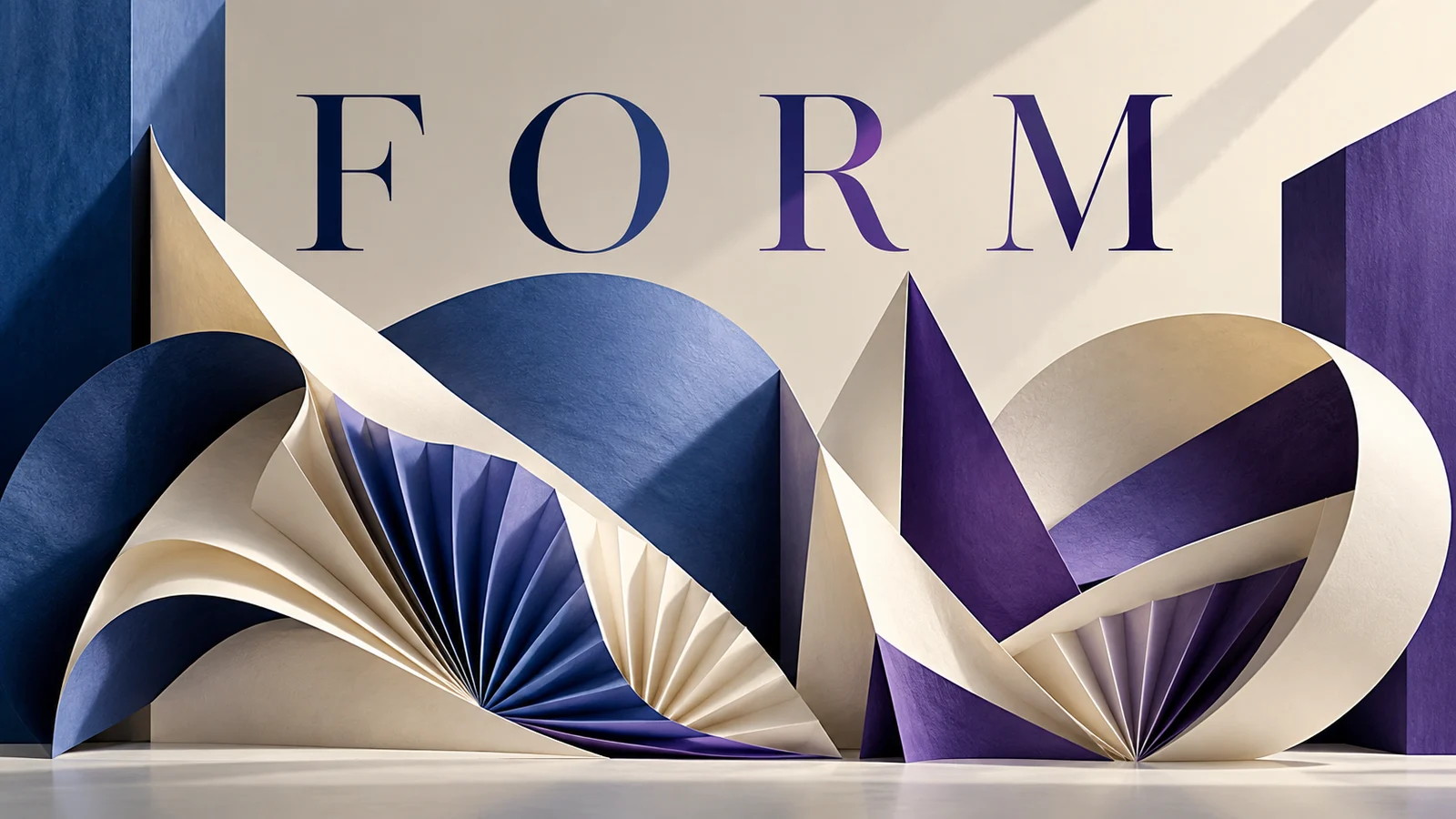
Explore imagery and short text together
Posters, covers and event visuals often need a headline as well as an image. Developing the two together helps you consider hierarchy, subject placement and mood earlier in the design process.
Use the visual draft to judge whether a direction communicates the idea, then finish the wording and layout for publication.
Start creating ↗Give the image a purpose
Create around a product, an event or a story that is still taking shape.
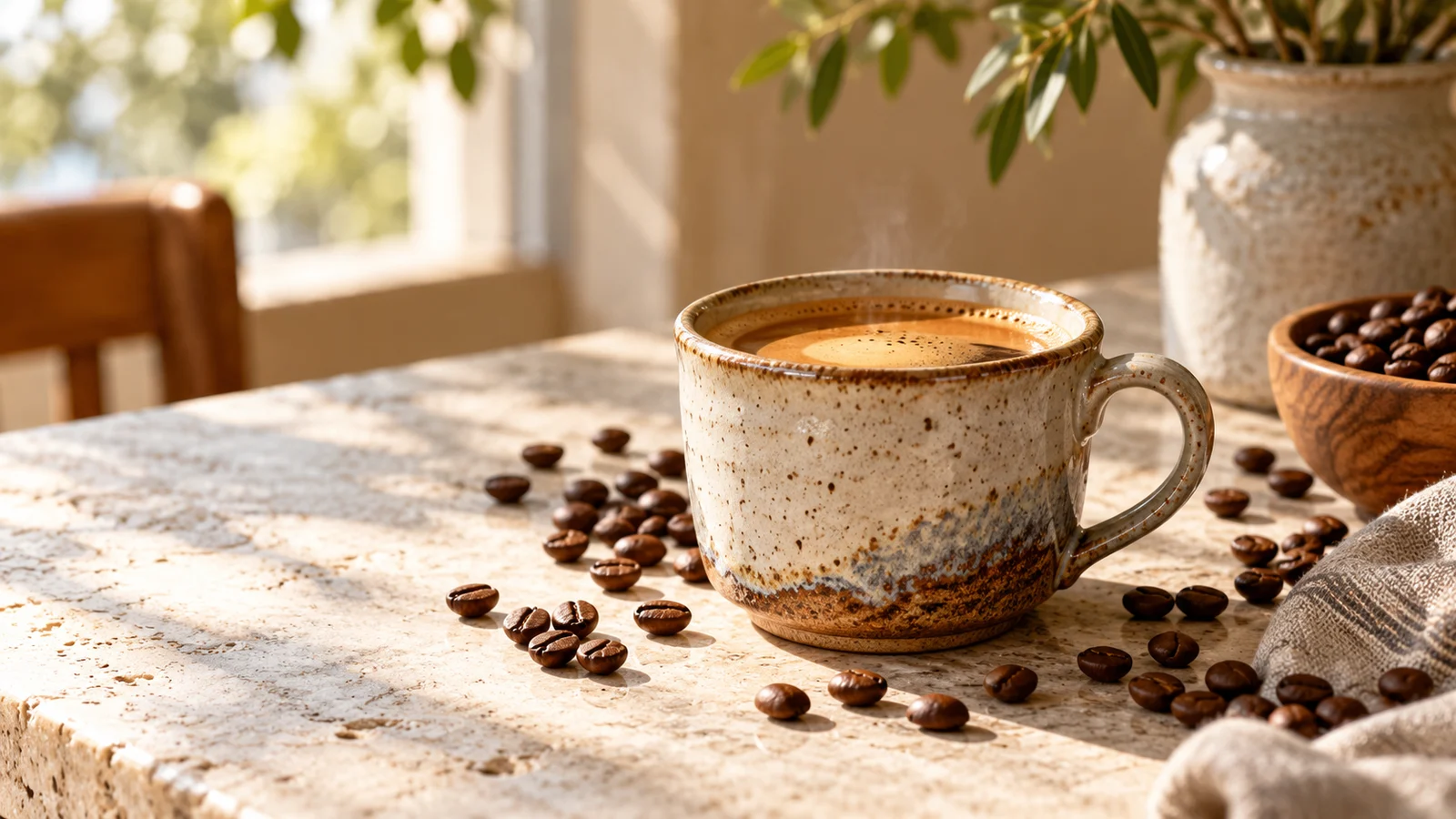
Small businesses and products
Explore a setting for an item, from a quiet everyday tabletop to a more expressive themed scene, and consider how the product fits a lifestyle.
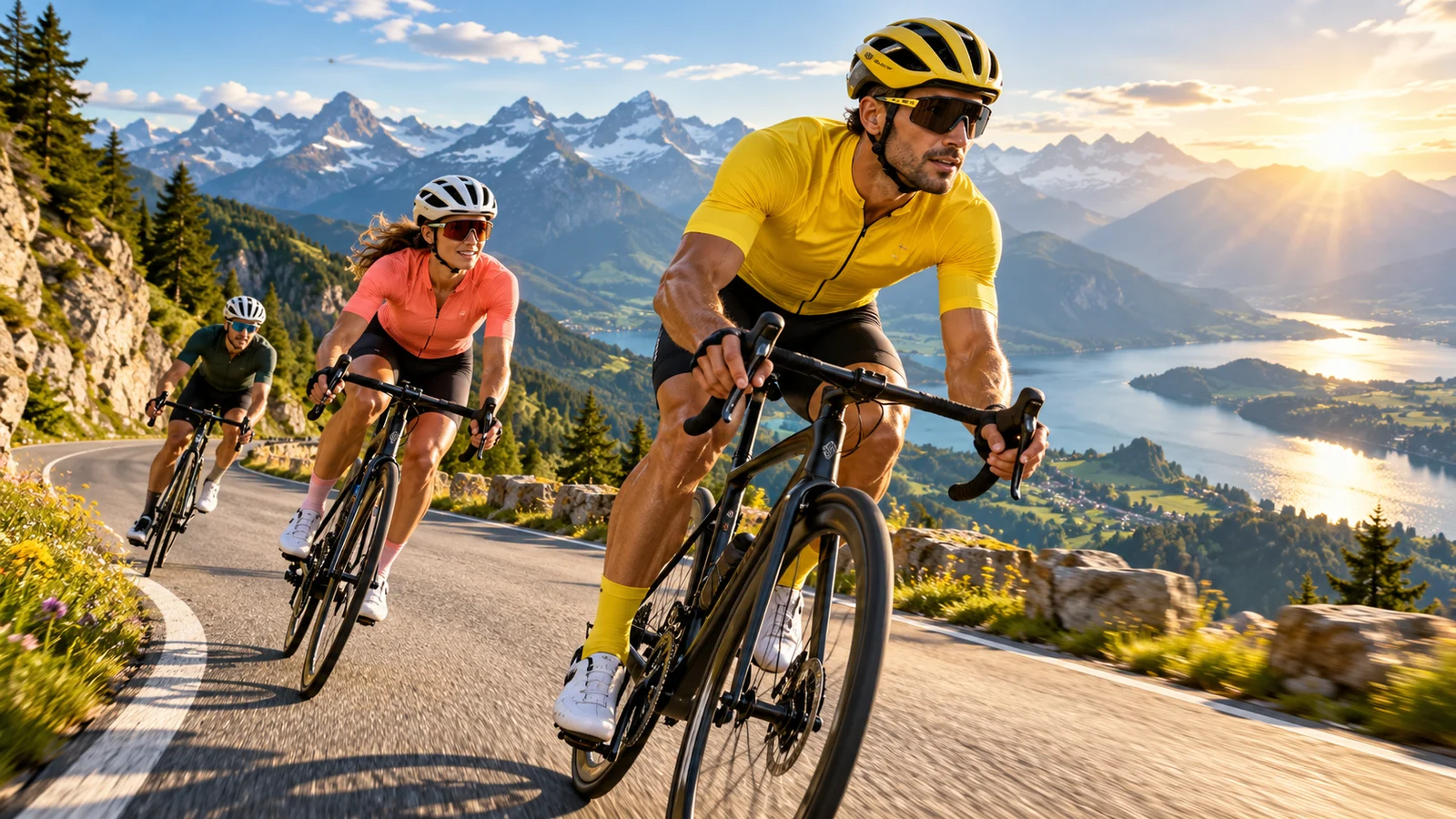
Events and social content
Develop covers, illustrations and campaign visuals around an event, helping the image communicate its mood before the viewer reads the details.
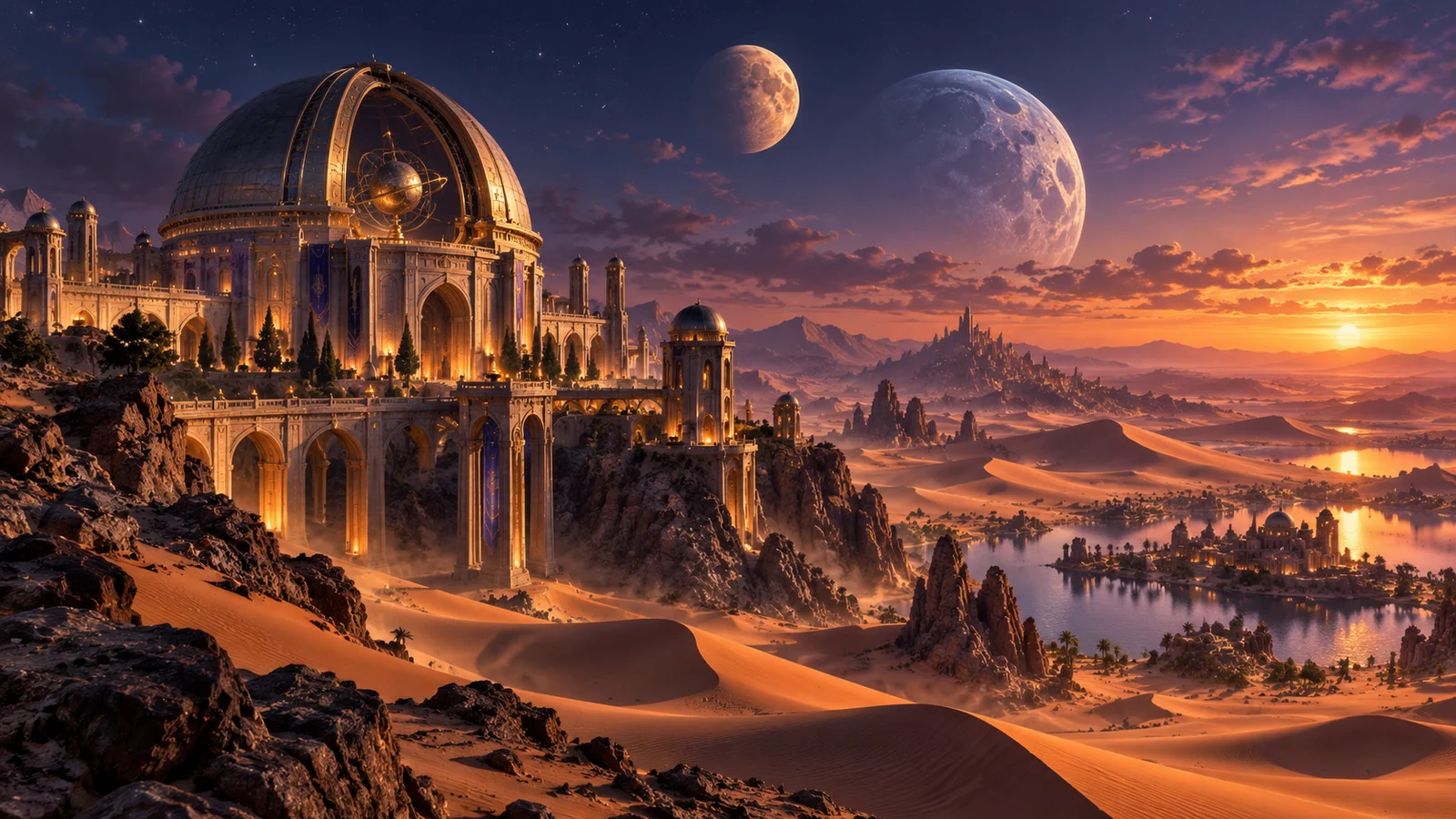
Stories and concepts
Make a character's environment, climate and architecture visible, providing material for creative discussion and world development.
Start your next image here
Describe an idea in the generator above, add a reference if needed and select the available settings. Review estimated credits before submitting, then choose and develop the result.
Describe your idea
Describe the image and add a reference if needed.
Choose settings and generate
Select an available mode and aspect ratio, then review estimated credits before submitting.
Review and refine
Preview the result, download your selection or continue developing the image.
Frequently asked questions
What is GPT Image 2?
It is an image generation and editing model from OpenAI. It accepts text and image inputs to create a new visual or develop an existing one. bikabika AI provides the online creation experience on this site.
Can I use GPT Image 2 online?
Start with the generator on this page, describe an image, add a reference if needed and choose settings. Review estimated credits before generating; available modes are shown in the current interface.
Can I edit an image using a reference?
The official model supports image inputs and editing. Use a reference or editing mode currently available on this site, check upload requirements and inspect the details you want to preserve in the result.
Can generated Chinese and English text be published immediately?
Text can contain misspellings, missing characters or unsuitable layout. Check headlines, numbers, prices and brand information before publishing, and finish the typography in a design tool when needed.
Are GPT Image 2 and GPT Image 2.5 the same model?
No. GPT Image 2 and GPT Image 2.5 are distinct models in the same family, and their names are not interchangeable. Flare and Sunburst belong to GPT Image 2.5; explore the related page for their differences.
How many credits does GPT Image 2 cost?
Estimated credits vary with the current mode and settings. Review the estimate before submission and the task record for the actual charge. Site credits are billed separately from ChatGPT subscriptions and OpenAI API usage.
Is this the official OpenAI website?
No. This is bikabika AI, a platform for AI creation. GPT Image 2 is developed by OpenAI. Follow applicable terms and confirm your rights to references, likenesses and trademarks used in a project.
Give the next idea an image of its own
Start with words or a visual reference and continue creating on bikabika AI.