
HappyHorse 1.1 AI Video Generator: Develop Images and Motion Around Your Idea
HappyHorse 1.1 is a group of video models for text, image and reference-led creation. Connect visual understanding, motion and audiovisual expression to develop characters, settings and clips from a description or existing material.
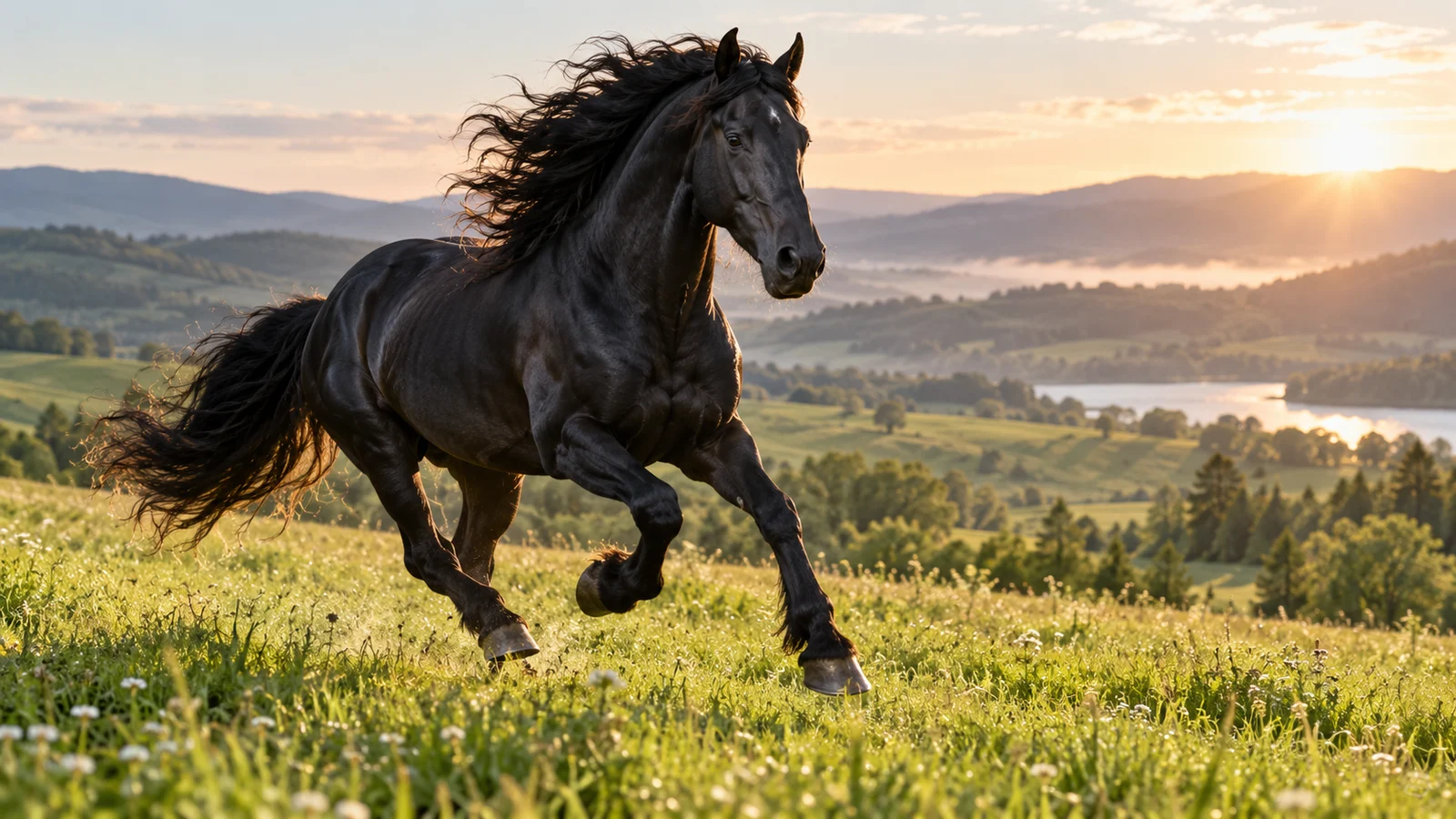
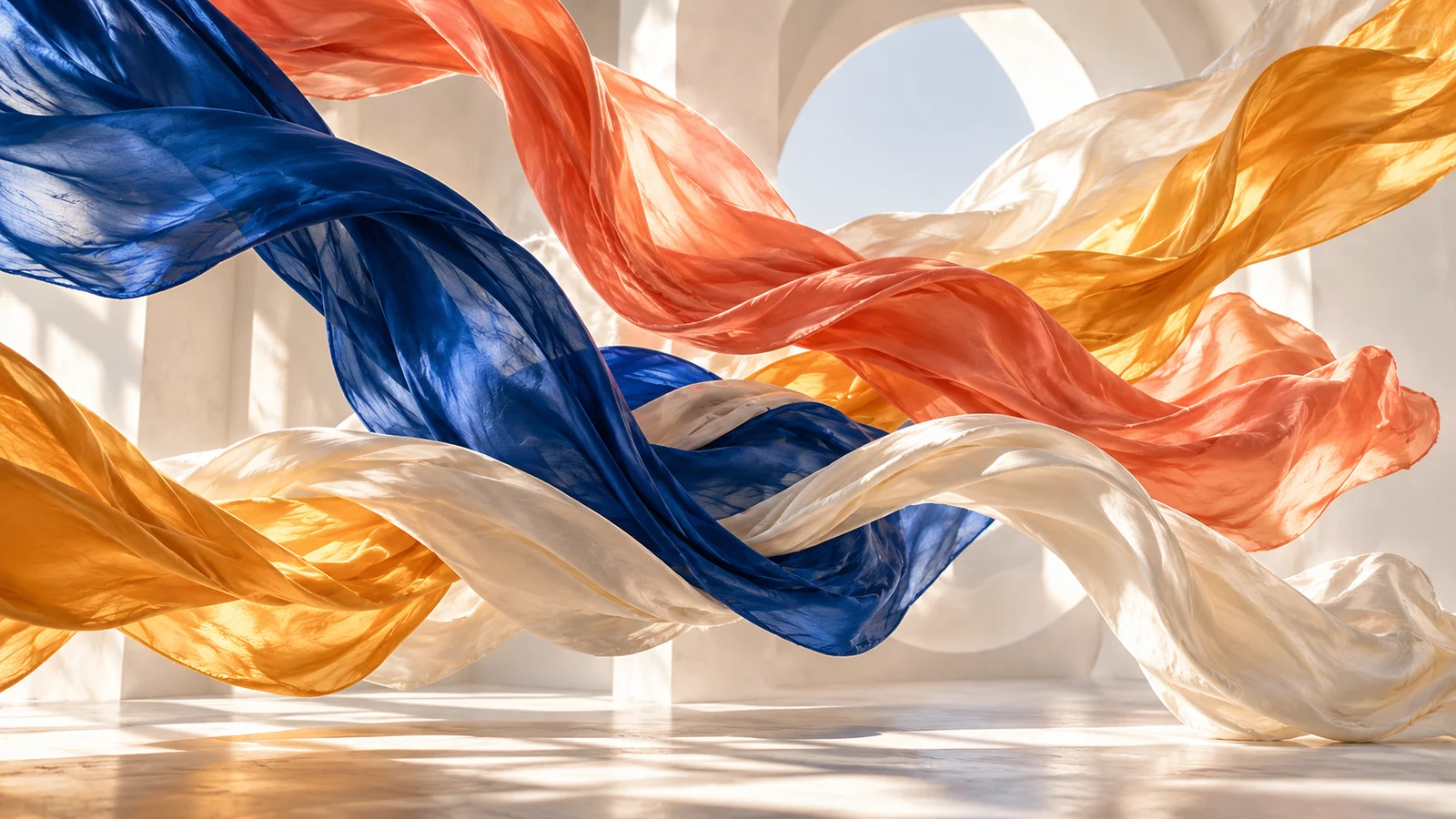
Creative illustrations
HappyHorse 1.1 core capabilities
Text describes an idea, a first-frame image establishes a composition, and references provide subject or style direction. Explore how these starting points can develop into video.
Connect a written scene with action
Text-to-video focuses on understanding descriptions, directing shots and developing motion. Subject, environment and events work together to establish a clip’s direction.
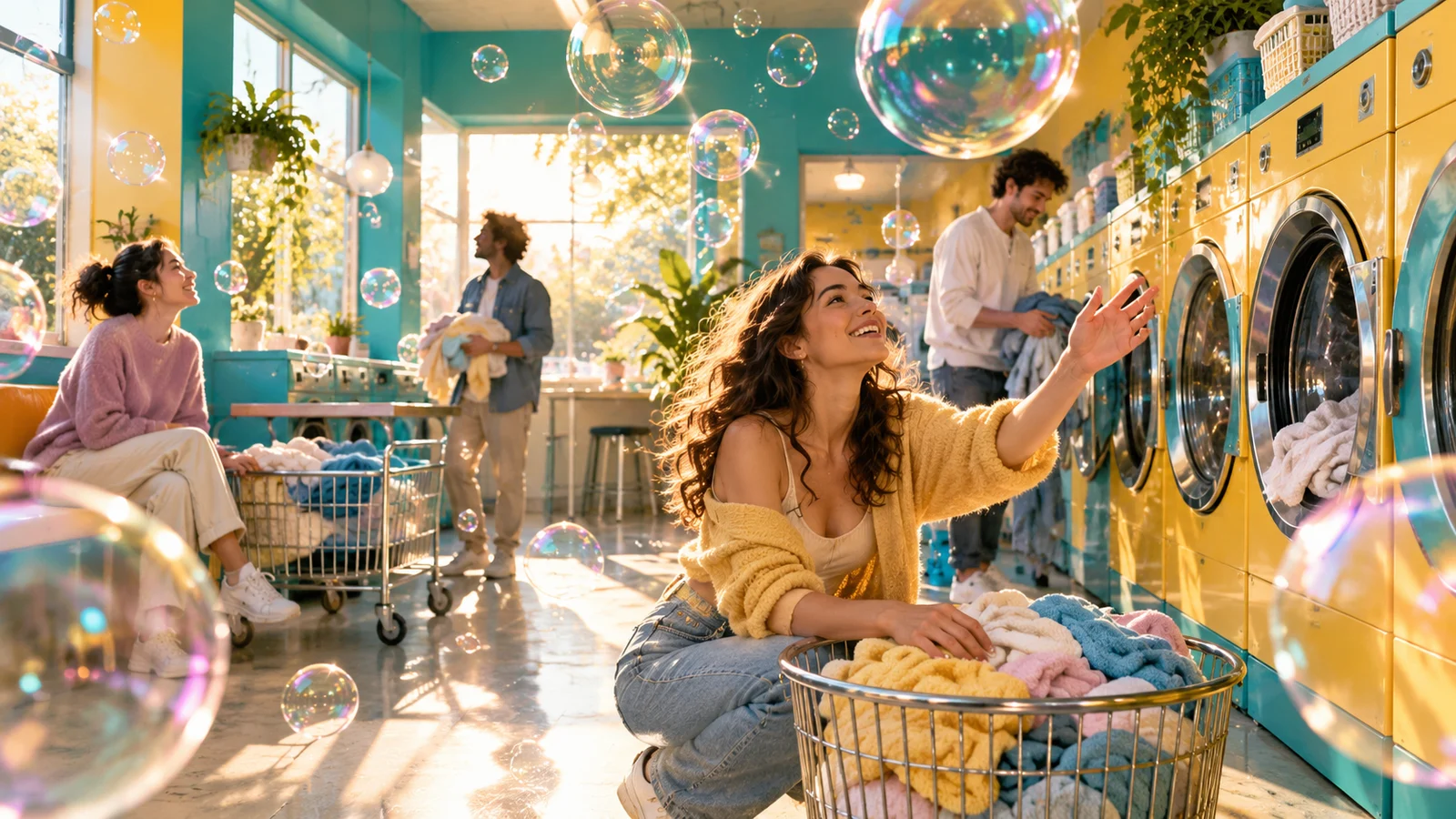
Start with an everyday setting or explore an original surreal scene. Transparent bubbles drifting through a colorful laundromat, for example, can connect imagery, movement and perspective with a playful mood.
Start creating ↗
Develop change from an existing image
Image-to-video starts with a picture and text, emphasizing visual understanding, detail, character appearance and motion. Develop a character design, everyday image or composition over time.
A person turning a page, looking up or moving through a bookshop offers different actions in the same setting. Inspect faces, hands and important details around the intended movement.
Start creating ↗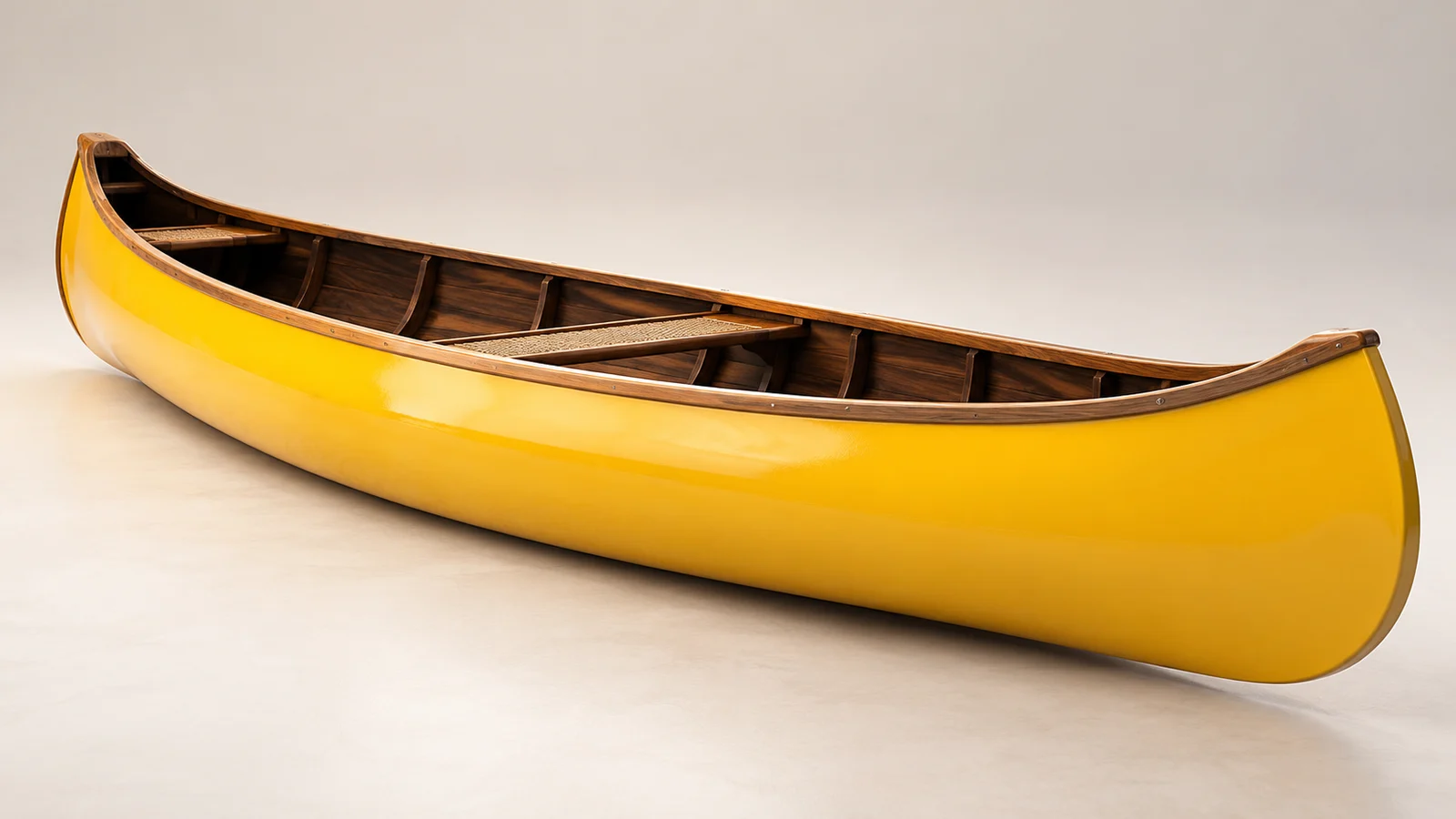
Carry a subject into another setting
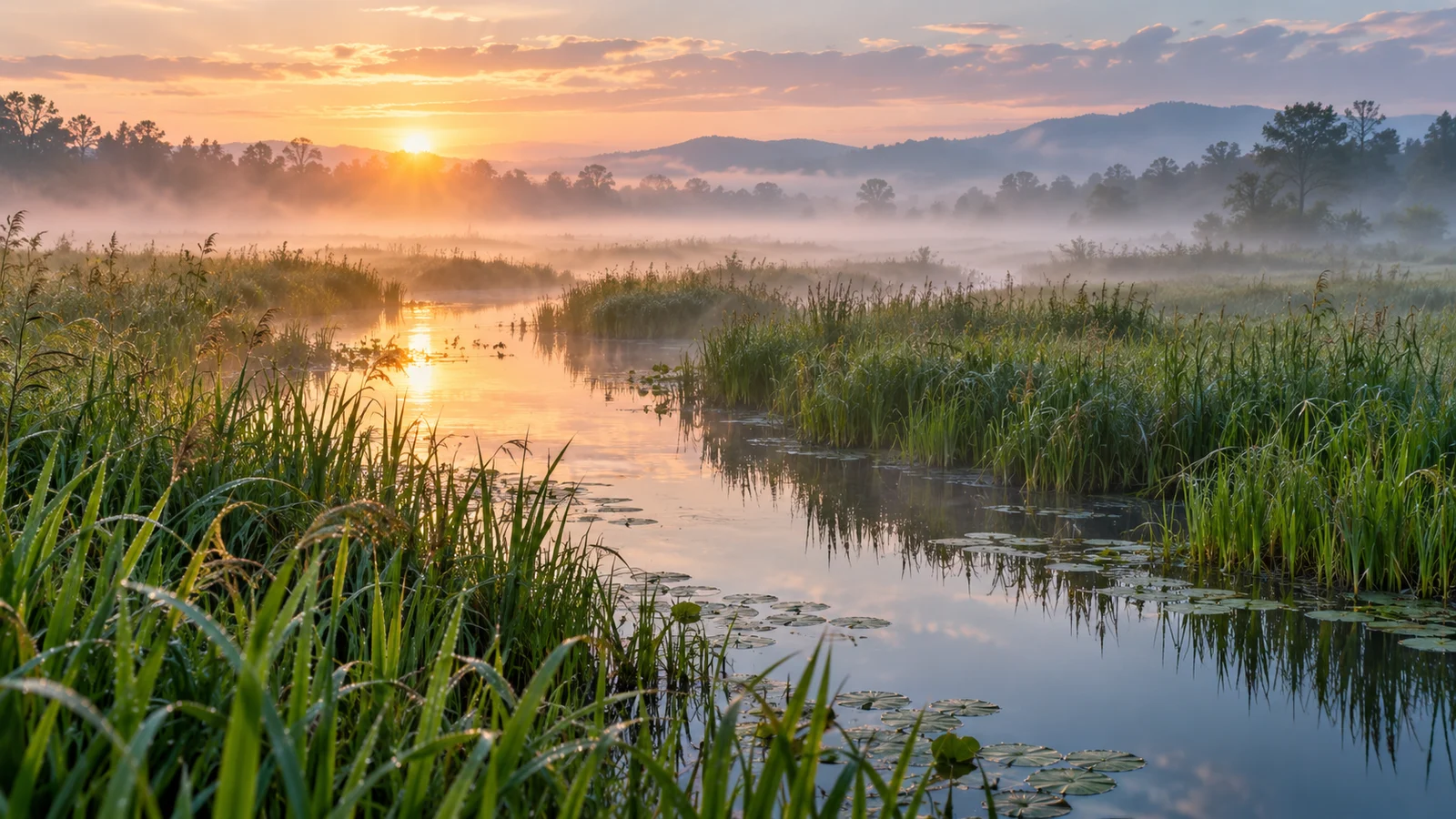
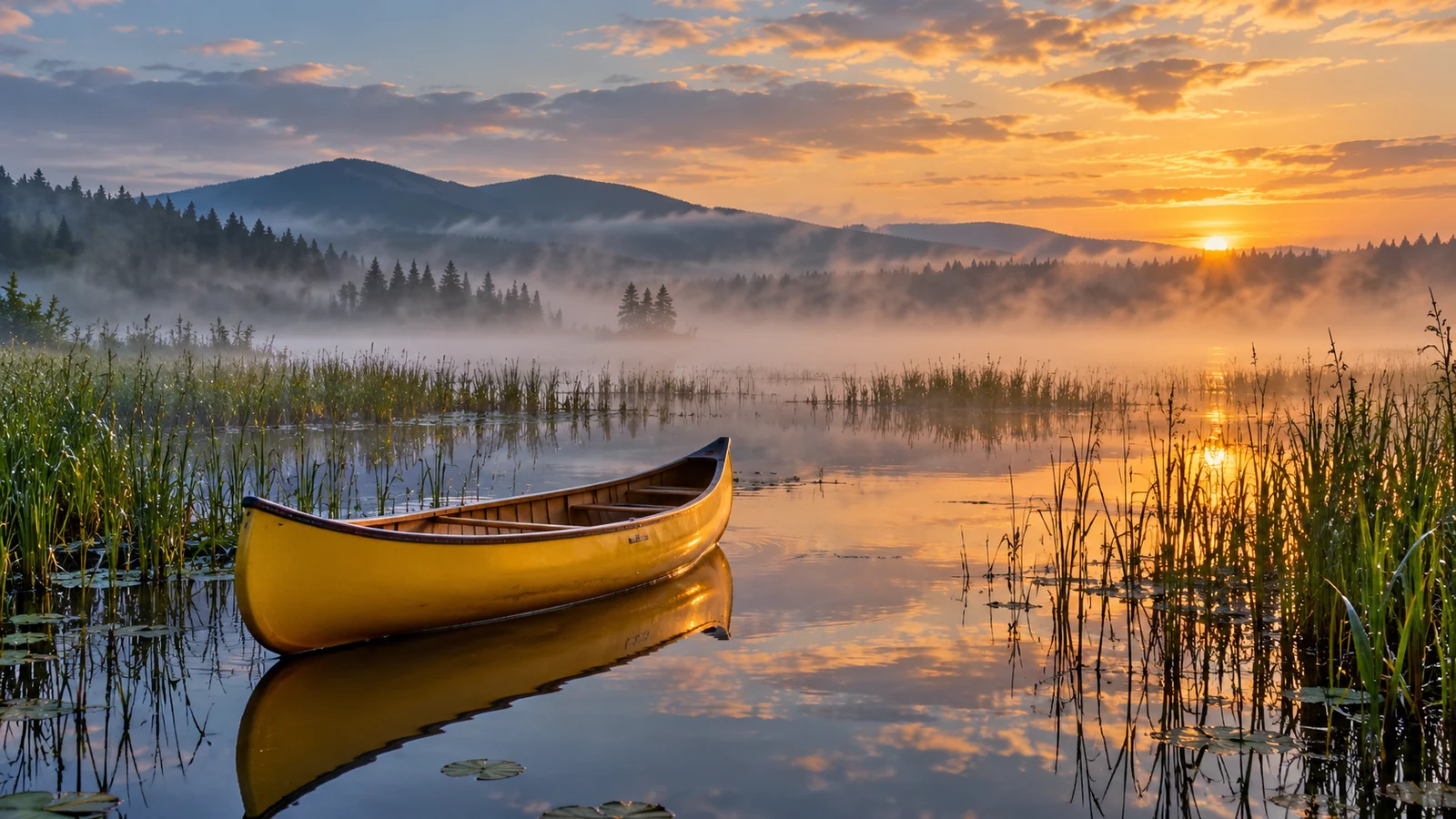
Reference-to-video focuses on subjects, scene style and visual relationships. Several pictures can contribute information about a person, object or environment to a new clip.
A canoe’s shape and color can combine with the light and space of a wetland. Give each source a clear role, then check structure, proportions and the features that should remain recognizable.
Start creating ↗
Shape the scene through camera and movement
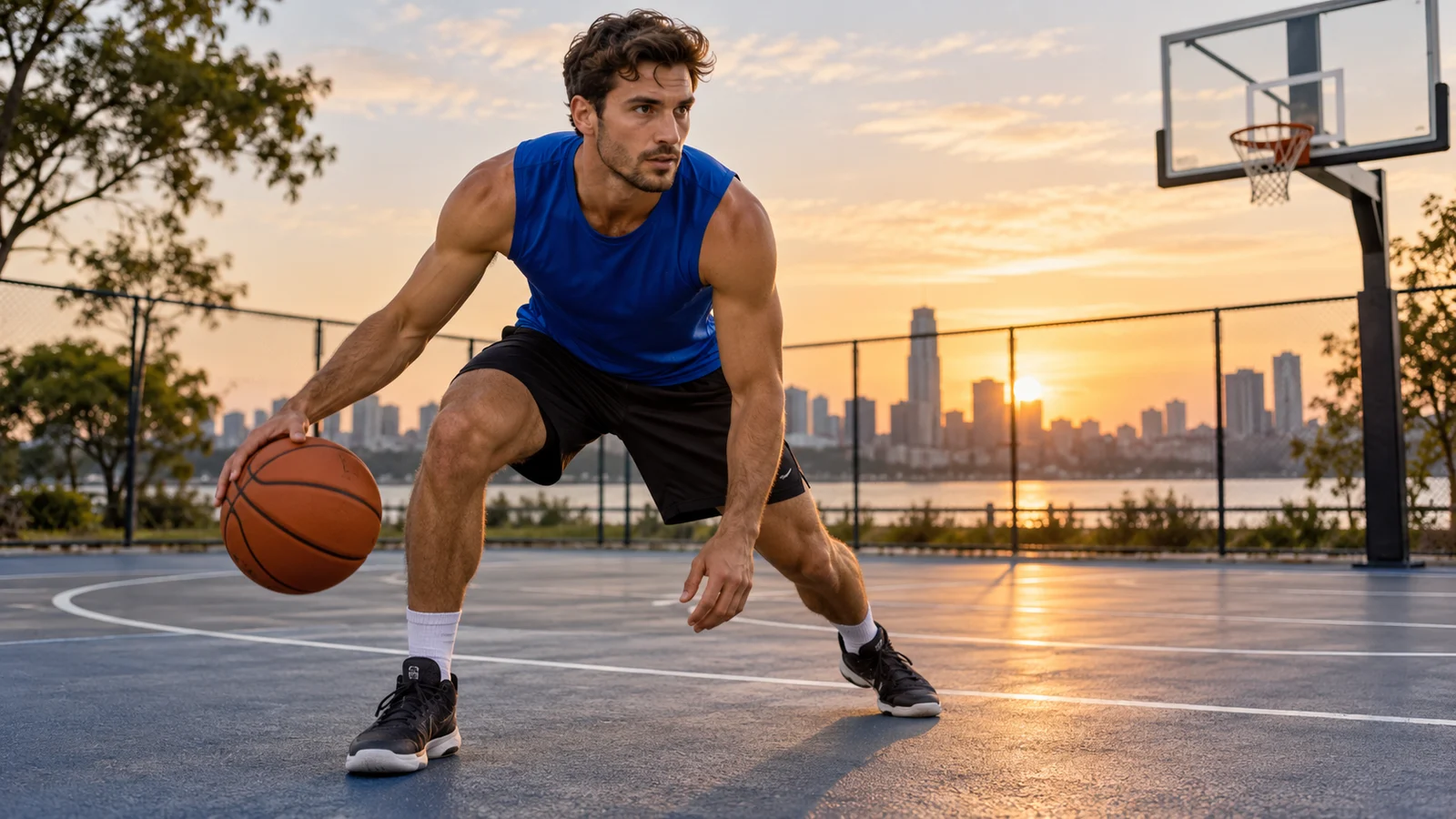
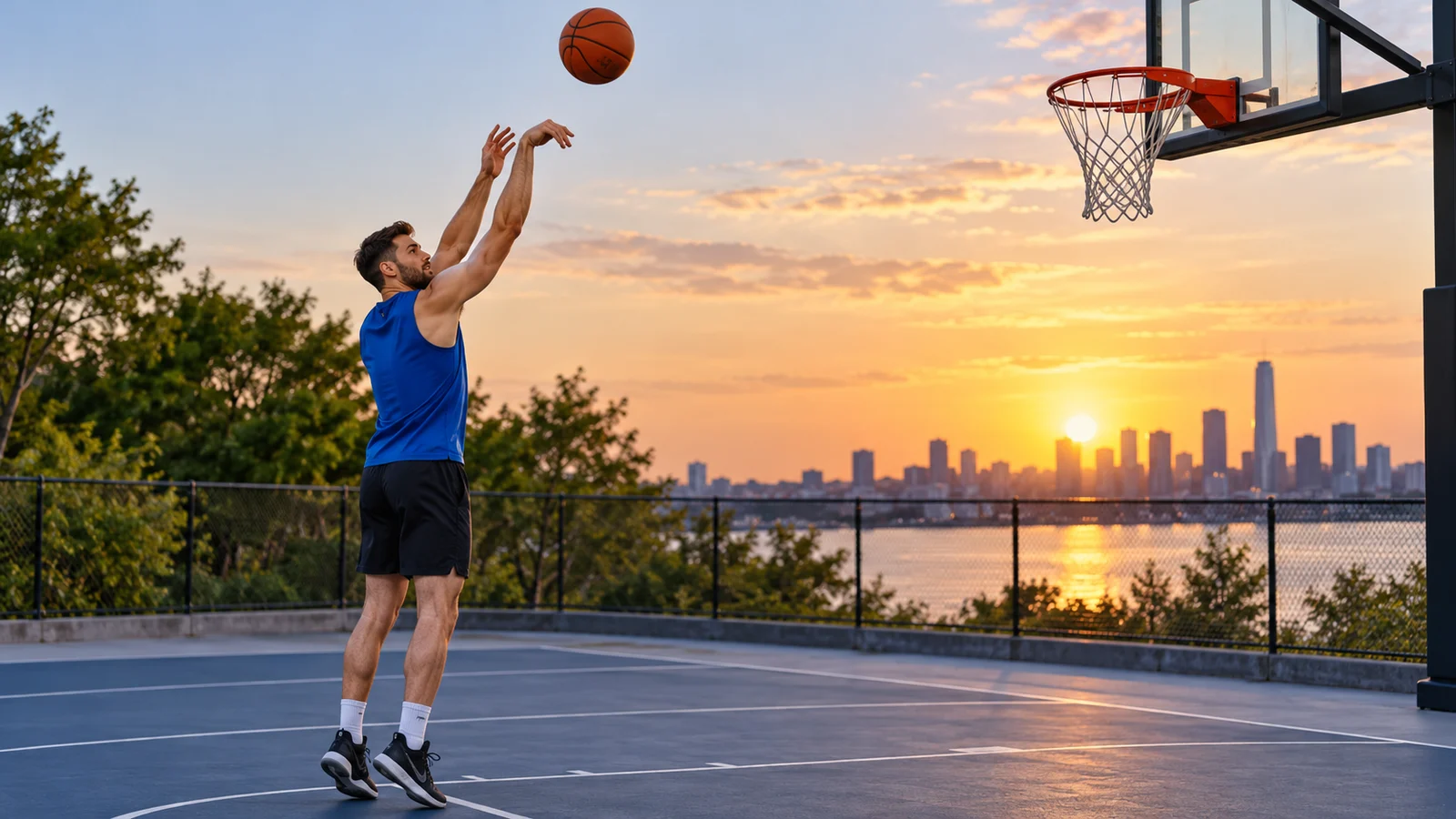
Dynamic rendering and camera control are central to 1.1’s positioning. Wider views establish a place, medium shots follow action, and closer views emphasize details around the same event.
A basketball concept can establish the court before exploring ball control and a shot. Inspect anatomy, object contact and fast movement throughout. The illustrated sequence is a camera concept rather than a continuity test.
Start creating ↗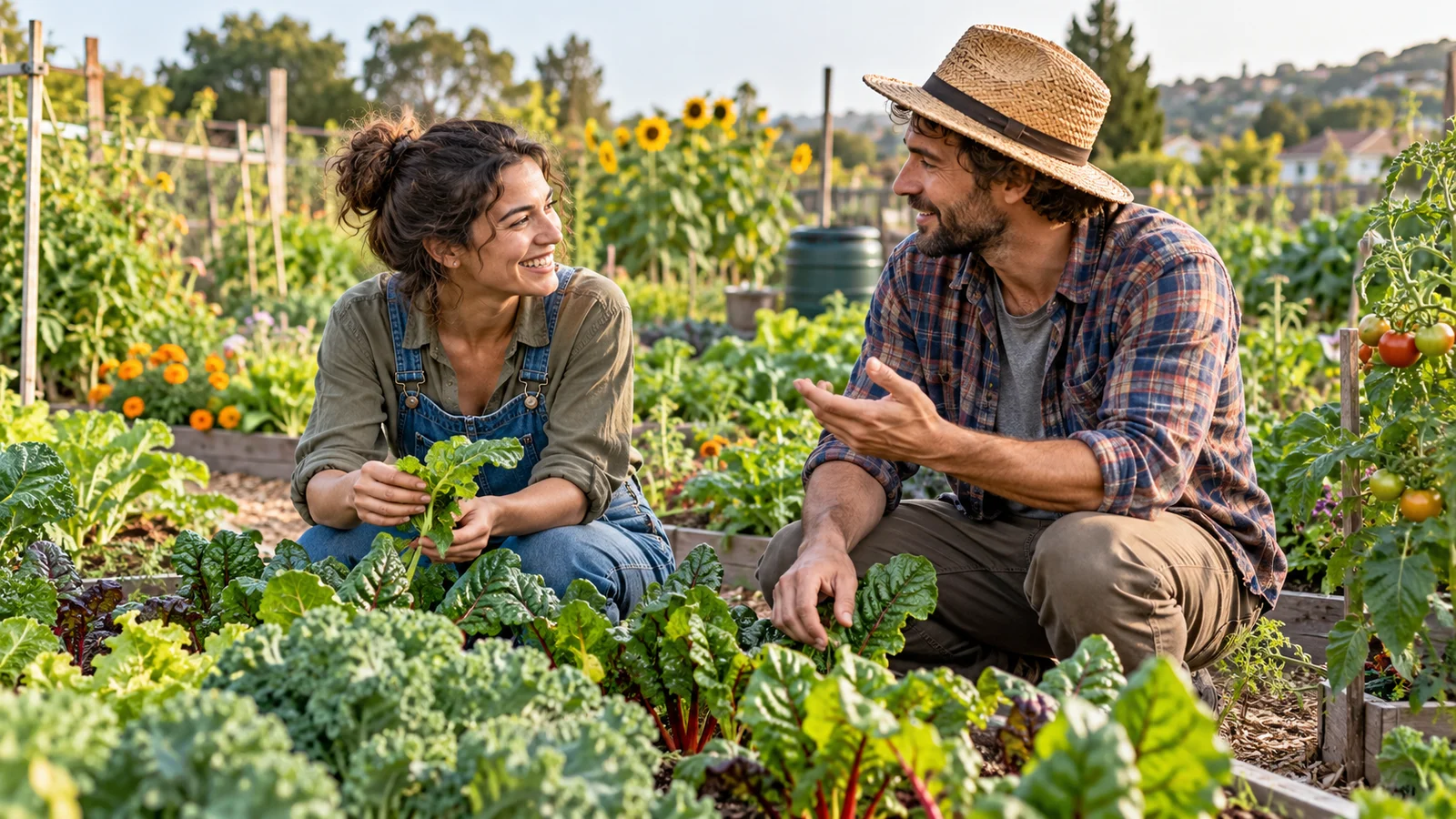
Add audiovisual expression
Supported generation modes organize sound alongside video. Conversation, environmental atmosphere and movement together affect how a scene feels.
A discussion in a community garden can combine tone of voice, surroundings and camera distance. Check speech, sound sources and synchronization, and review audio options available for the selected mode.
Start creating ↗Where can you use HappyHorse 1.1?
Choose material and an approach around the intended content, connecting subjects, settings and actions in a concrete clip.
Pets and everyday moments
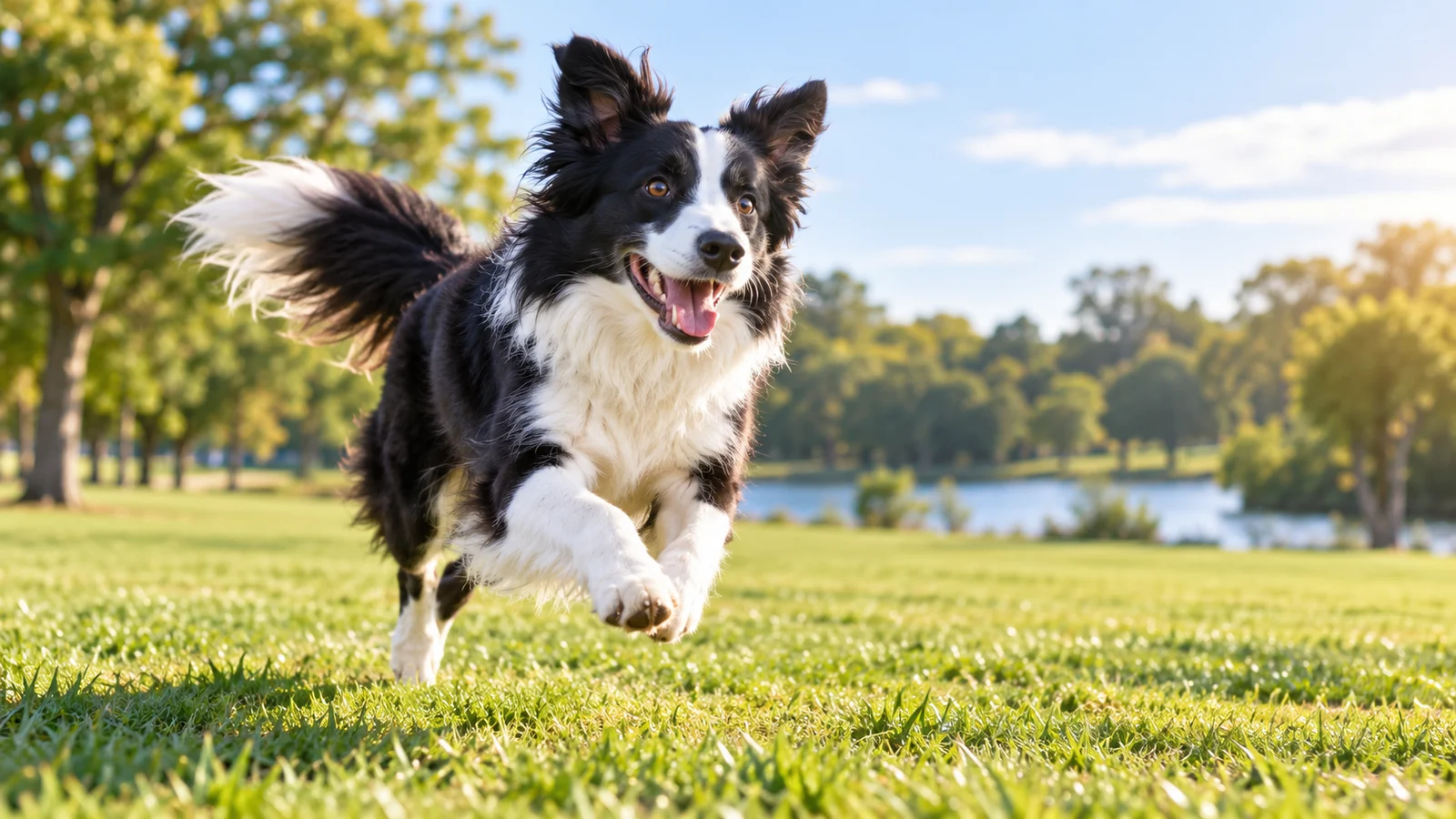
Explore animal activity, everyday observations and relationships with an environment. Verify anatomy, motion and care information; generated imagery is not training or medical advice.

Spaces and interiors
Explore light, furnishings and camera movement for spatial concepts and presentations. Imagery does not replace measurements, structural design or construction information.
Culture and events
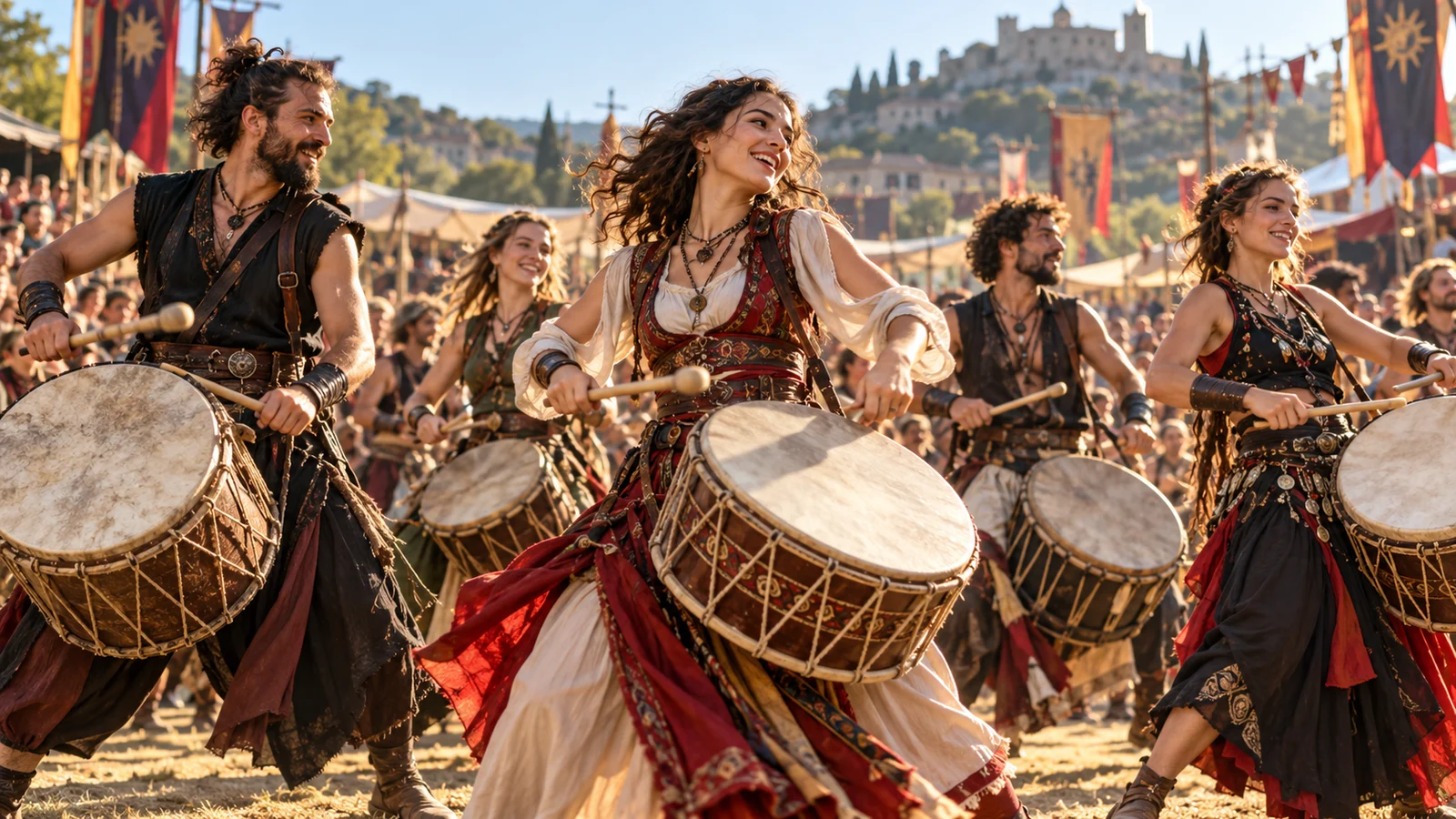
Develop local settings, performances and interactions into video concepts. Check factual sources and rights when representing people, traditions or events.
Original animation and illustration
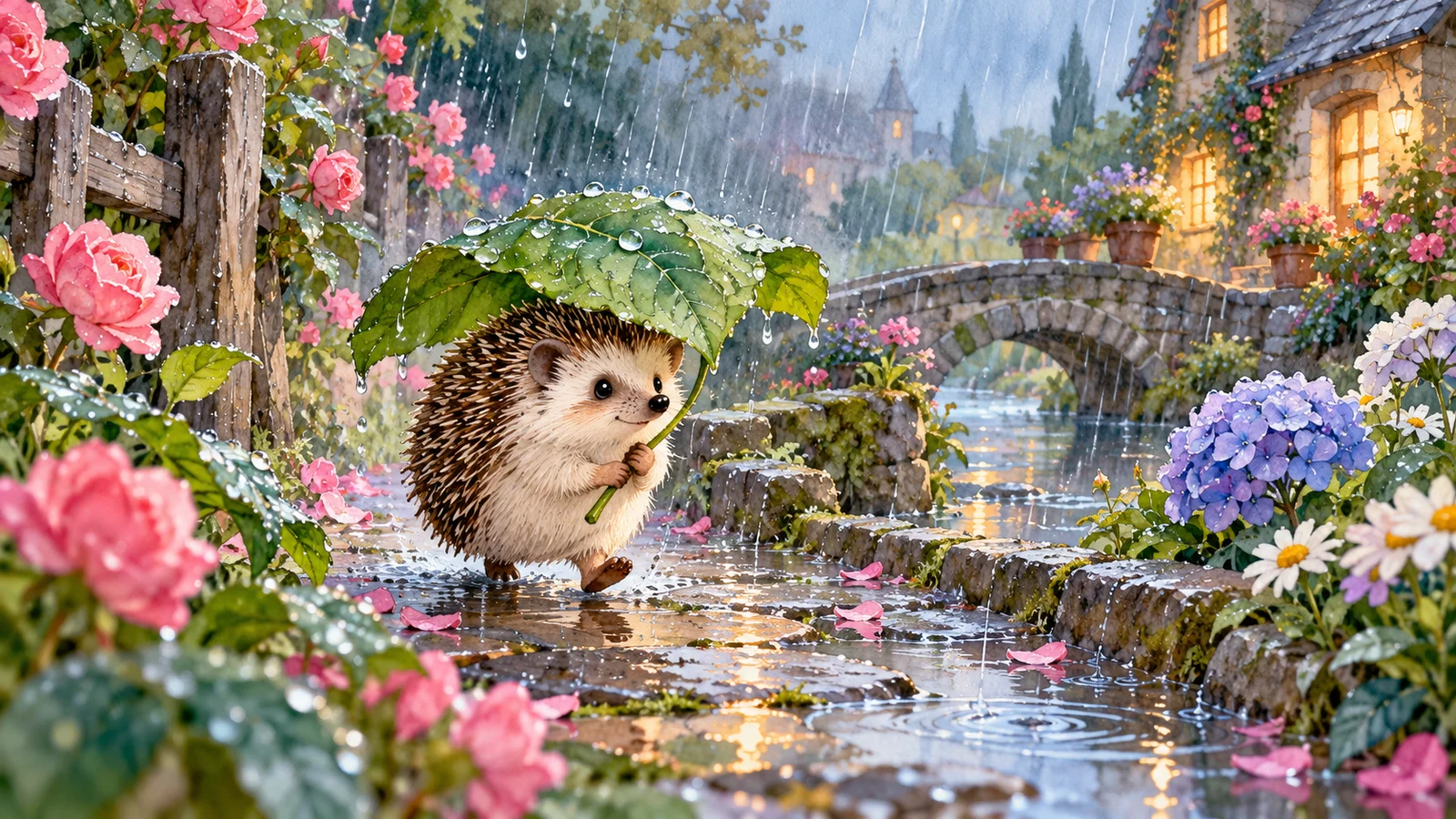
Develop small stories around original characters and settings, using watercolor or other visual styles. Inspect defining features, object relationships and transitions.
Distinguish 1.1, 1.0 and the task
1.1 offers separate text, first-frame image and reference-image creation models. 1.0 is a distinct version; confirm the model and input requirements when continuing existing work.
Official video editing also has a separate 1.0 model, which should not be treated as the same feature in a 1.1 generation model. Check the workspace for available modes, inputs and estimated credits.
Start creating with HappyHorse 1.1
- 01
Describe the goal
Identify the subject, setting, action and camera idea.
- 02
Review inputs
Choose an available 1.1 model and mode, add appropriate material and review estimated credits.
- 03
Submit and inspect
Submit deliberately, check imagery, movement and sound, then decide what to refine.
Frequently asked questions
What is HappyHorse 1.1?
It is a group of video models for text, image and reference-led creation. Alibaba Cloud Model Studio provides official model information and inference services. Input approaches use different model variants.
How can I use HappyHorse 1.1 online?
Open the bikabika AI video workspace from this page and confirm an available 1.1 model and mode. Check the workspace for inputs, settings and costs.
How do text, image and reference-to-video differ?
Text starts with a description; image-to-video establishes the initial frame from one picture; references provide subject and setting direction. Choose around the material and intended result.
What duration and resolution can I choose?
The official 1.1 overview lists 3–15 seconds and options up to 1080P. Conditions depend on the mode and service; review settings offered here.
Will references preserve identical people or objects?
References guide recognizable features and direction. Inspect faces, clothing, product structure and proportions before using the result.
Can HappyHorse 1.1 edit an existing video?
Generation and separate editing models are distinct. The currently listed official editing model is 1.0-video-edit; check the workspace for editing services offered here.
Does Start creating immediately generate a video or spend credits?
It does not submit automatically. Confirm the mode, material and estimated credits in the workspace before submitting. See pricing for billing and plan rules.
Is this the official HappyHorse website?
This is bikabika AI, a one-stop AI creation platform. Our accounts, credits and service are separate from the official inference platform.
Develop your next scene with HappyHorse 1.1
Start with a description, image or references and continue in the video workspace.