
GPT Image 2.5 Update: Flare, Sunburst and Image Editing
Explore the GPT Image 2.5 update, Flare and Sunburst roles, and the difference between model improvements and ChatGPT tools. Learn what to check when trying a new image workflow.
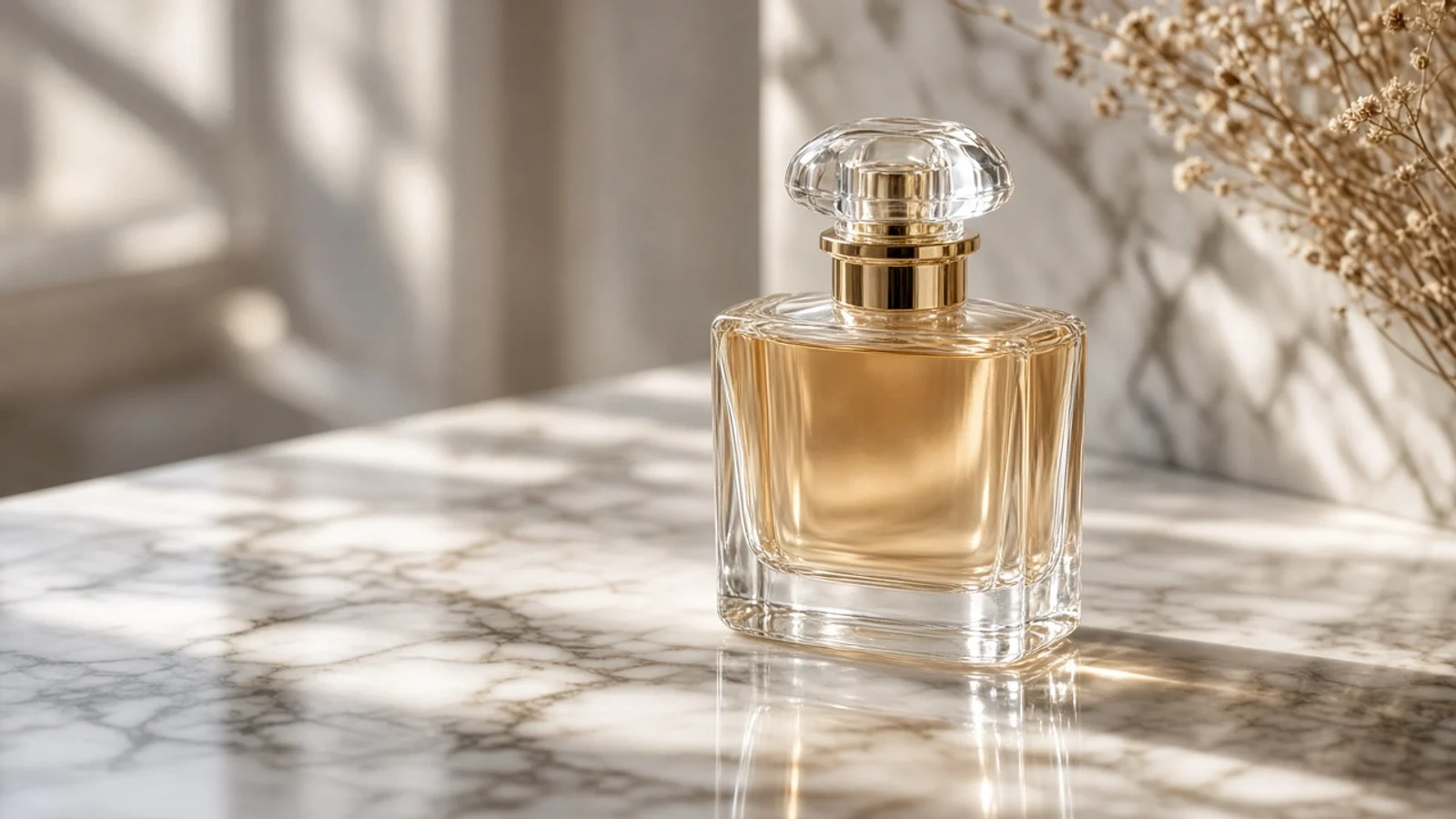
The GPT Image 2.5 release includes model updates and changes to creative tools in ChatGPT. Separate model, mode and product interface before deciding what matters for your task.
See the GPT Image 2.5 model page for an introduction and entry, or the first-use guide for steps.
What did OpenAI announce?
OpenAI’s September 8, 2026 announcement emphasizes detail, generation efficiency and editing improvements. It also distinguishes the Flare and Sunburst API models from ChatGPT features such as Sketch and image comments. See the official release.
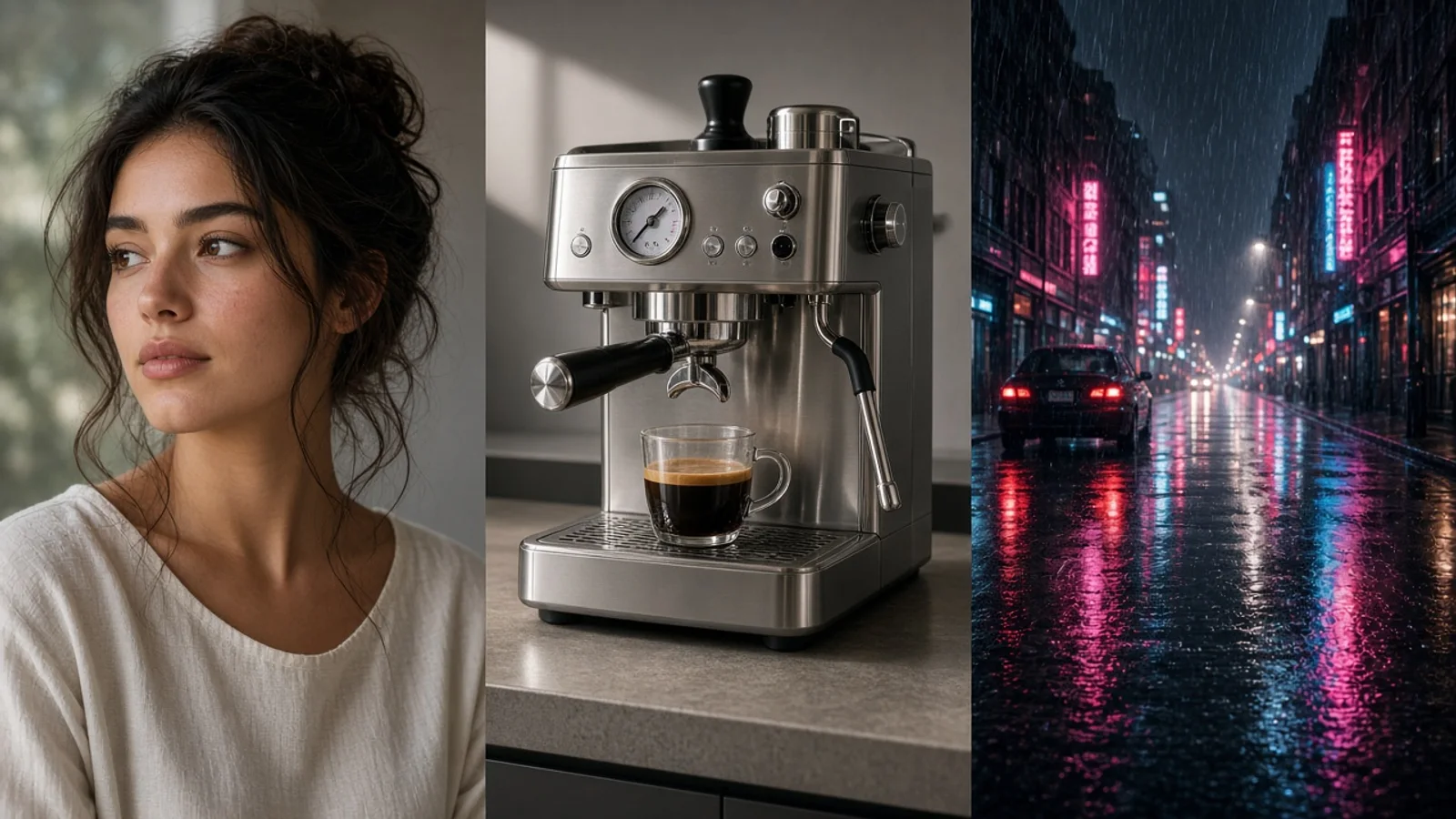
How should you understand Flare and Sunburst?
Officially, Flare focuses on fast, high-quality everyday generation; Sunburst targets more precise creative and editing work. Those roles are starting points, not universal winners for every prompt.
| Task | Inspect |
|---|---|
| Explore advertising, social or scene directions | Waiting experience, composition and prompt fit |
| Refine product or brand visuals | Text, material, silhouette and reference details |
| Revise an existing image repeatedly | Requested changes and unintended alterations |
Record the complete model, settings and task rather than using “2.5” to stand for every condition.
How should you read speed claims?
The release reports up to 50% lower generation latency than Images 2.0. This is an official comparison, not a per-task promise on this site or a claim that charges are halved. Waiting also depends on mode, settings, queues and service conditions.
Compare a consistent brief, record submission-to-completion time and inspect whether the result is useful. A single run does not establish stable comparative performance.
What should you inspect in edits?
Separate requested changes from preserved features. Compare silhouette, lettering, colors, background and crop. Across successive edits, also check whether previously accepted details changed.
For example: preserve the reference bottle’s main shape and placement, change only the background to warm light gray, remove clutter and add no labels. Inspect the cap, label and reflections as well as the new background.
Are ChatGPT’s new tools automatically available here?
No. Sketch, comments and templates are product-specific interactions. Use the inputs and controls currently offered on this site rather than assuming an official demonstration’s buttons are implemented everywhere.
Explore the AI Photo Editor for existing images or the AI Image Generator for a new scene from text.
Should you move an existing GPT Image 2 project?
Keep the original prompts, references and selected versions. Compare available options on a real task and judge required features and revision quality. Retain a useful existing workflow; compare alternatives when you have a specific problem to solve.
Frequently asked questions
Are ChatGPT Images 2.5 and API models identical experiences?
Distinguish the product from specific API modes. Interfaces, settings and charges should not be mixed.
Does official speed improvement guarantee faster tasks here?
No. Evaluate the task, mode and current service conditions.
Can an edit guarantee only one area changes?
State a specific goal, then compare other areas for unintended changes.
Does the new version guarantee commercial readiness?
It does not replace checks for text, products, people and usage rights.
How can I start here?
Open the model page or image generator, select an available model and settings, then review estimated credits.
Next step
Explore the GPT Image 2.5 model page or prepare a description with the prompt guide. This article explains the release and selection approach rather than presenting site test rankings.